






Qbon
Użytkownicy
-
Dołączył
-
Ostatnia wizyta
-
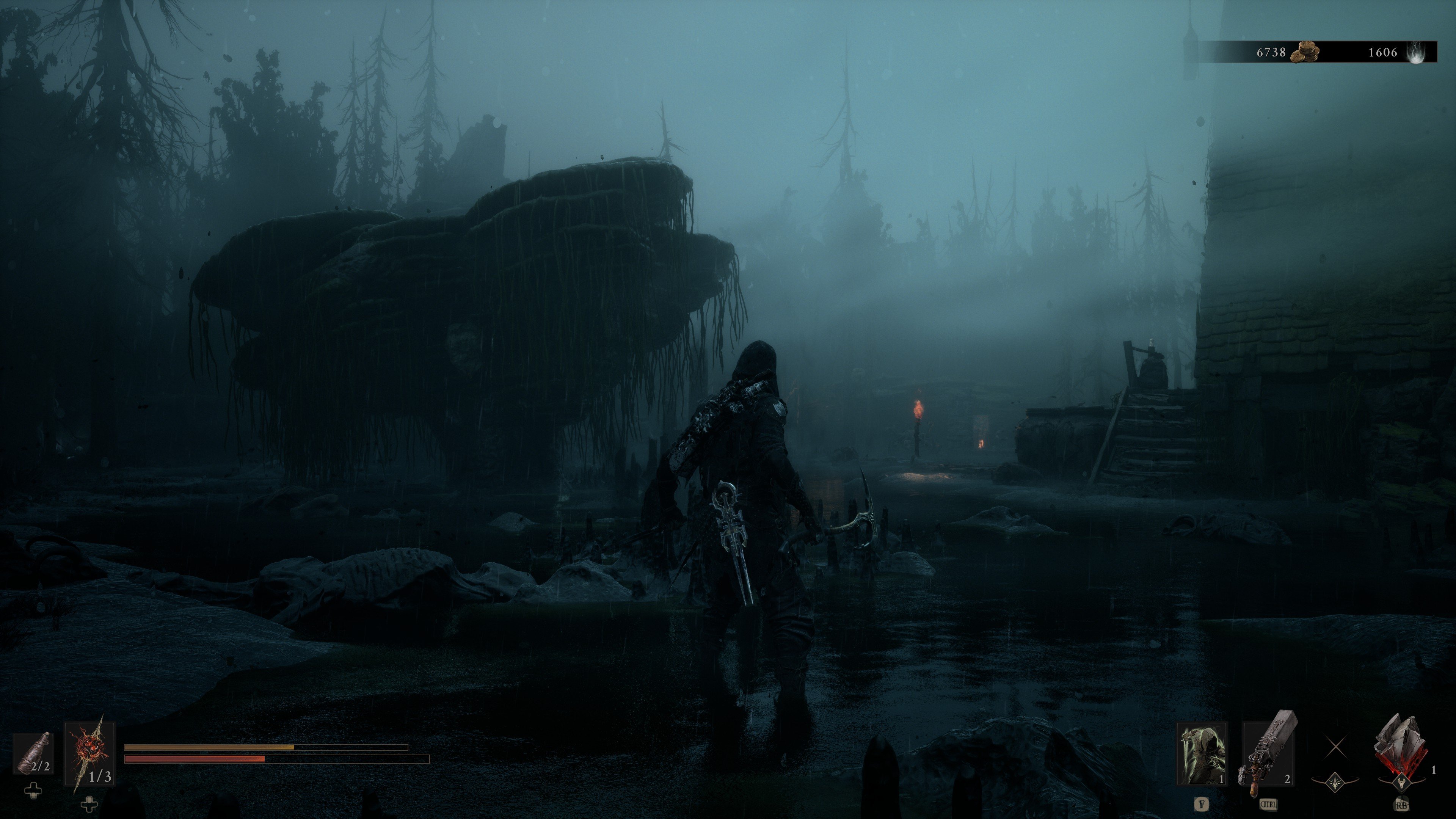
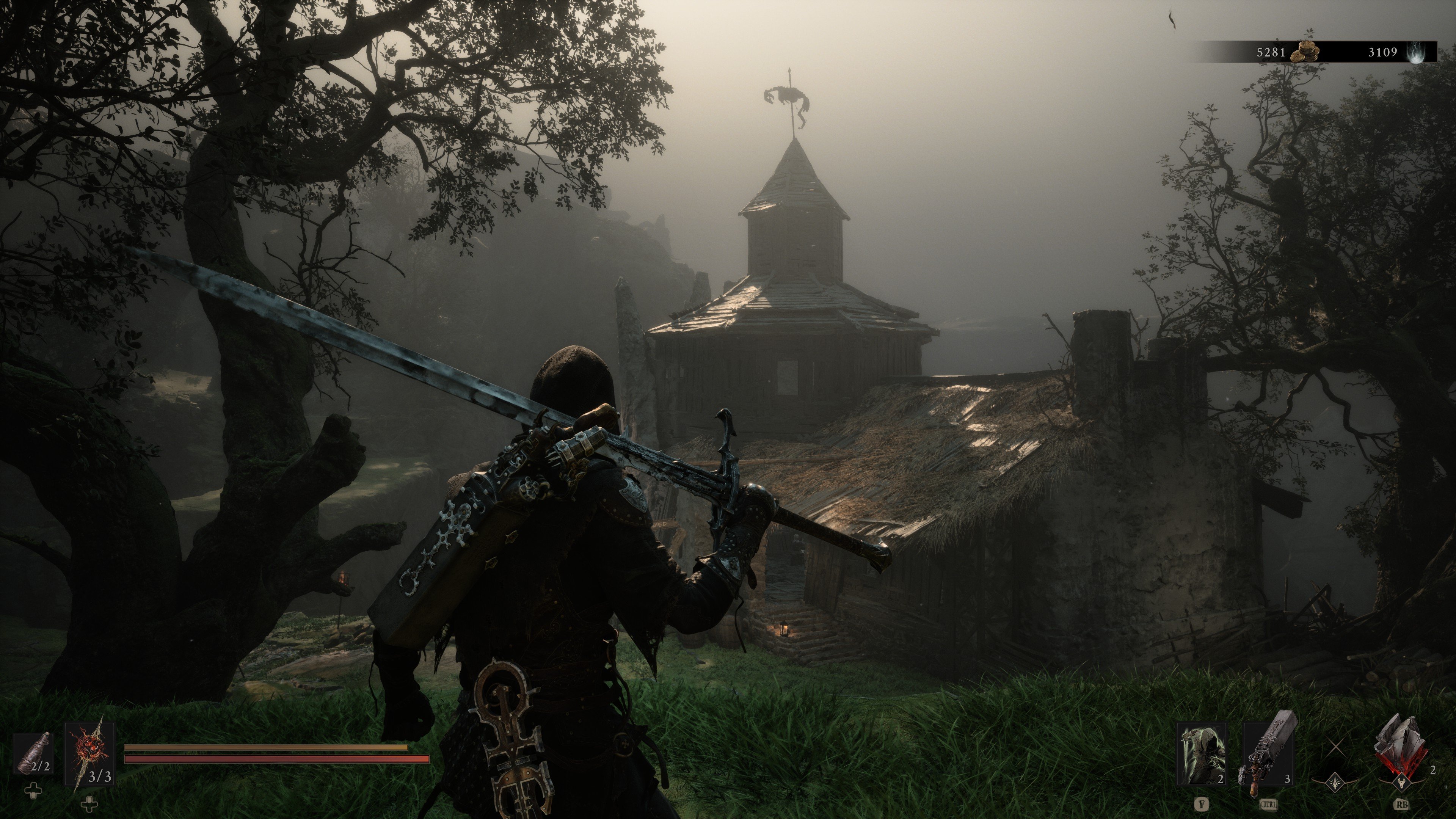
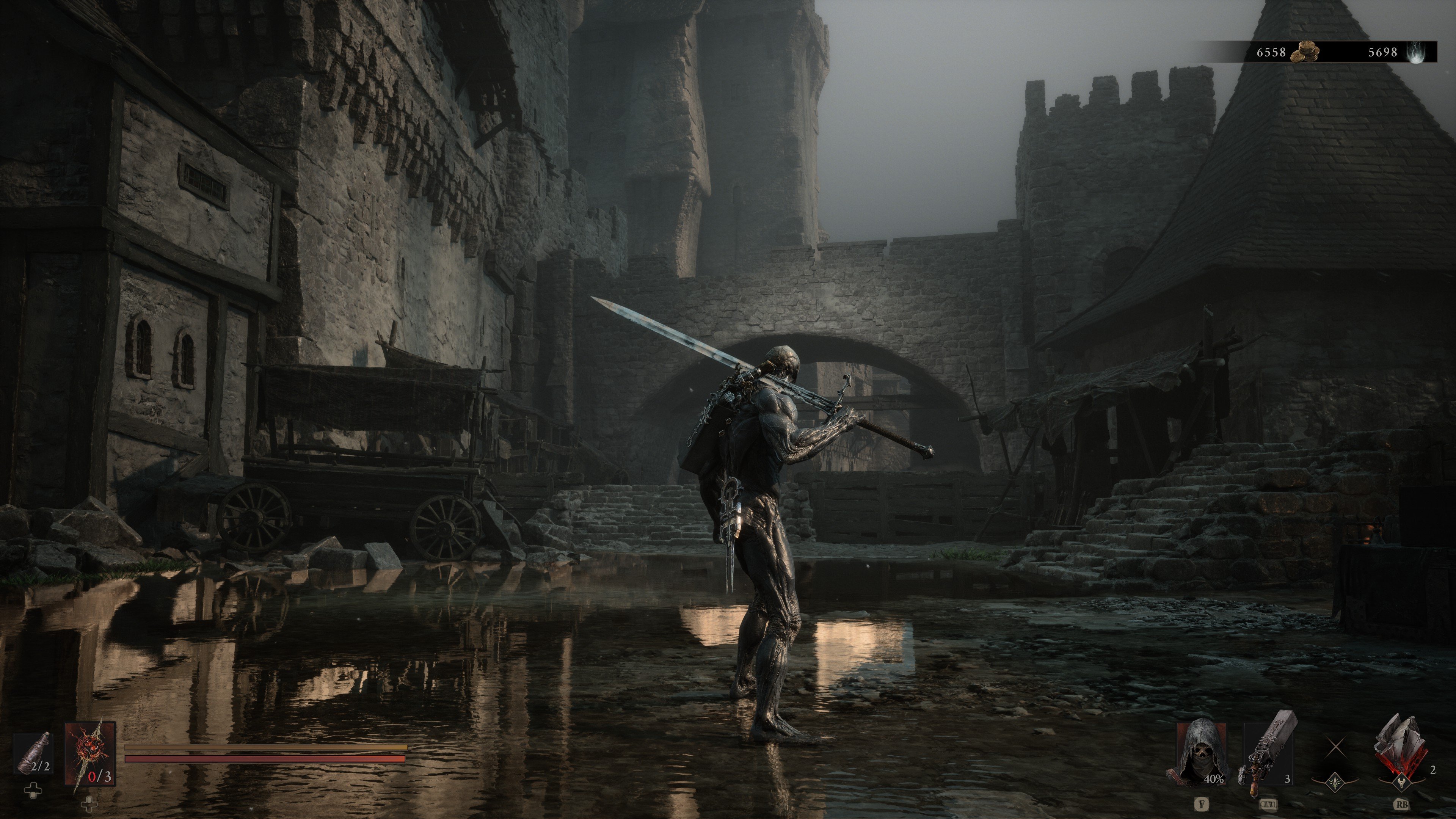
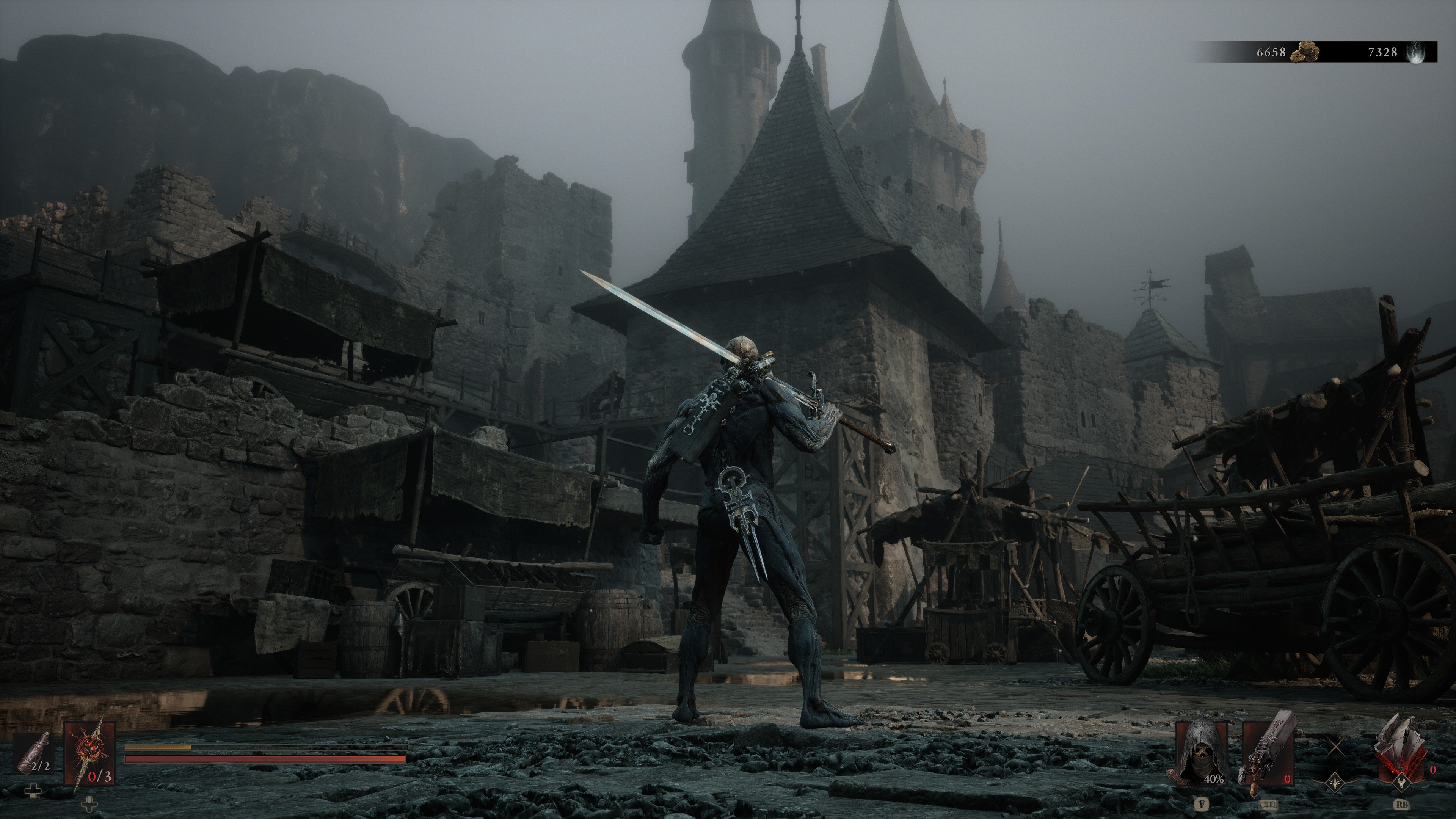
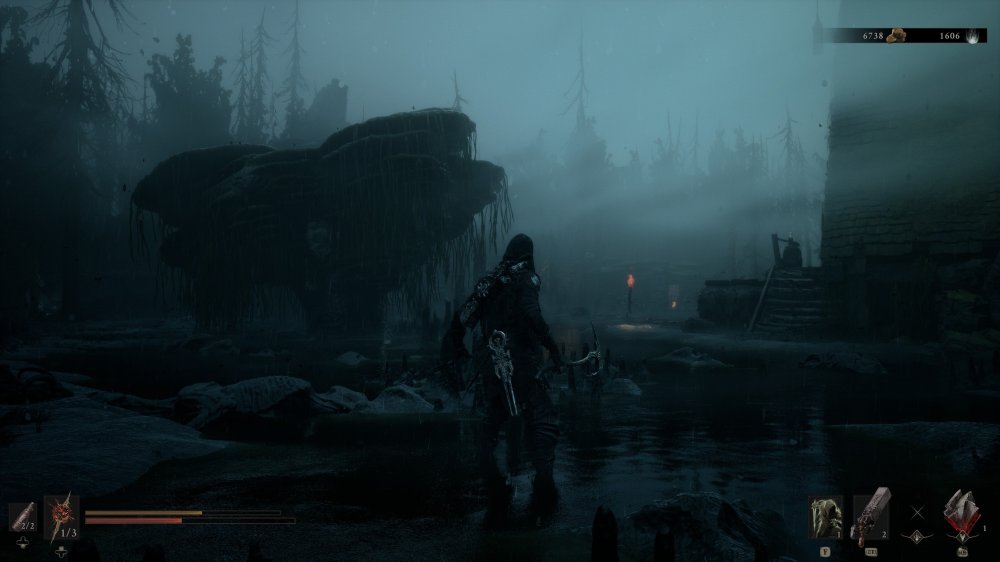
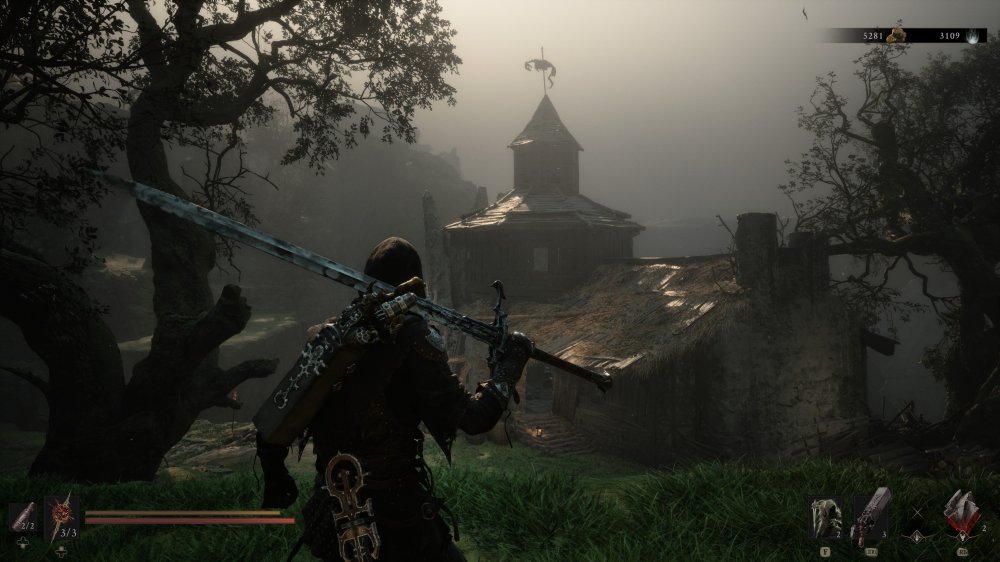
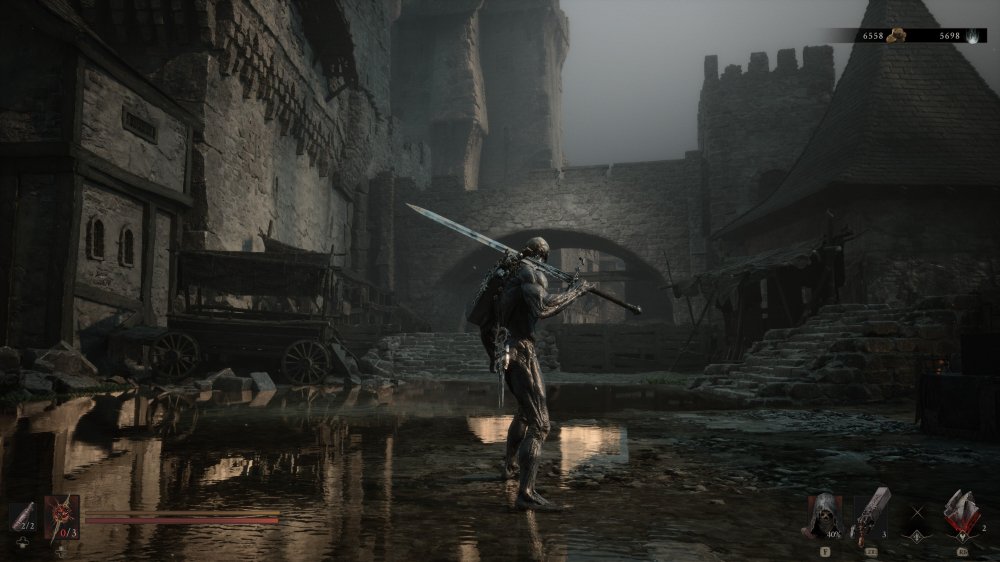
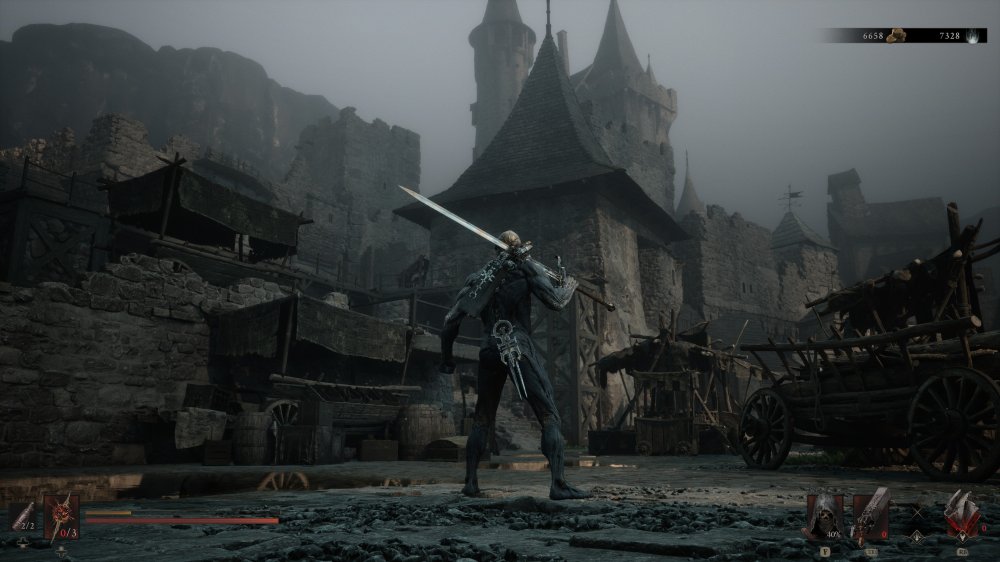
No nie powiedziałbym żeby lokacje były biedne, są dosyć różnorodne a gram od dzisiaj dopiero. Oczywiście nie można tego porównywać do mistrzów gatunku czyli From Soft ale gra ma bardzo dobry klimat takiego surowego dark fantasy, lokacje są mroczne, mają coś w sobie, ogółem gra ma kilka ciekawych pomysłów na rozgrywkę, walka to taka klepanka trochę ale czuć, że tak powiem uderzenia bronią, daje satysfakcję.
-
RDR2 wyszło na PC rok po wersjach konsolowych.
-
Ja chyba wezmę, demo mi się bardzo podobało, takie surowe dark fantasy. Waham się trochę między tym i The sinking city 2 które brać najpierw. Pod koniec sierpnia Resonance a to dopiero początek premier
-
-
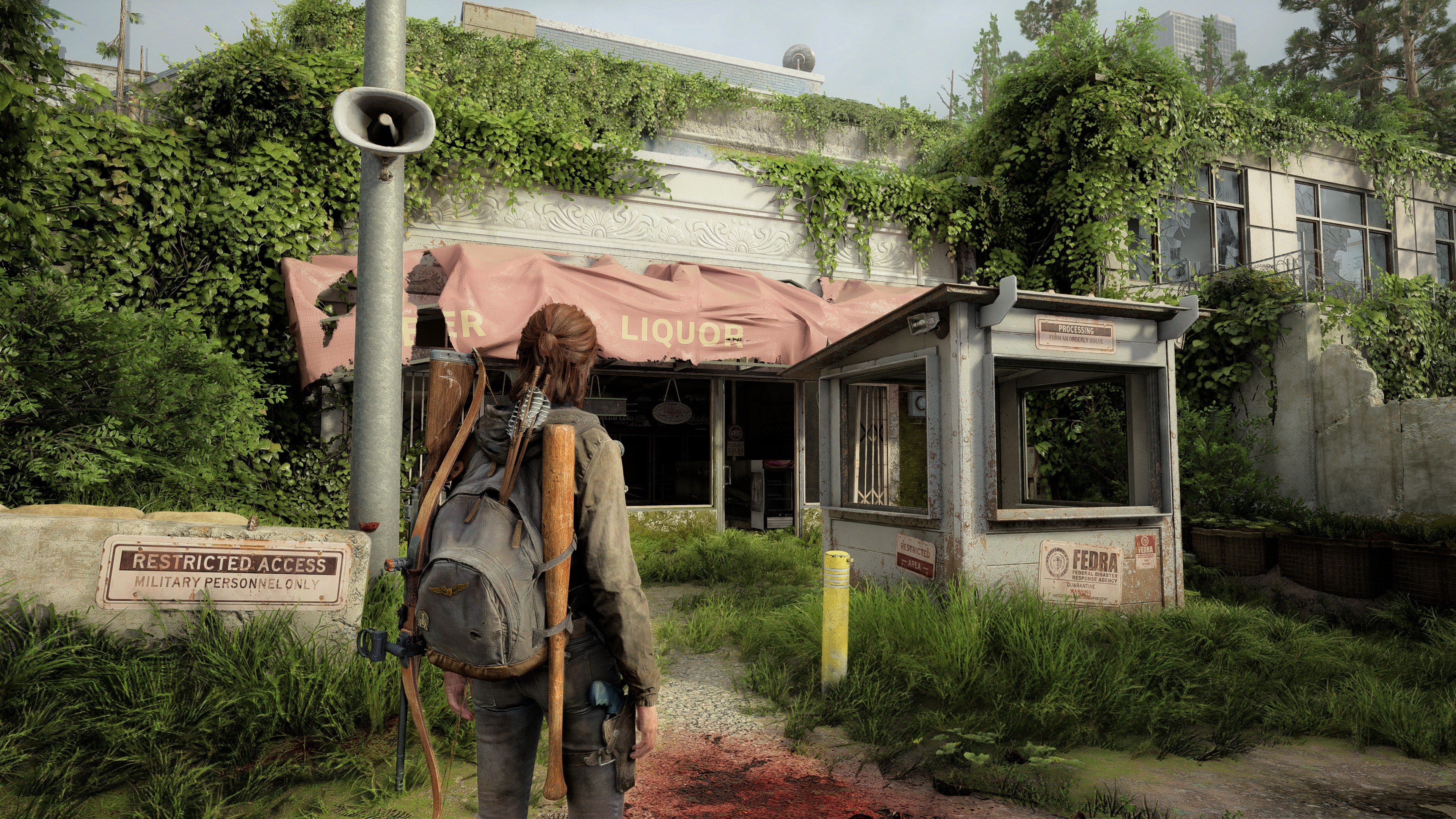
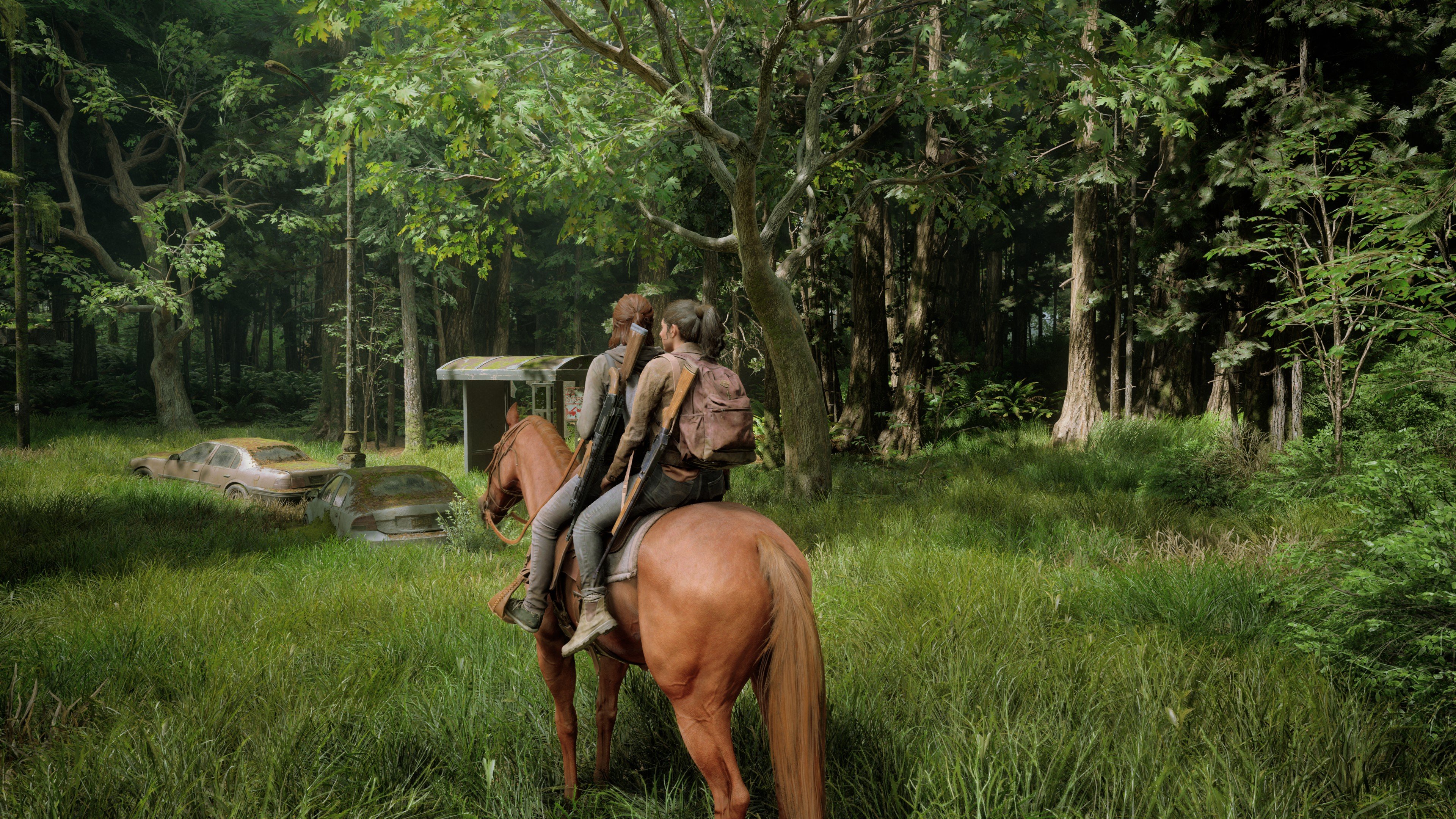
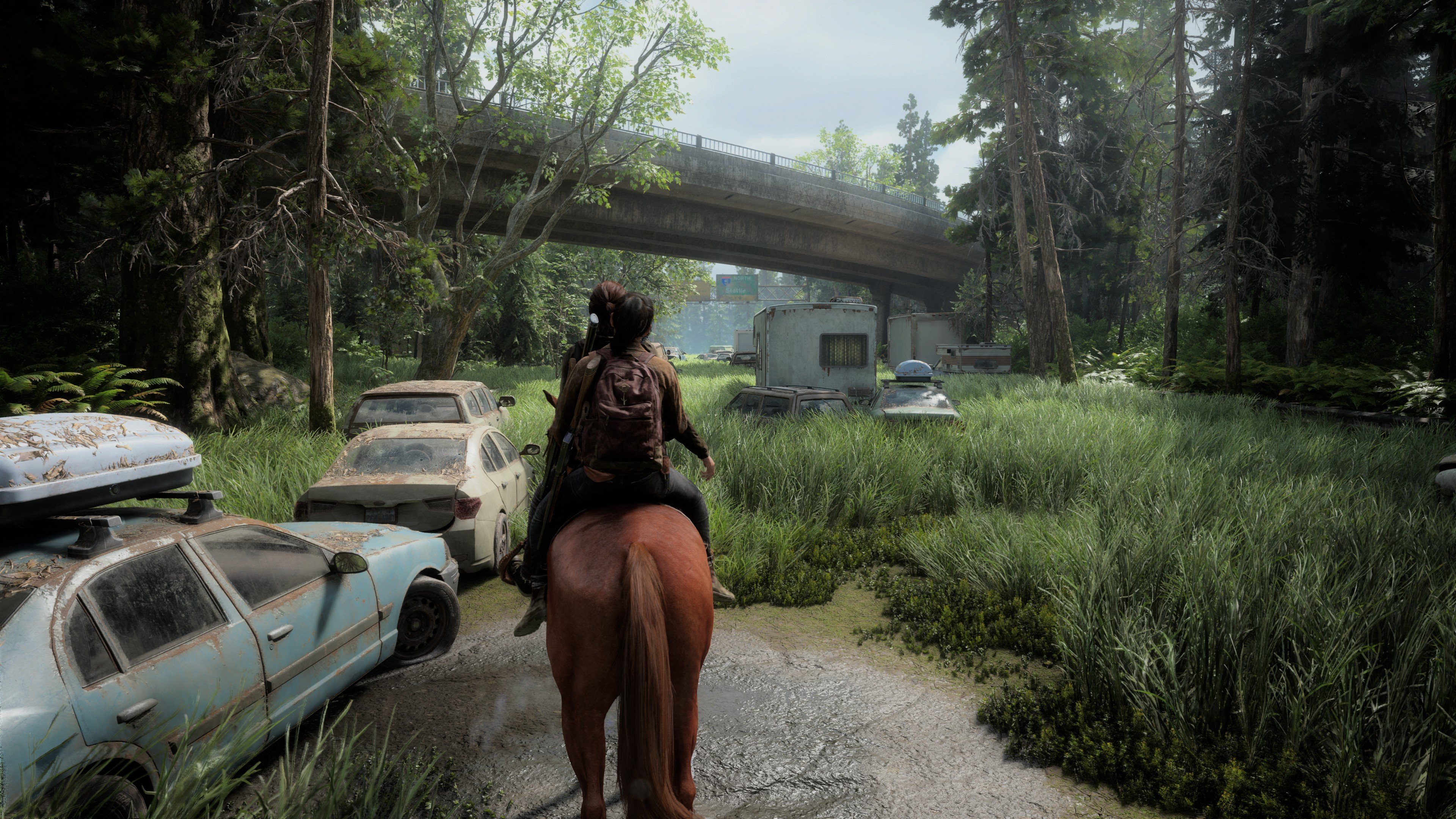
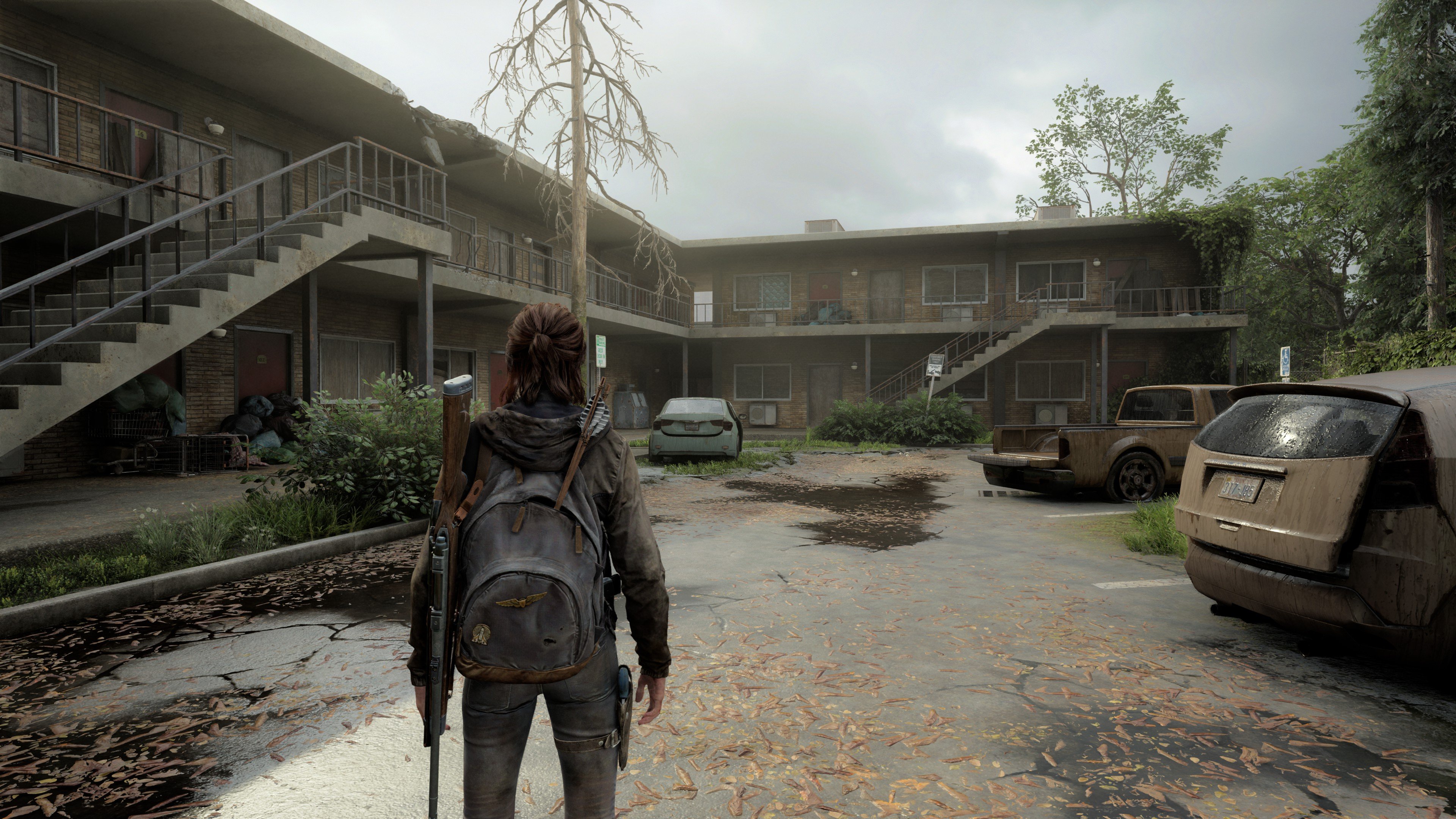
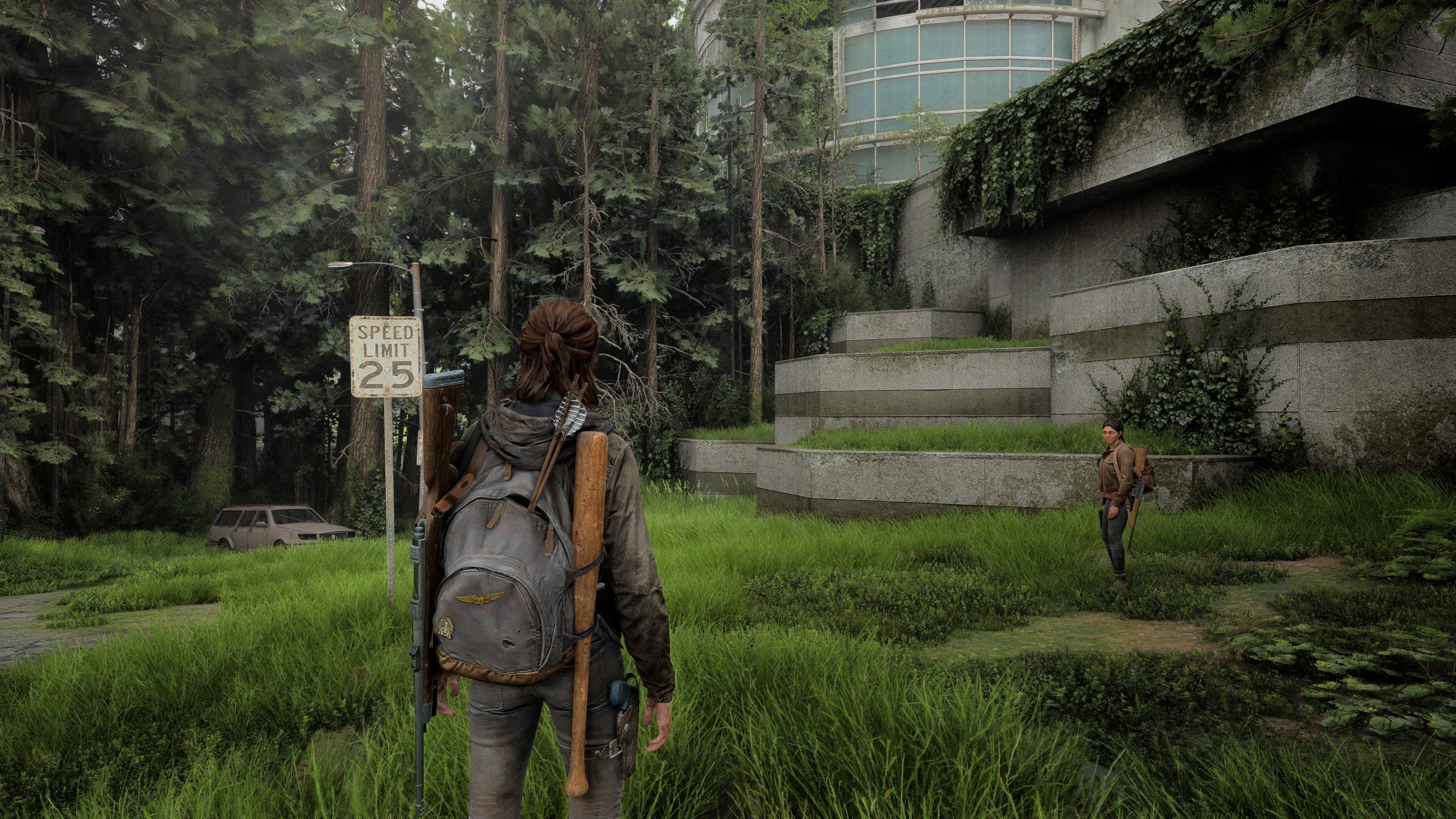
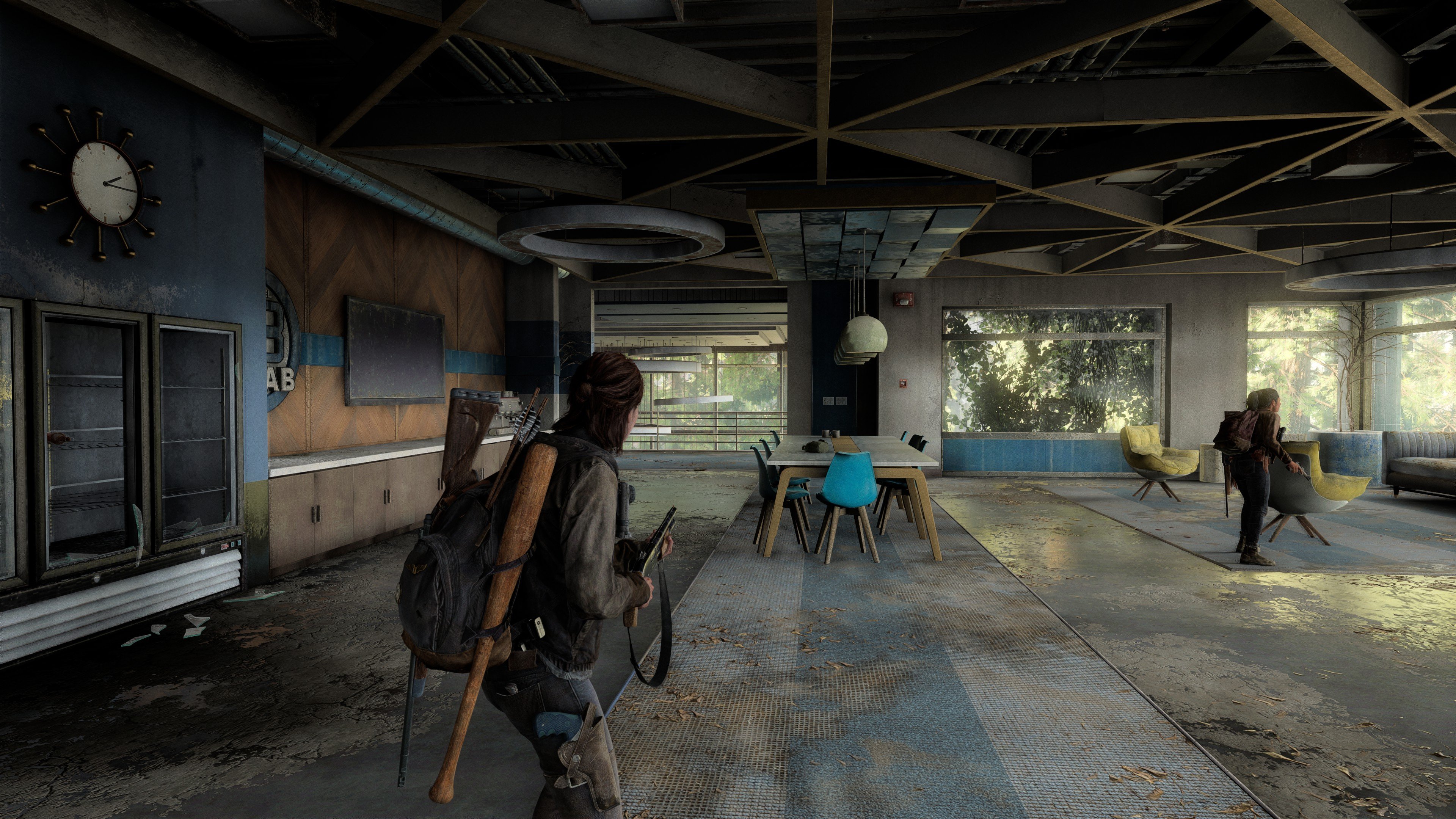
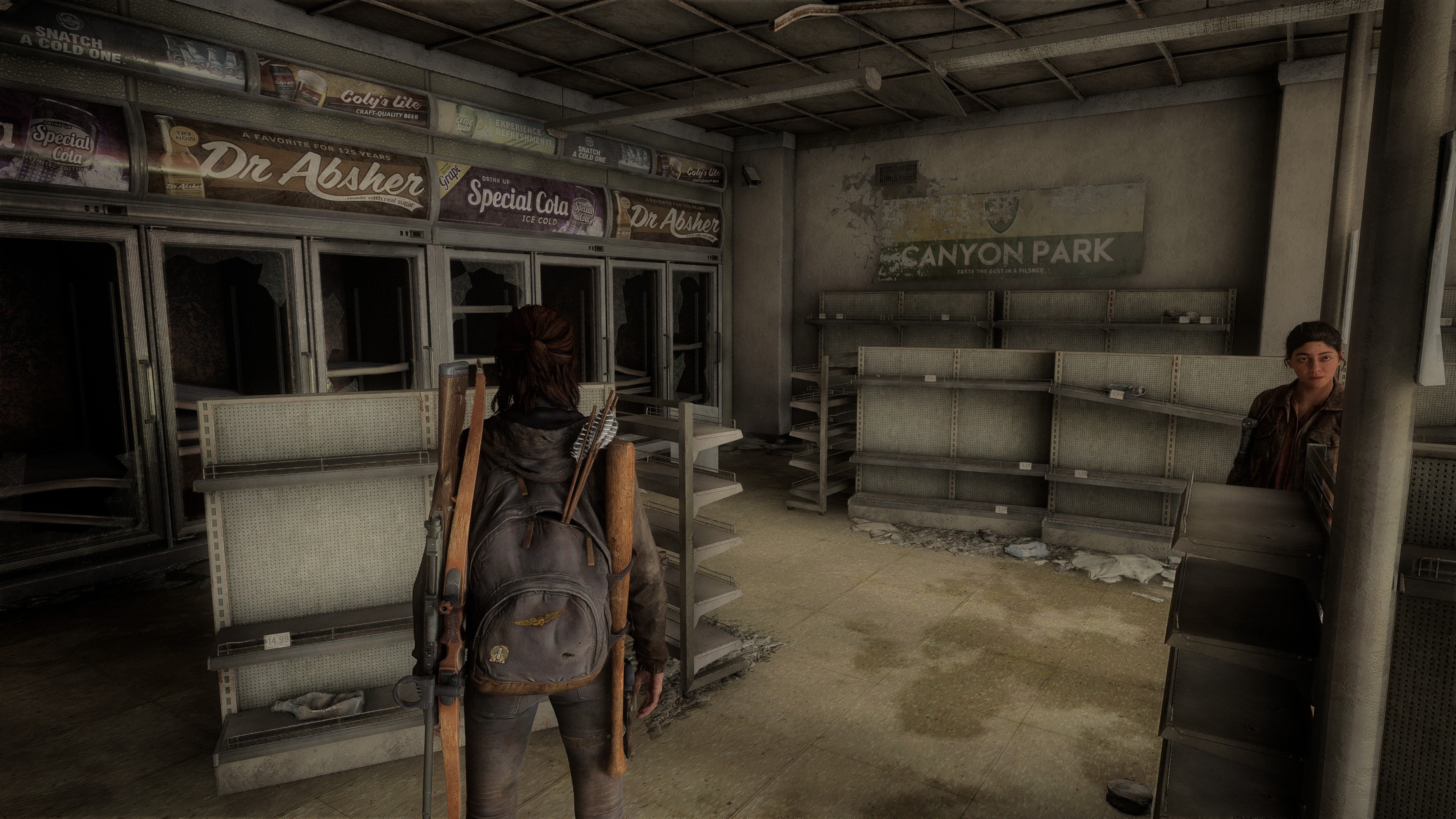
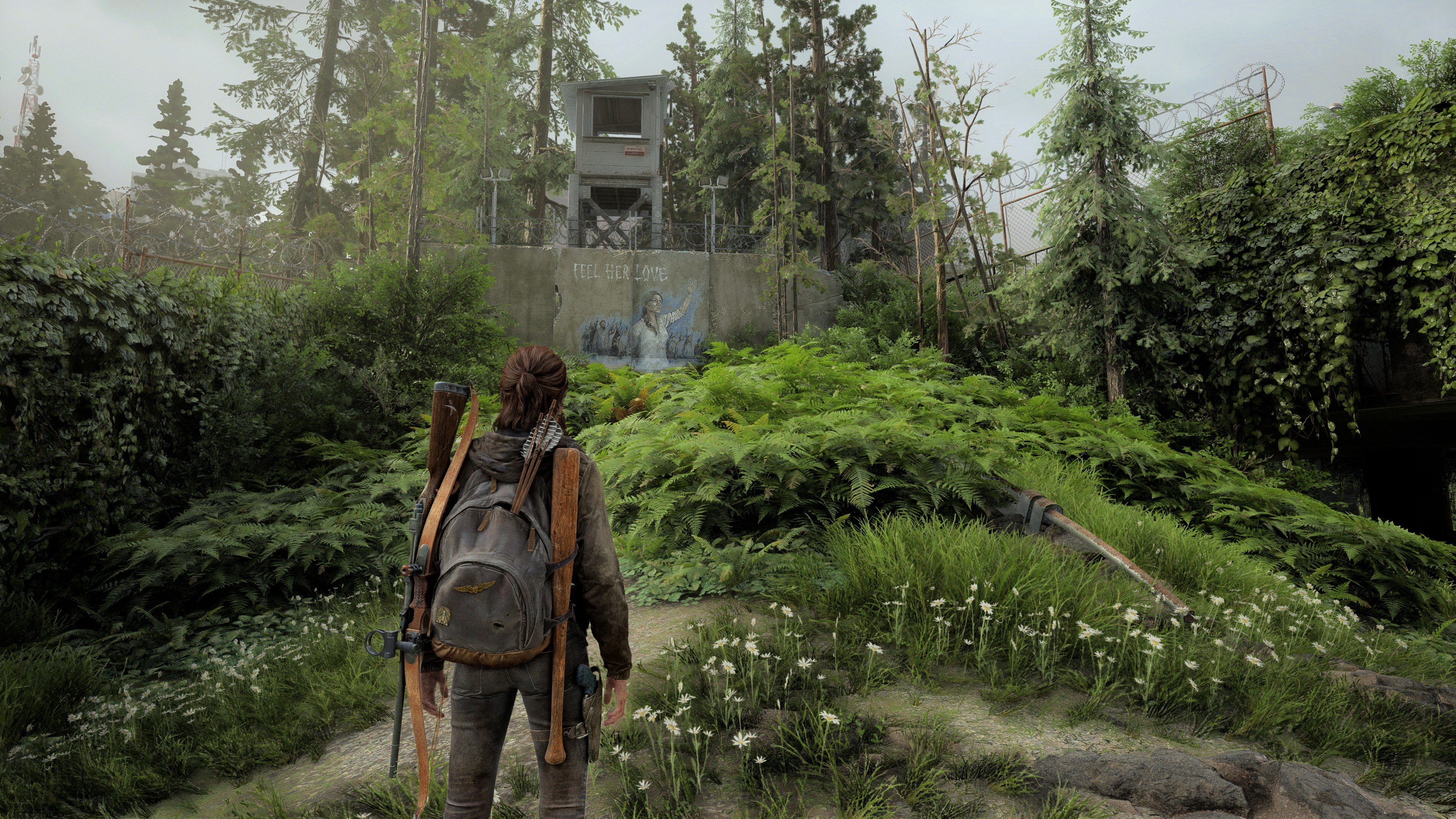
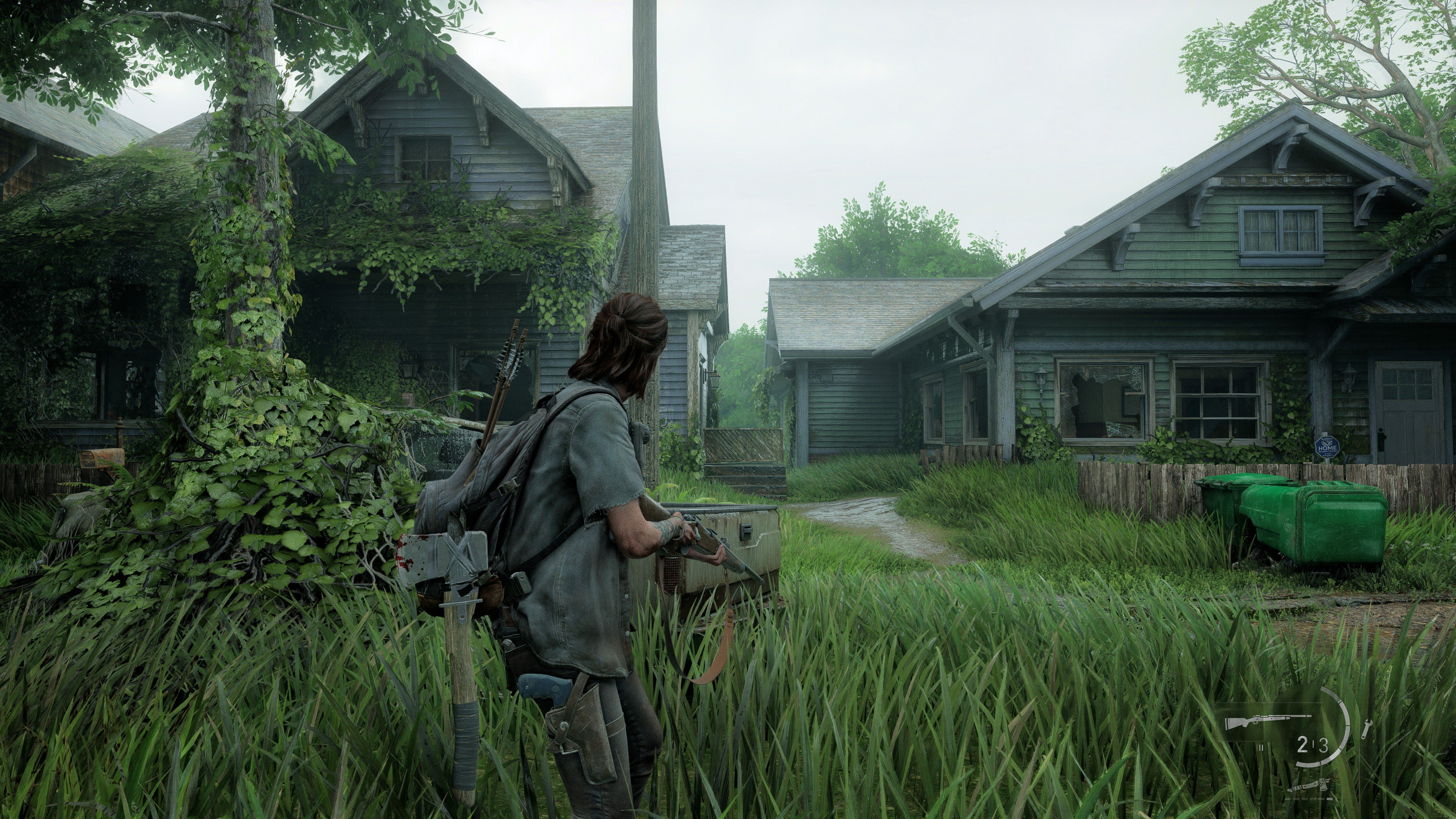
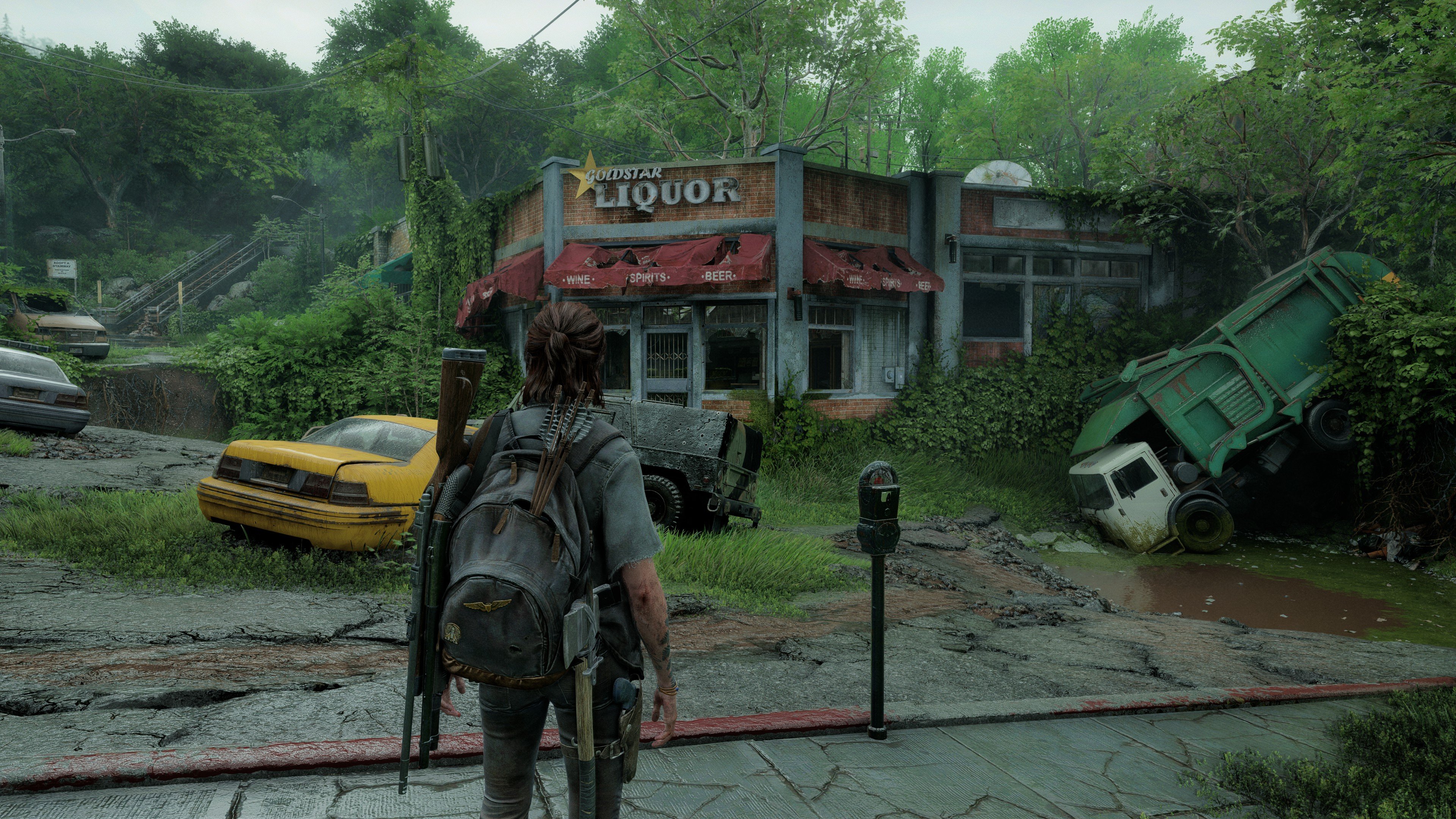
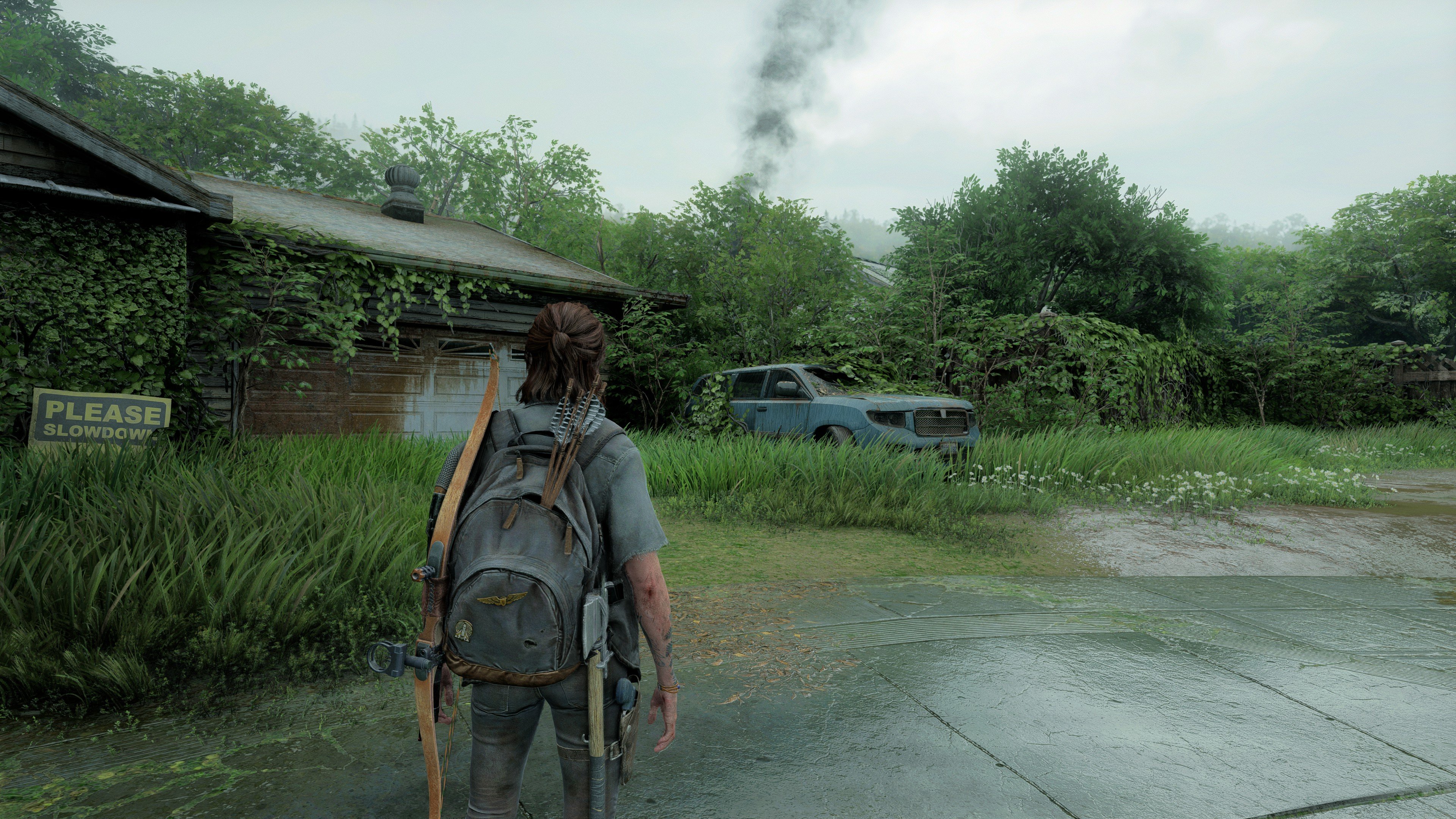
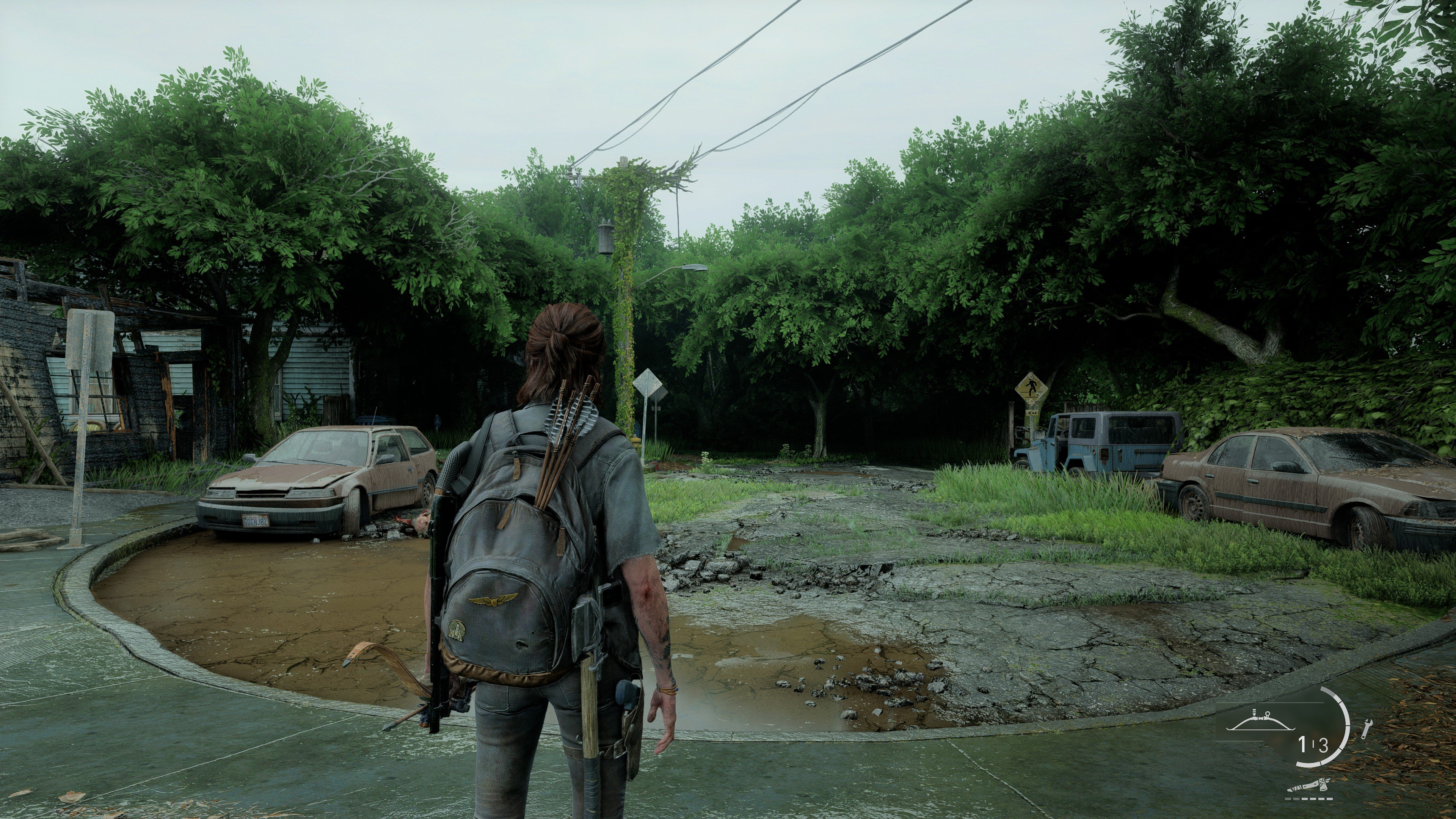
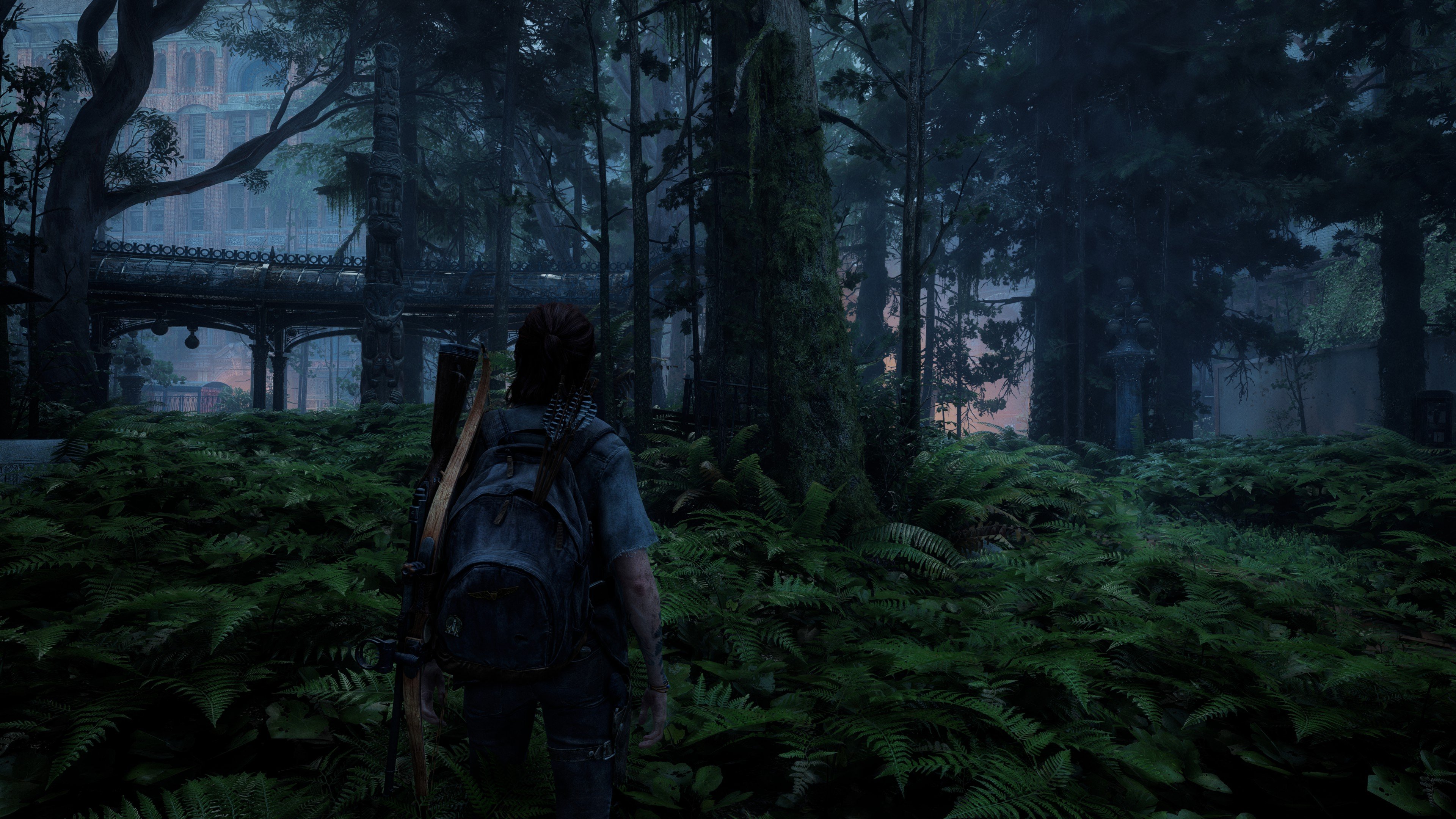
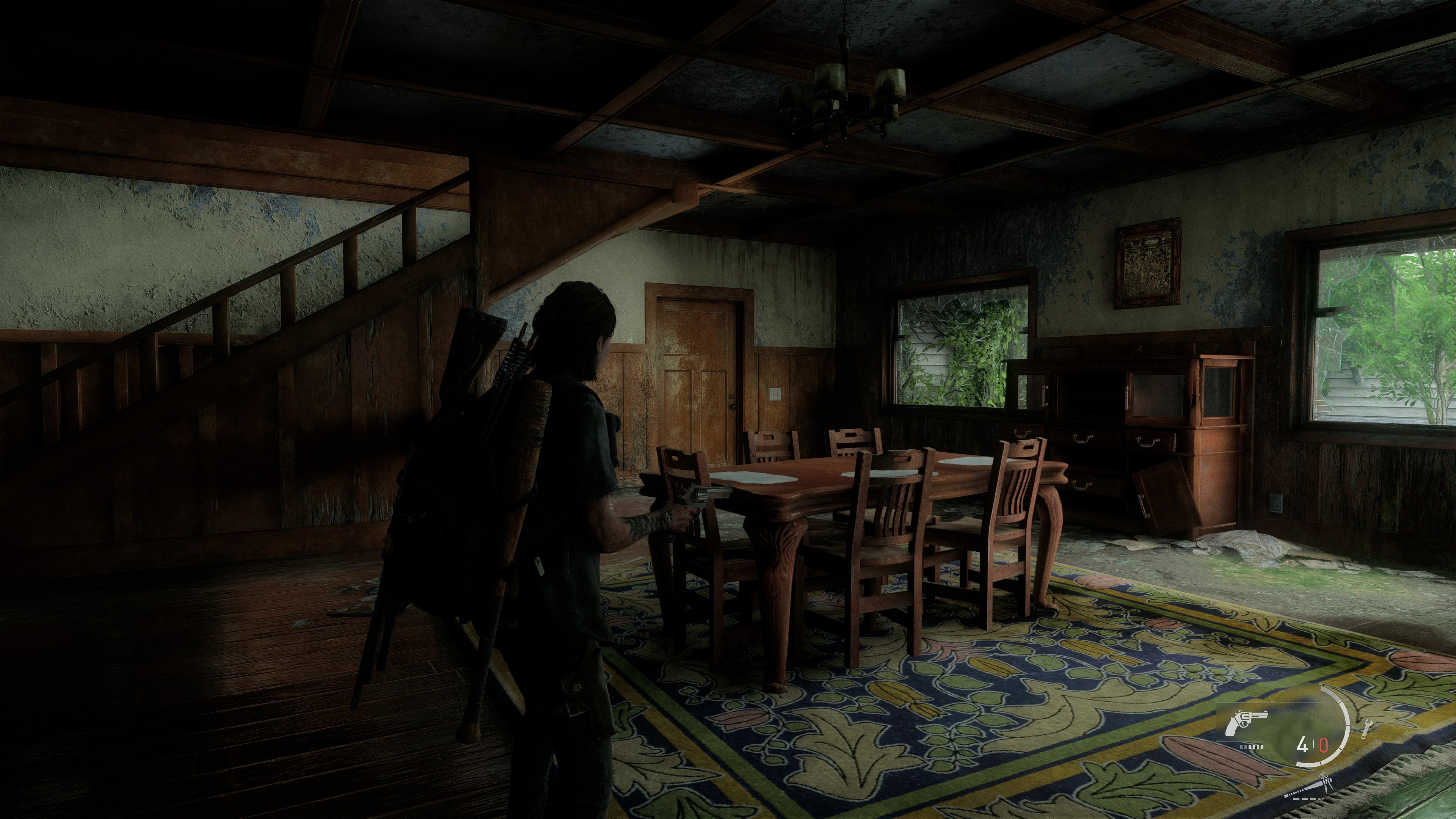
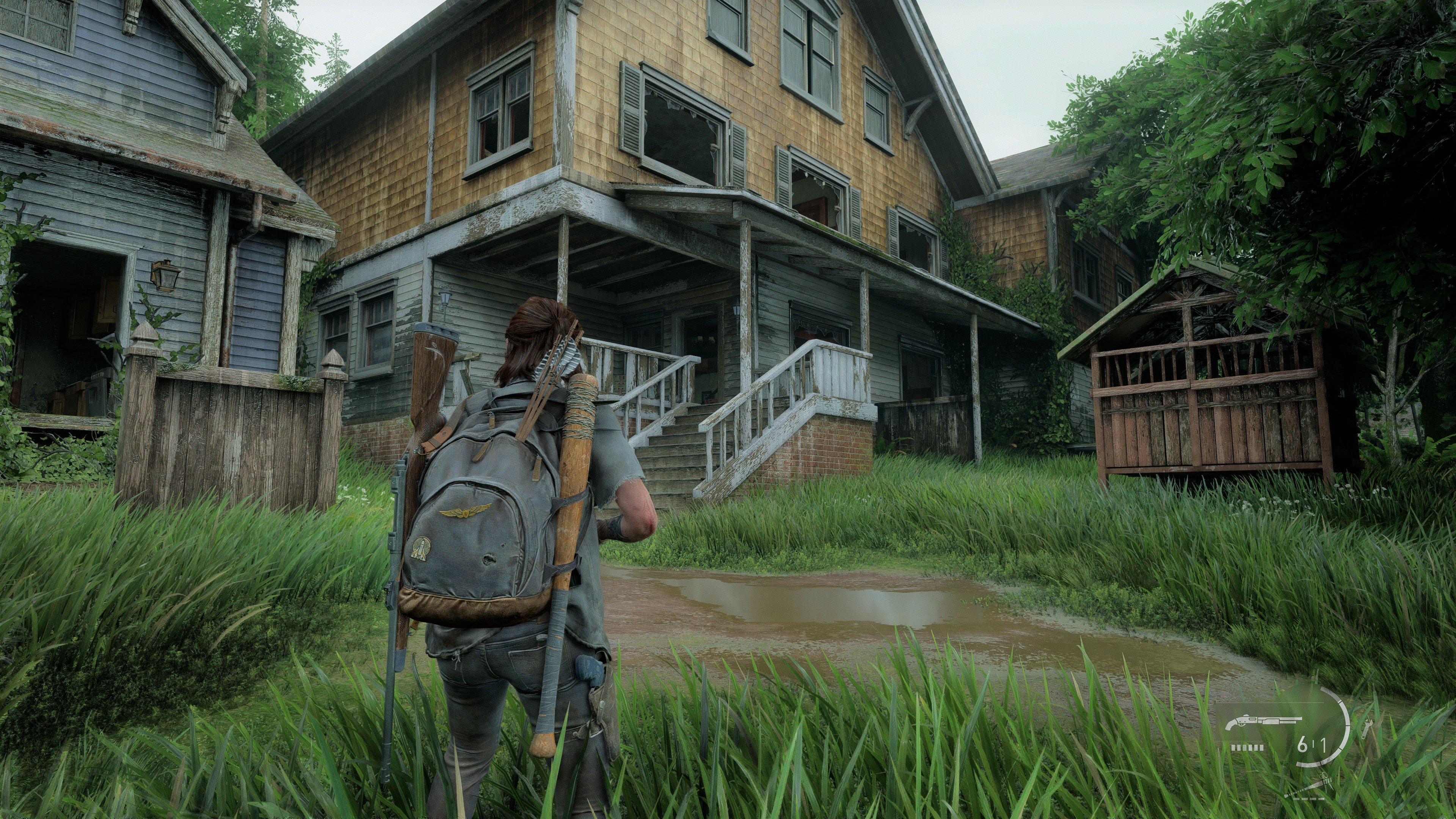
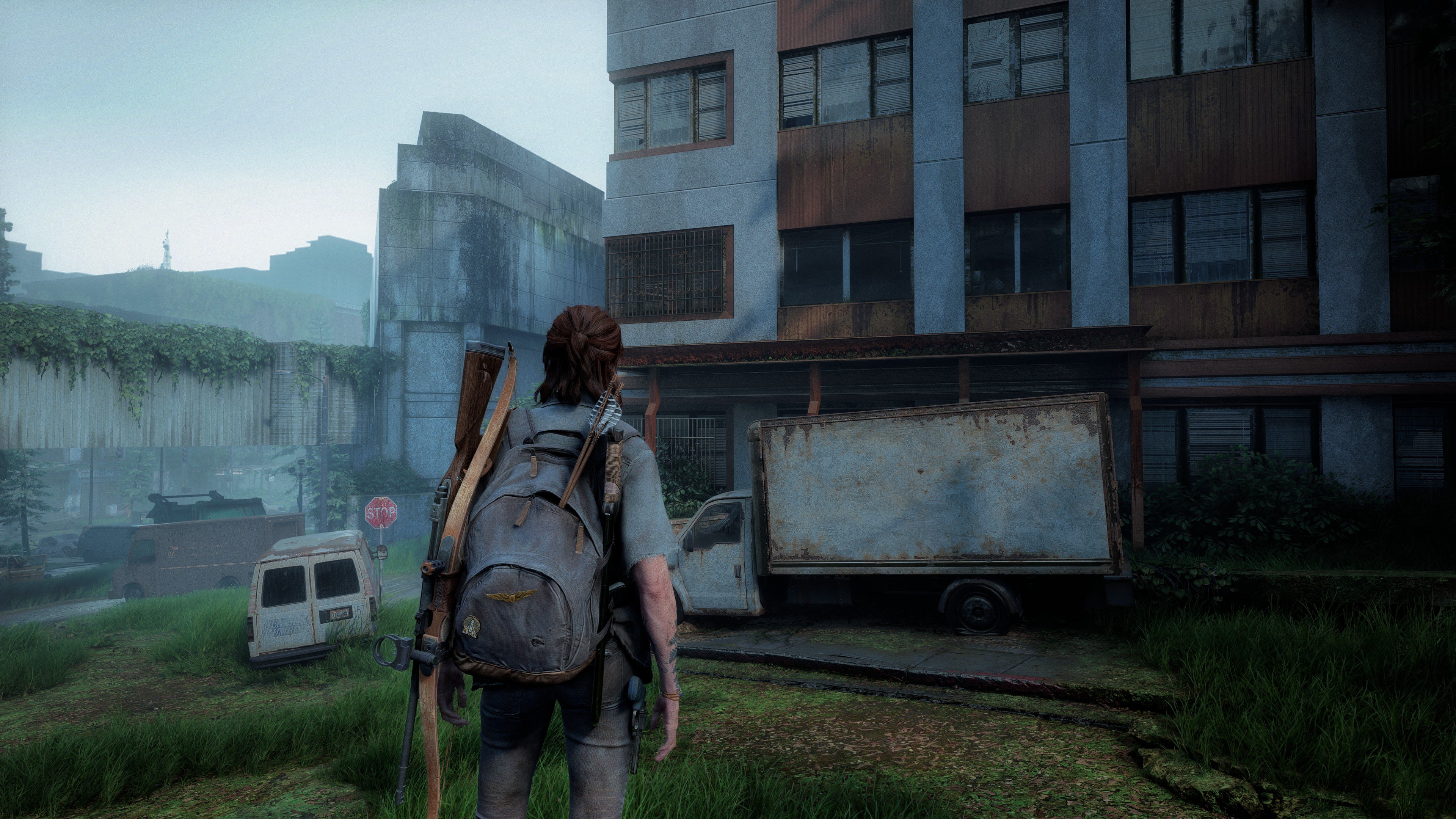
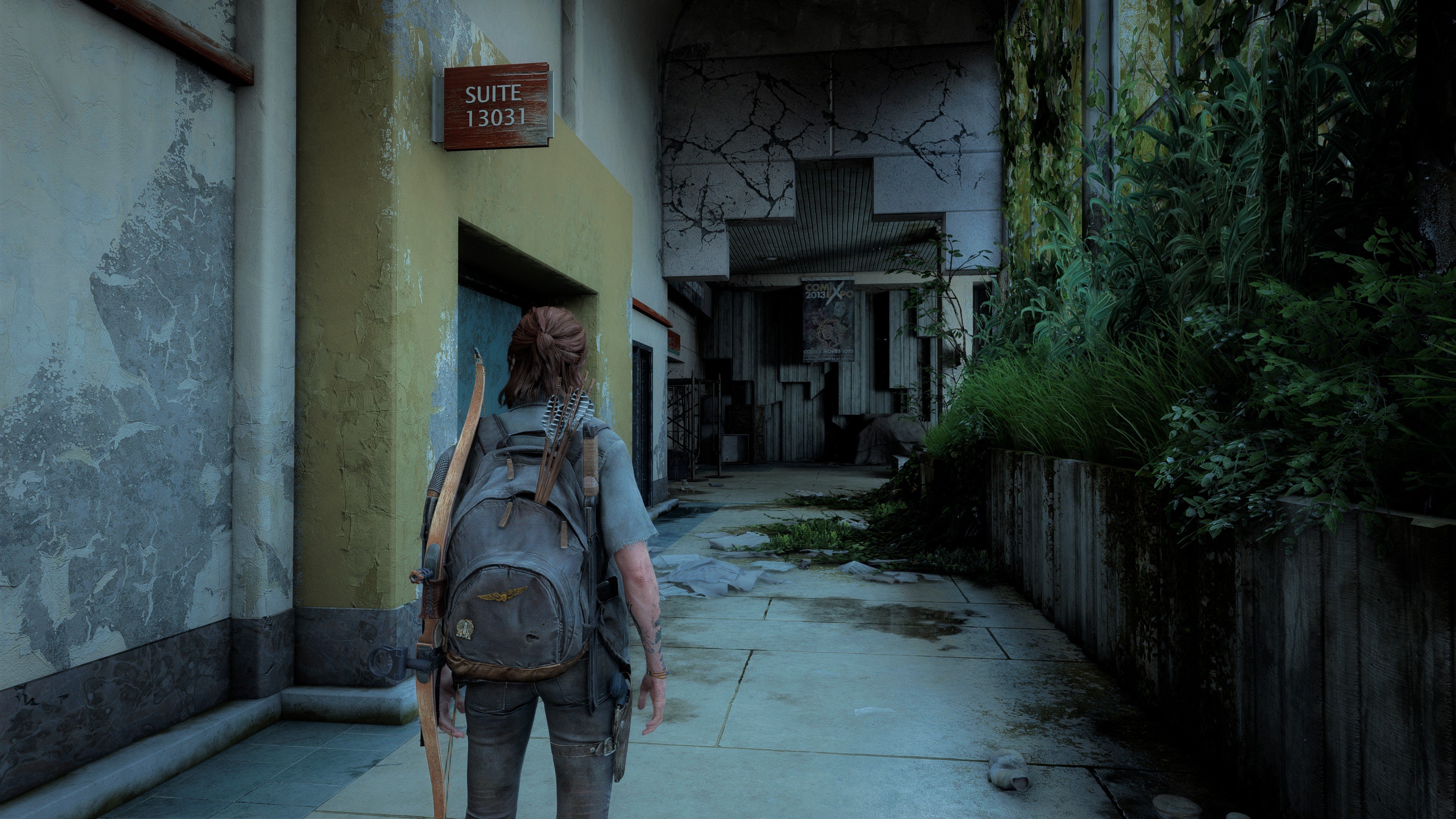
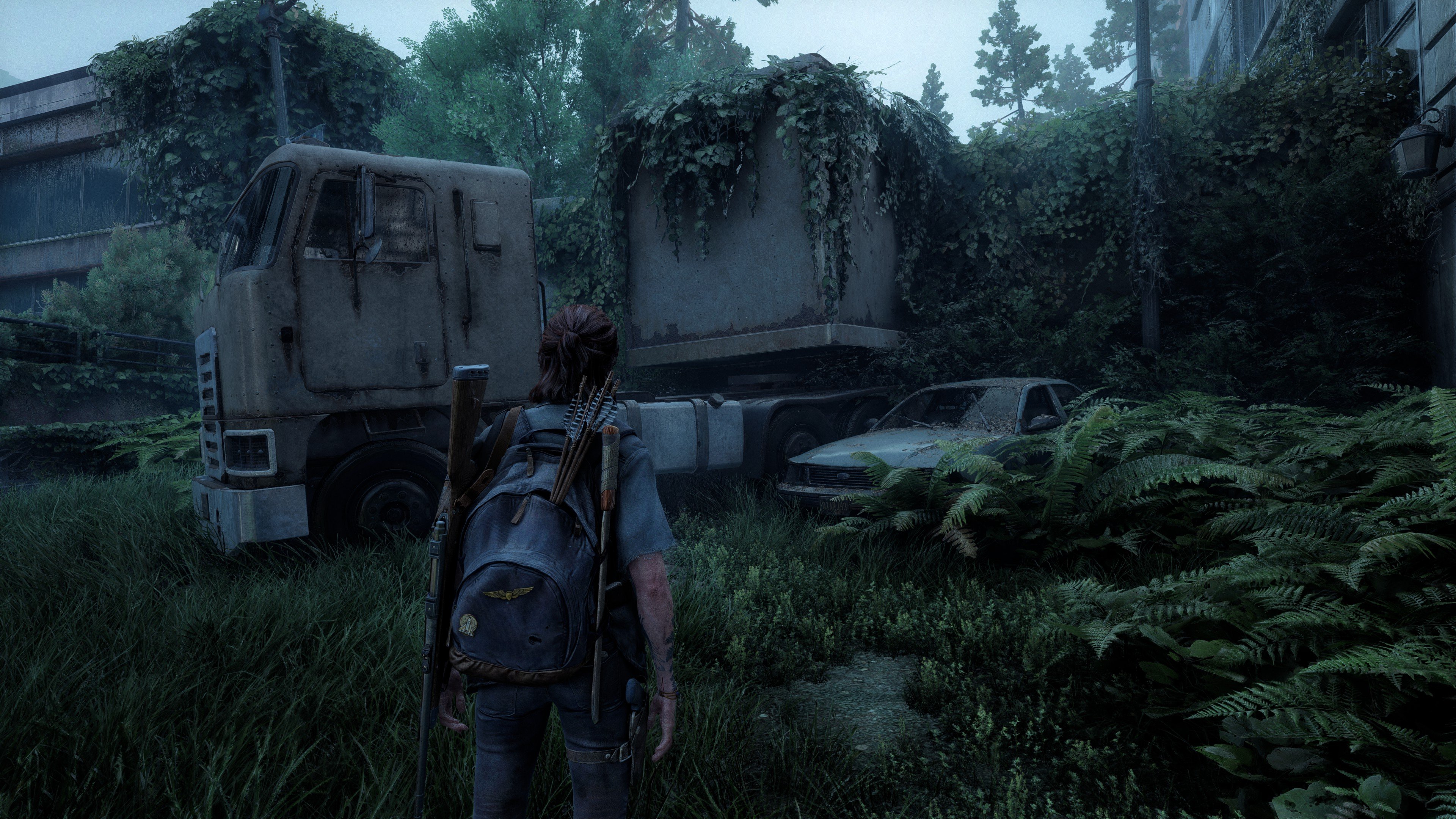
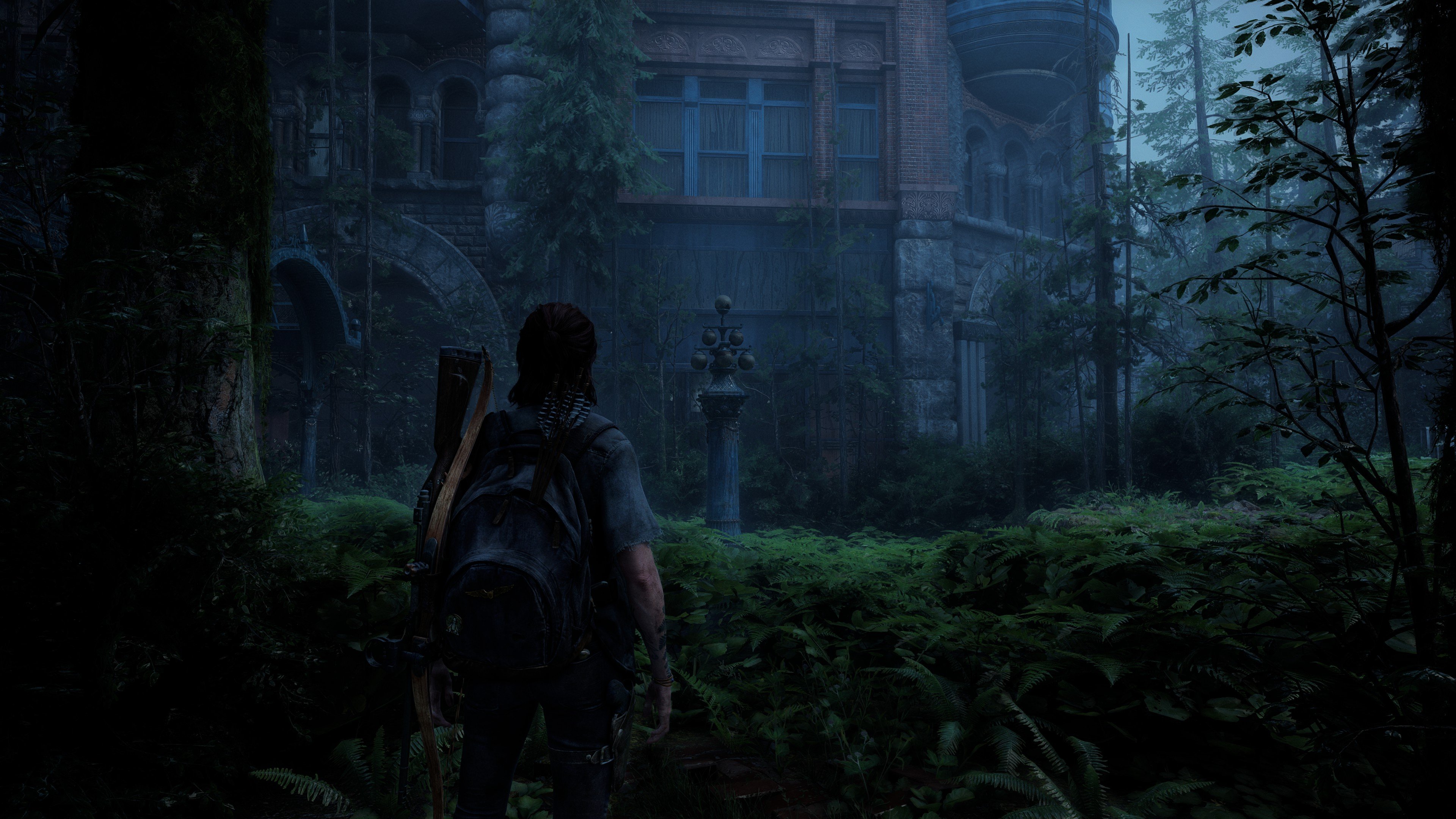
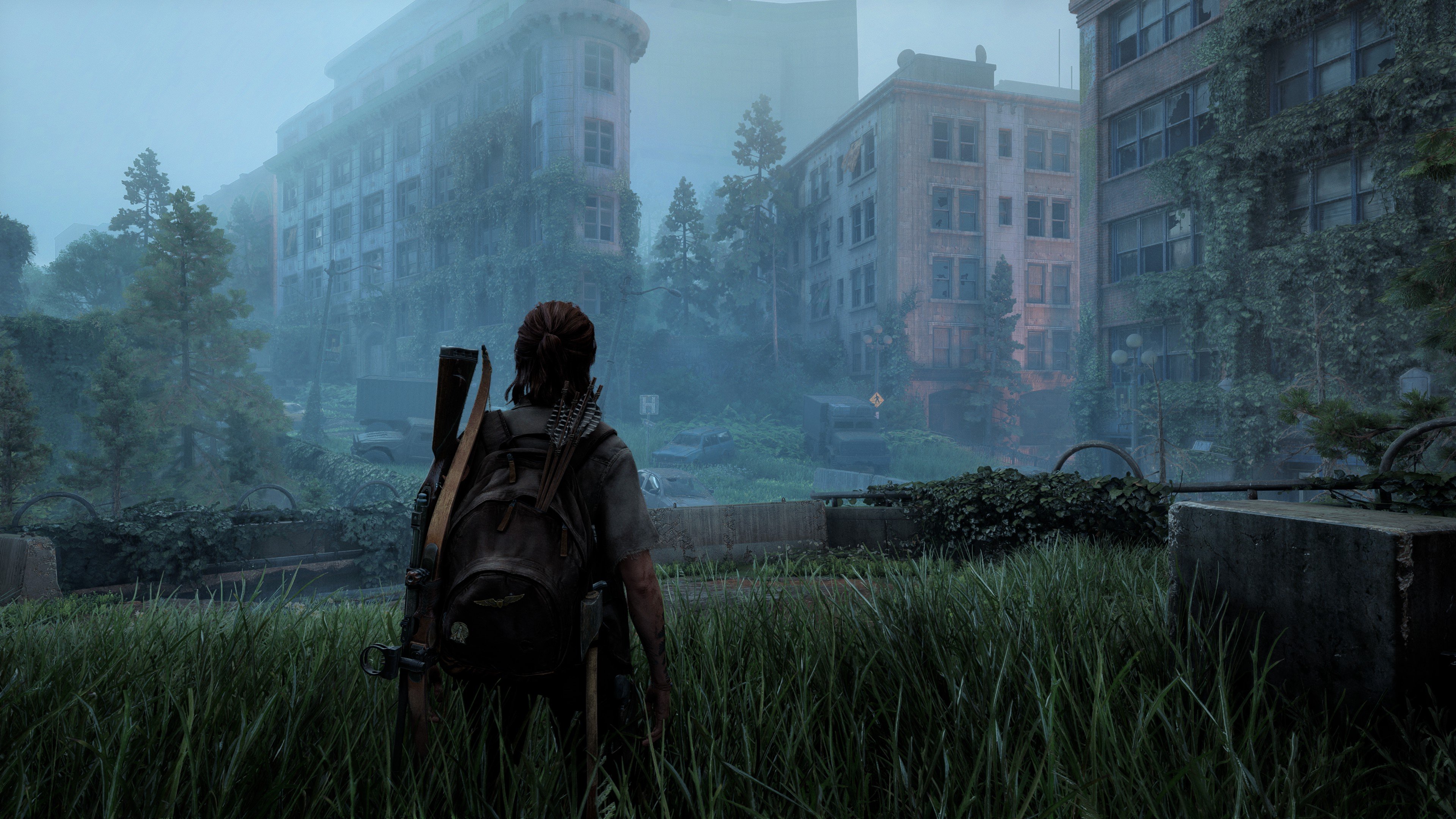
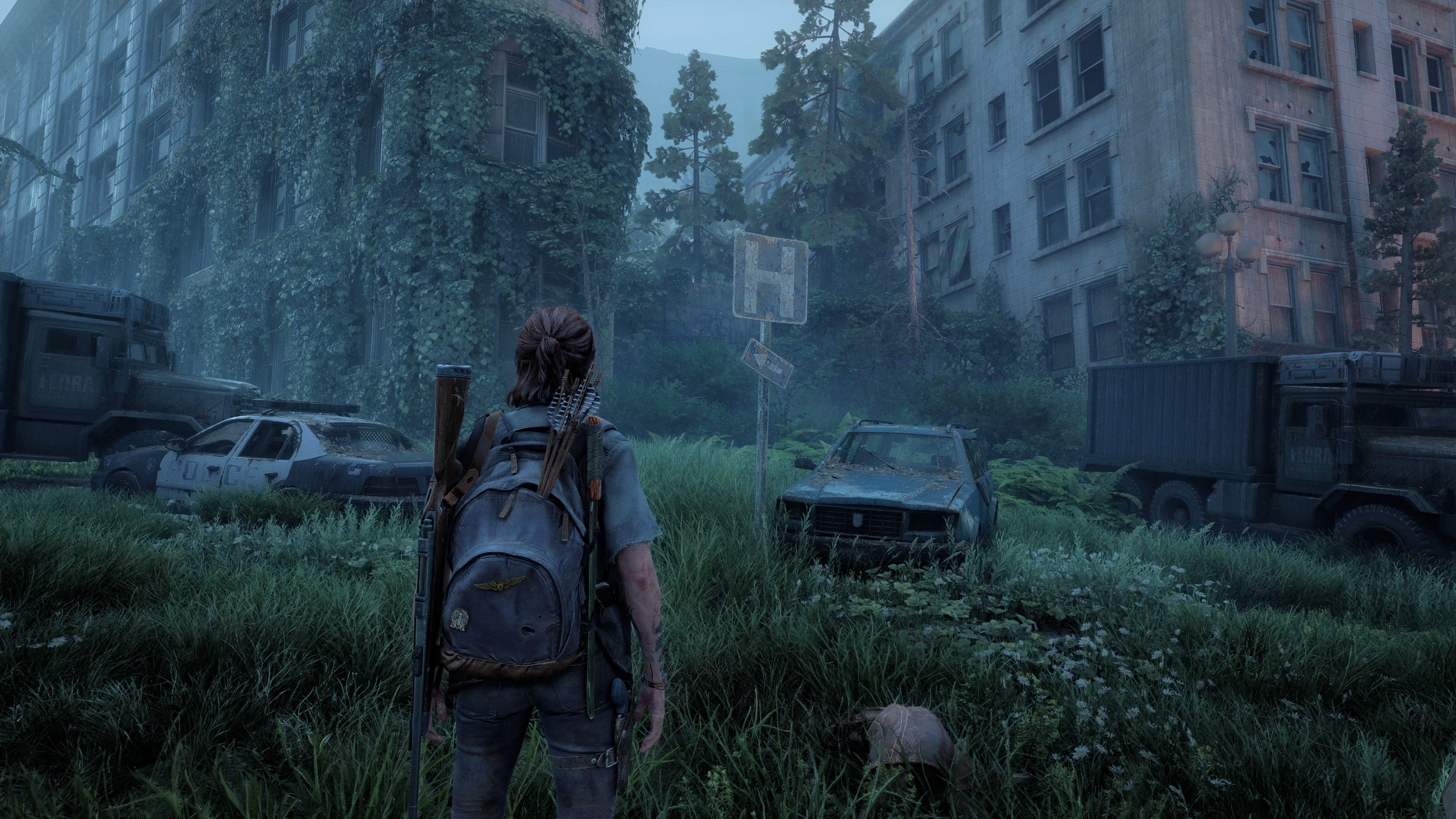
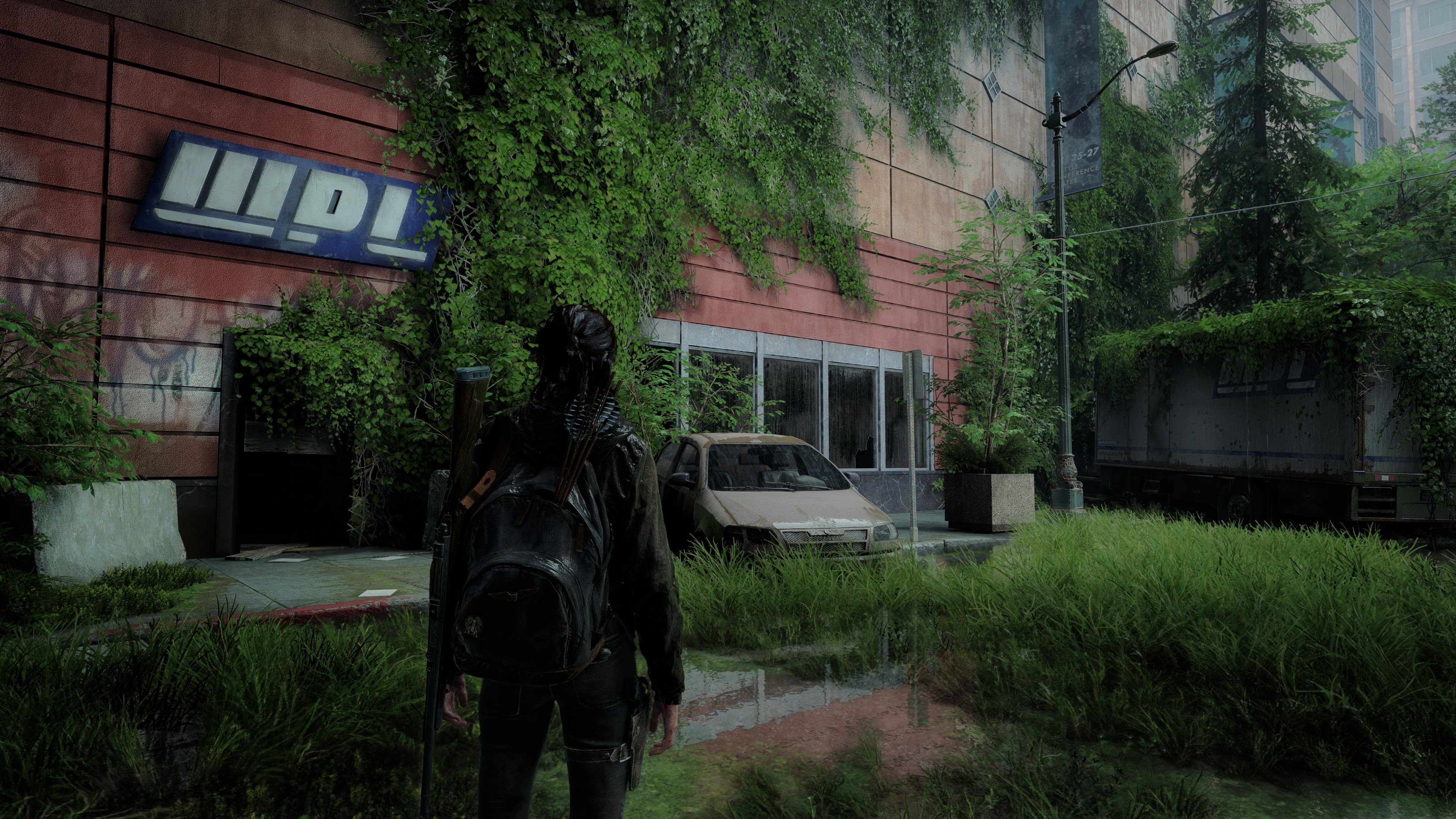
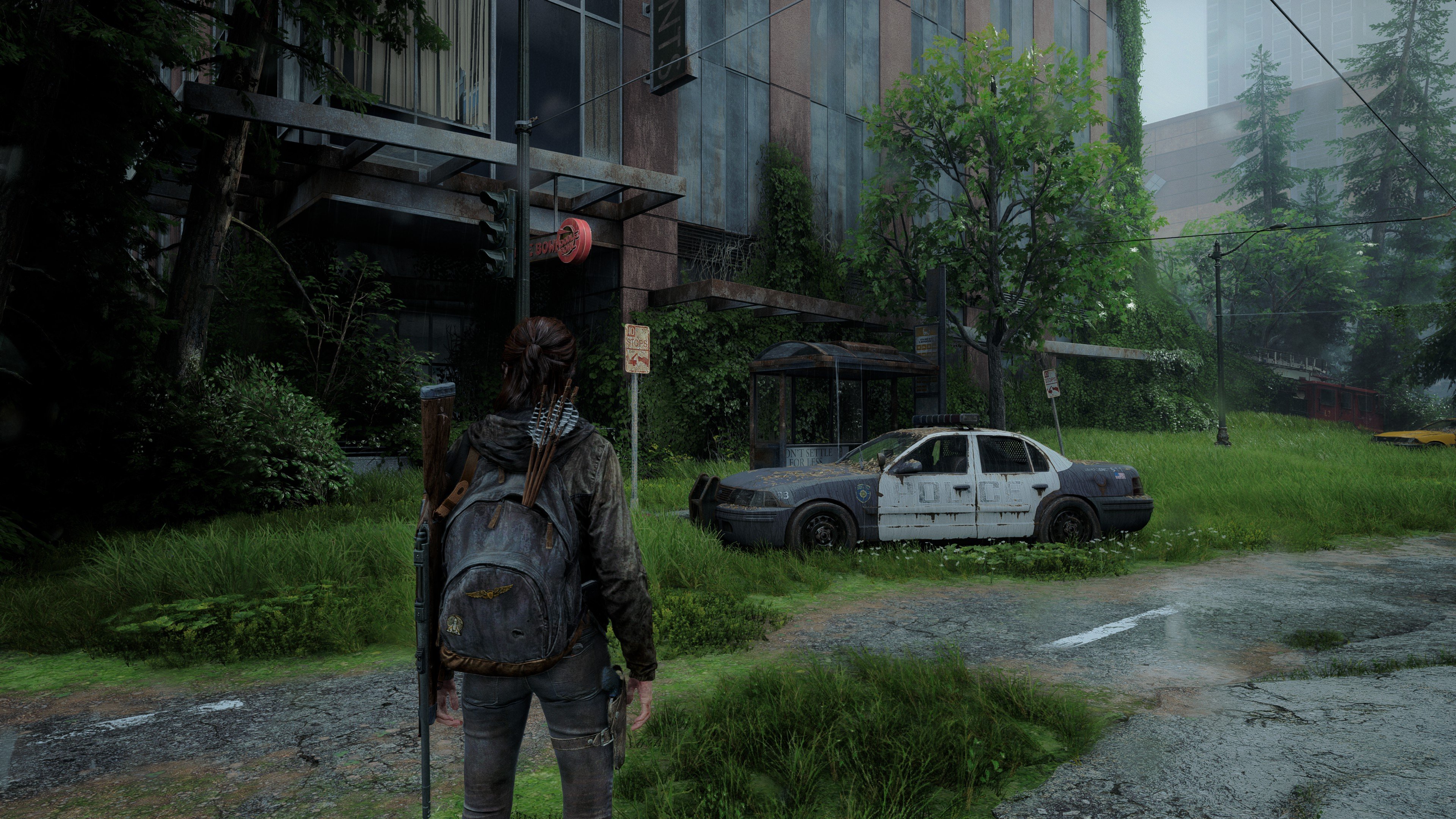
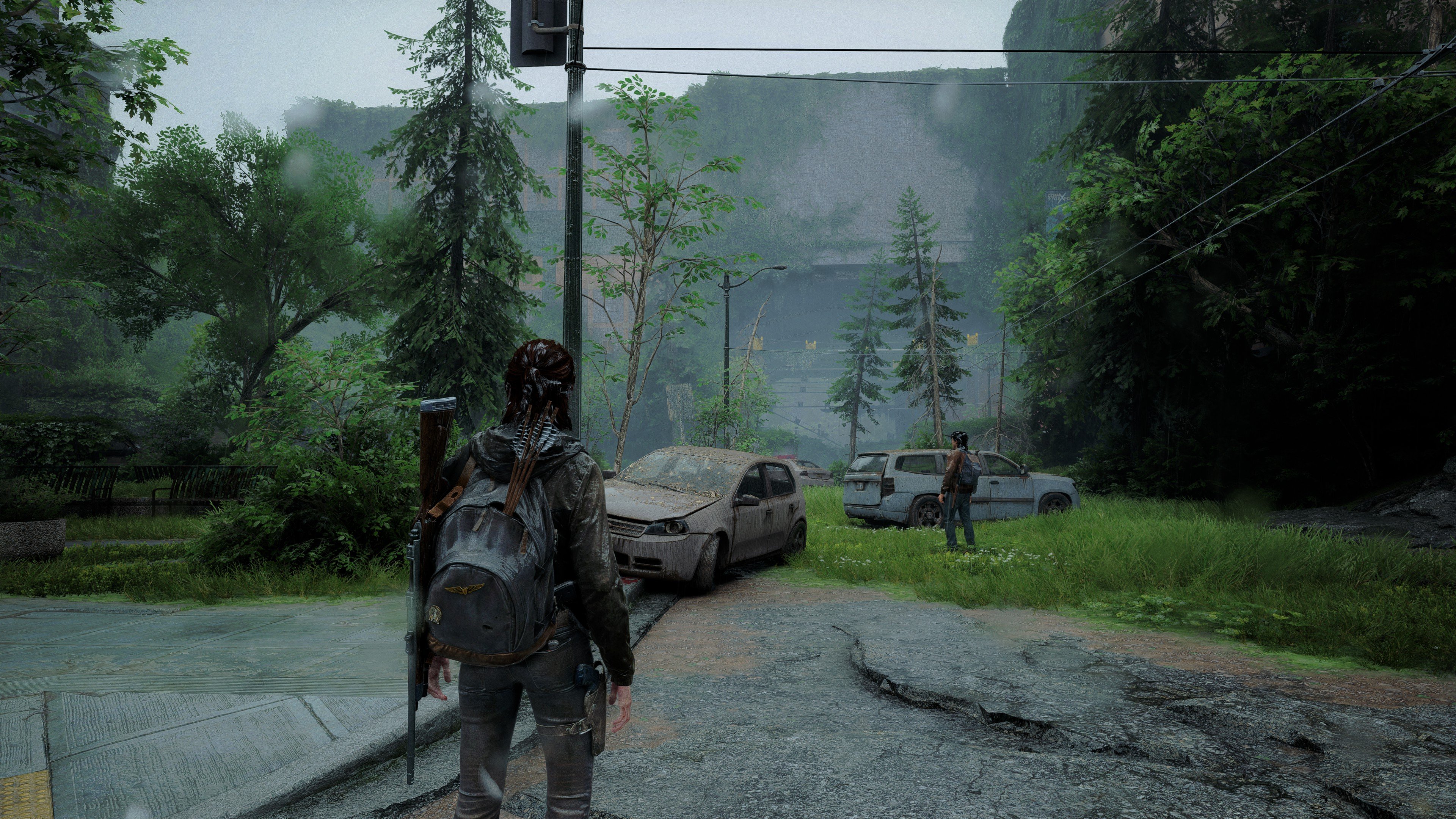
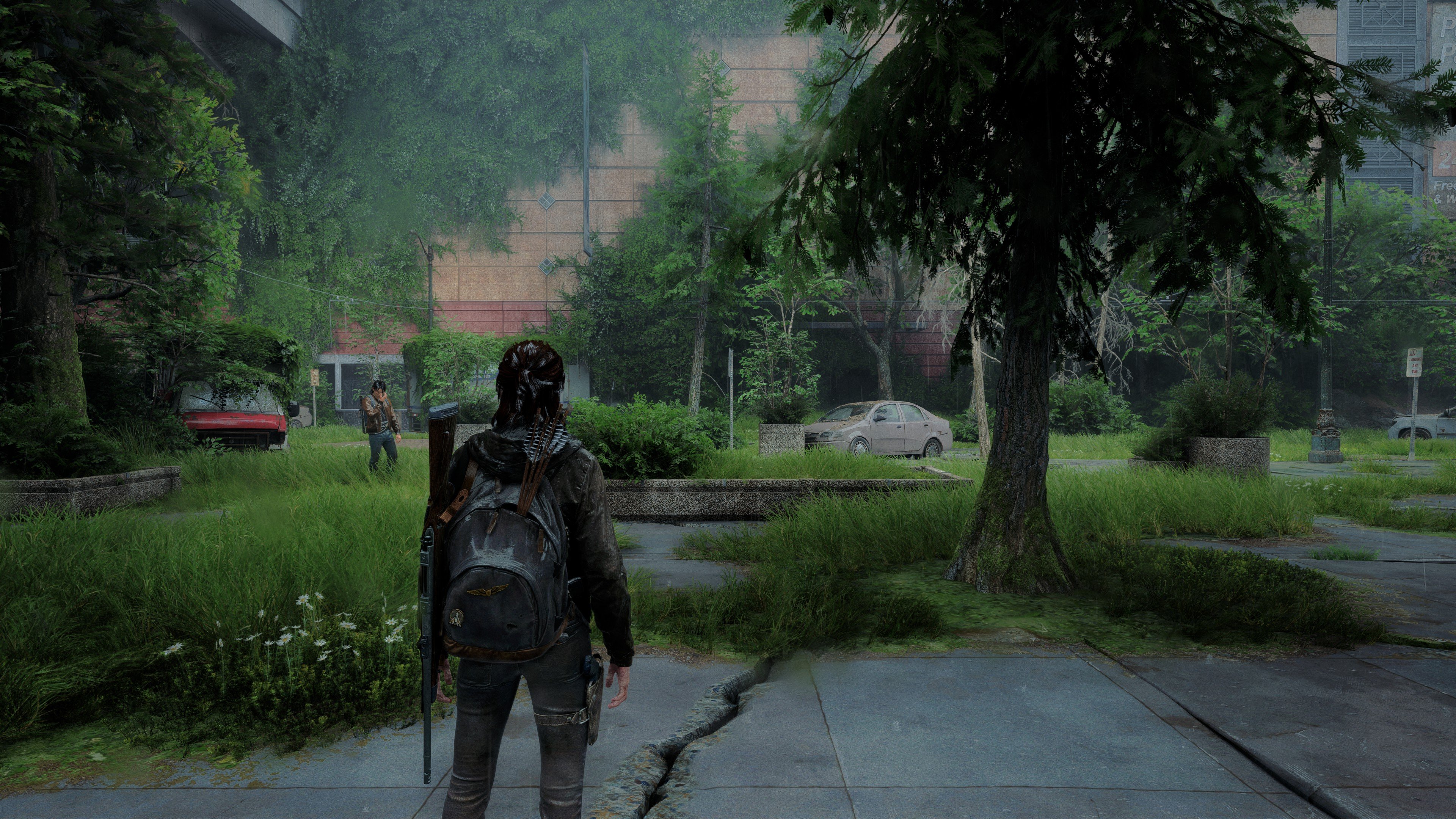
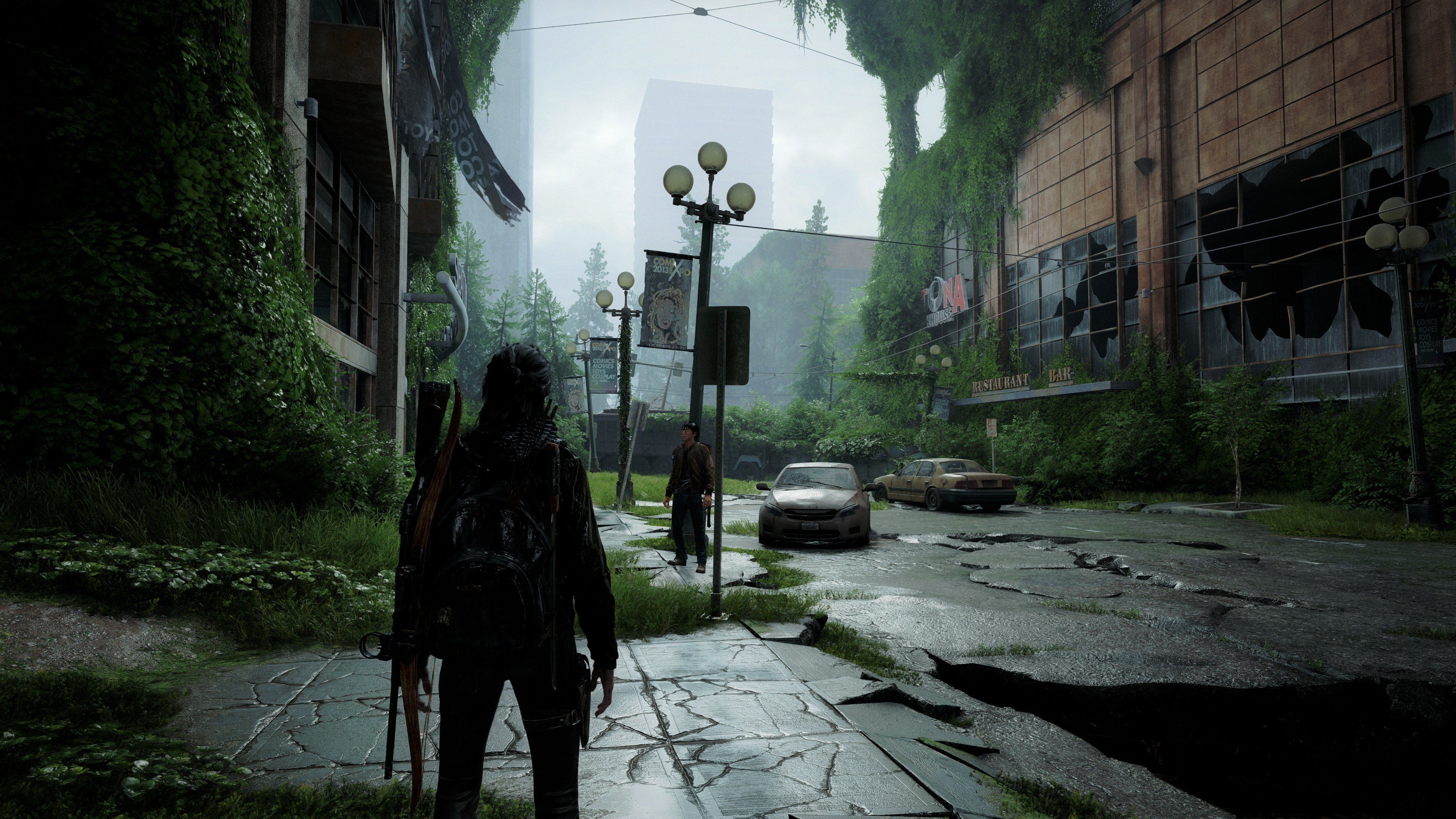
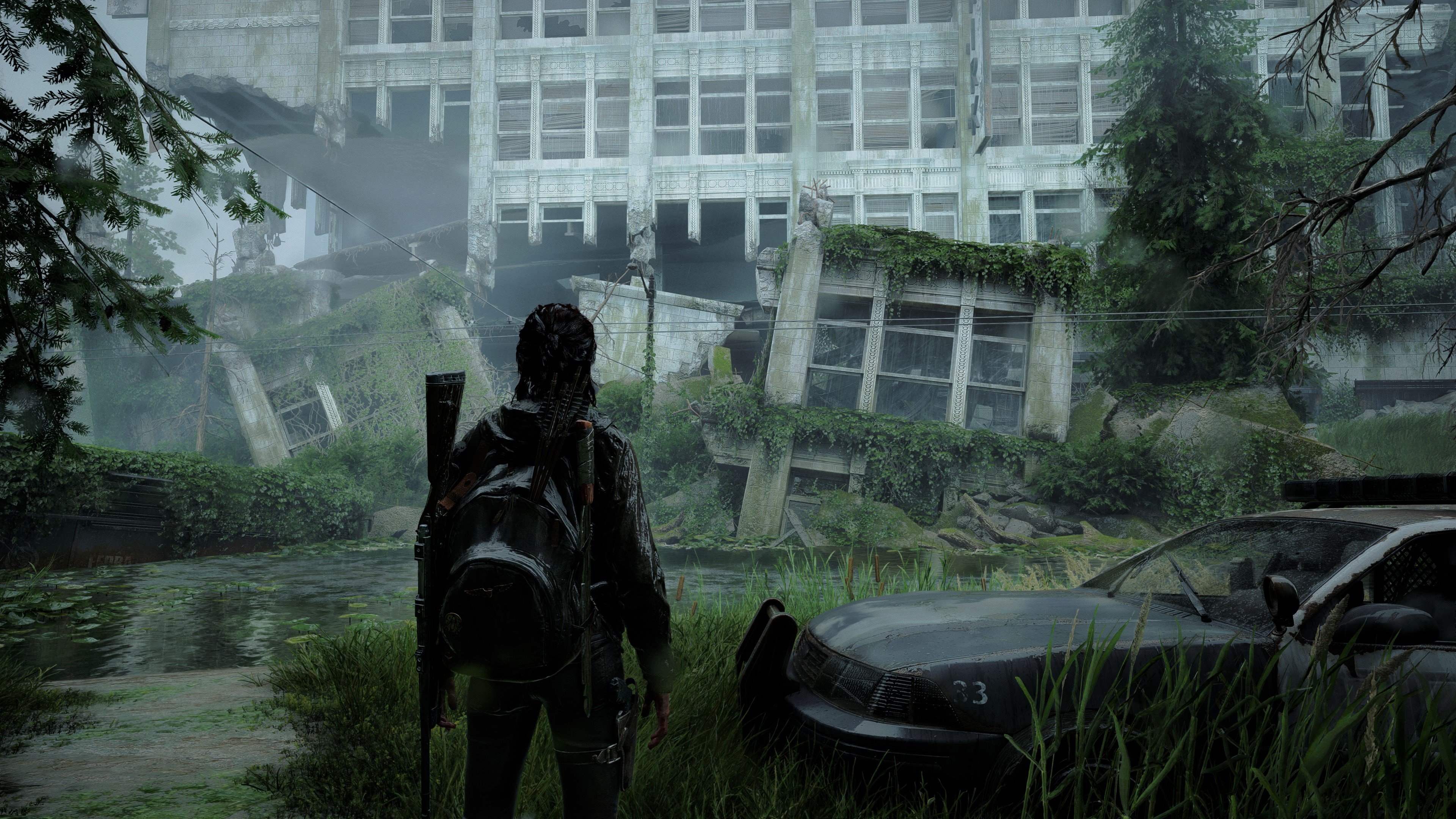
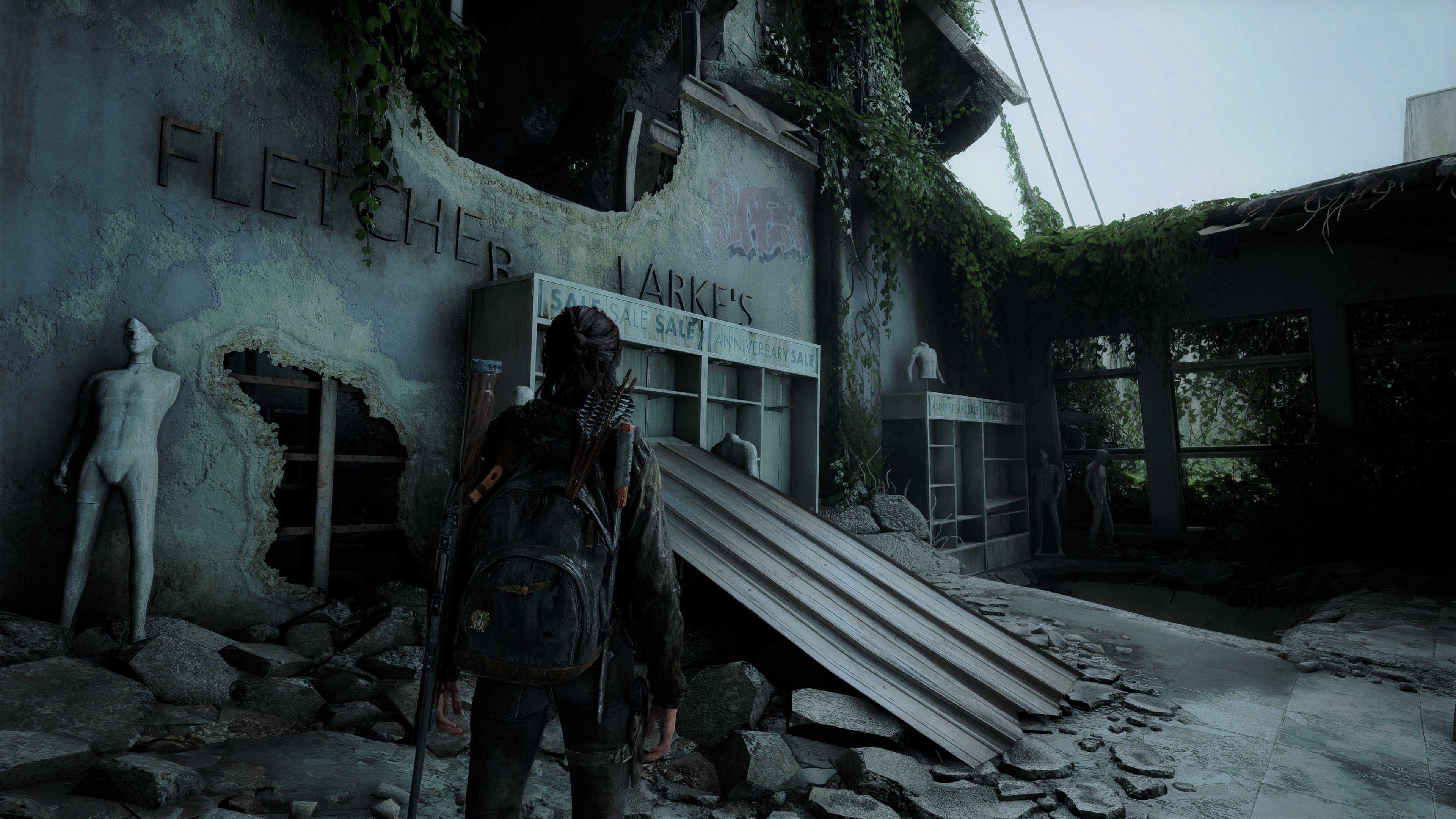
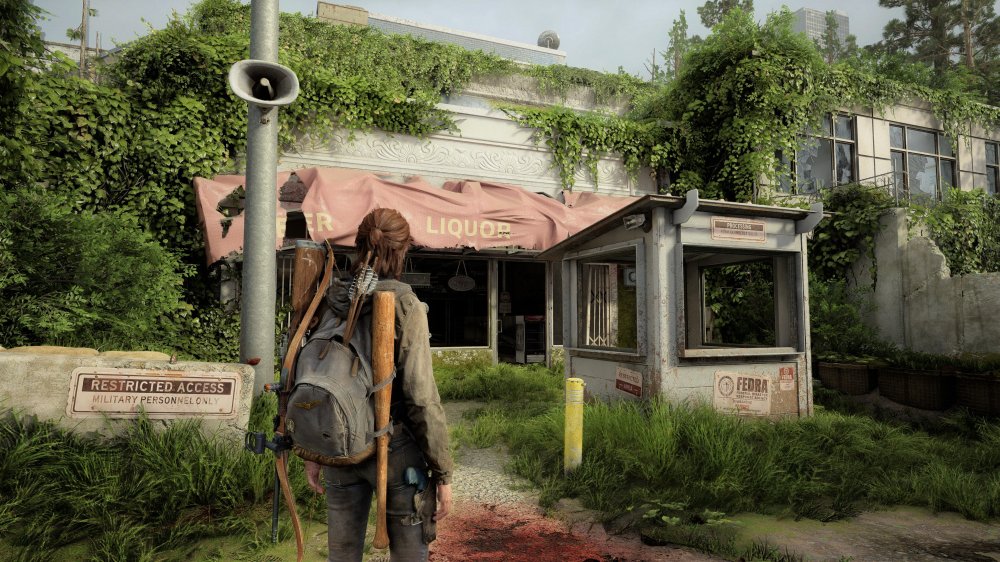
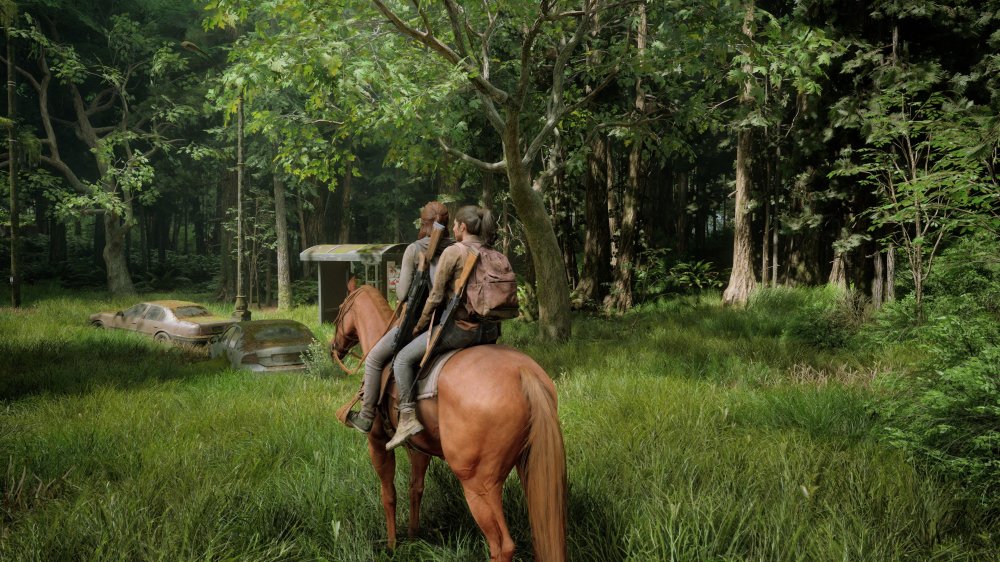
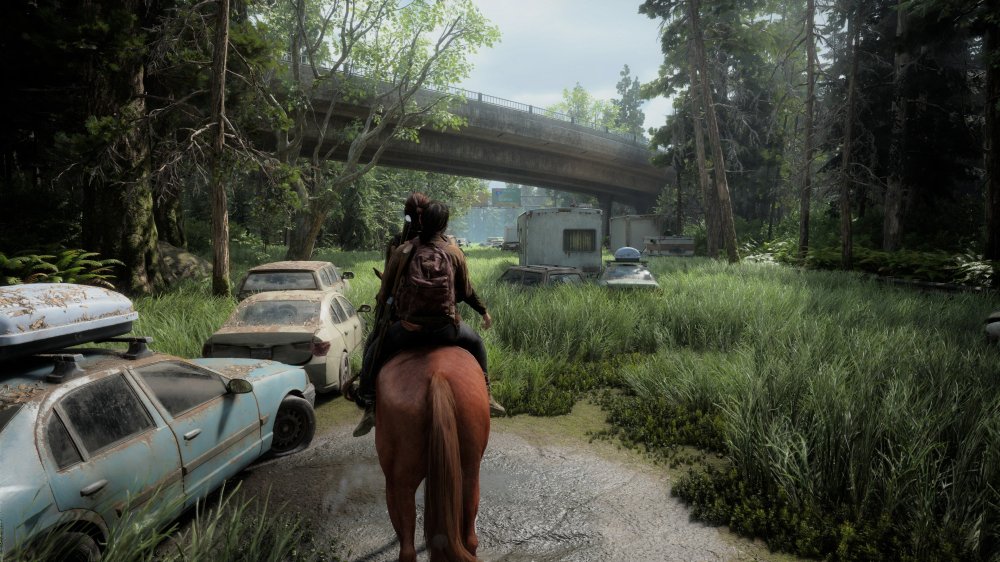
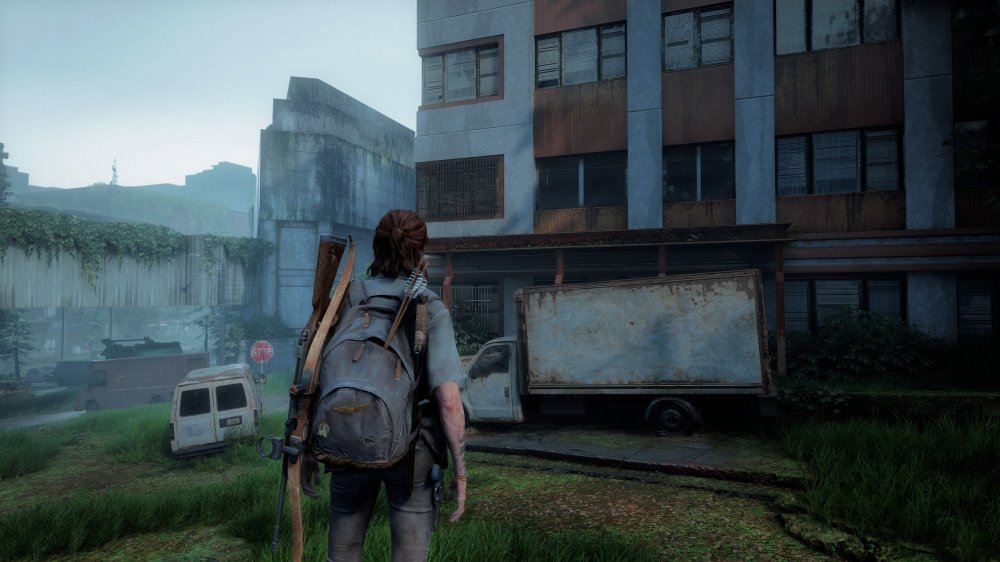
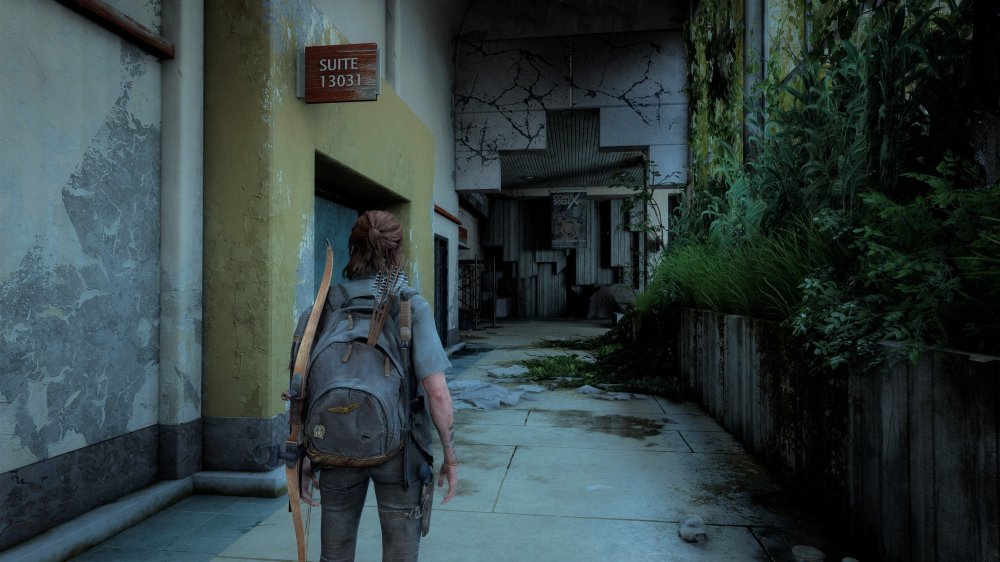
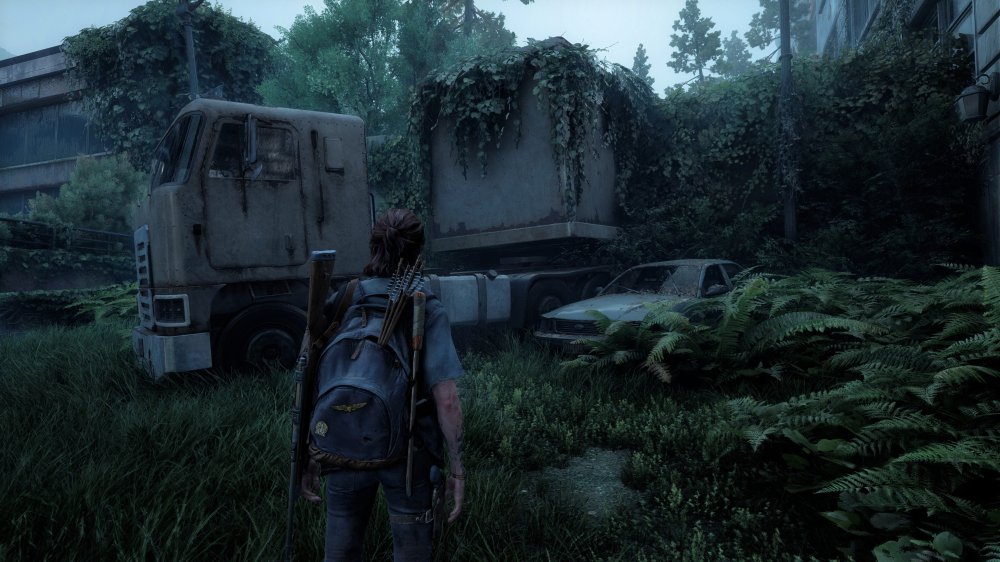
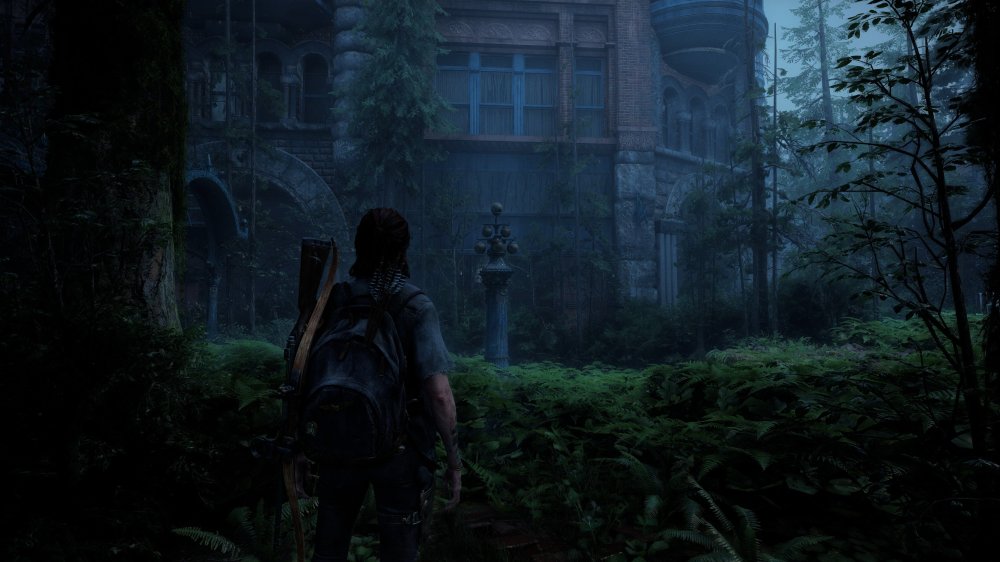
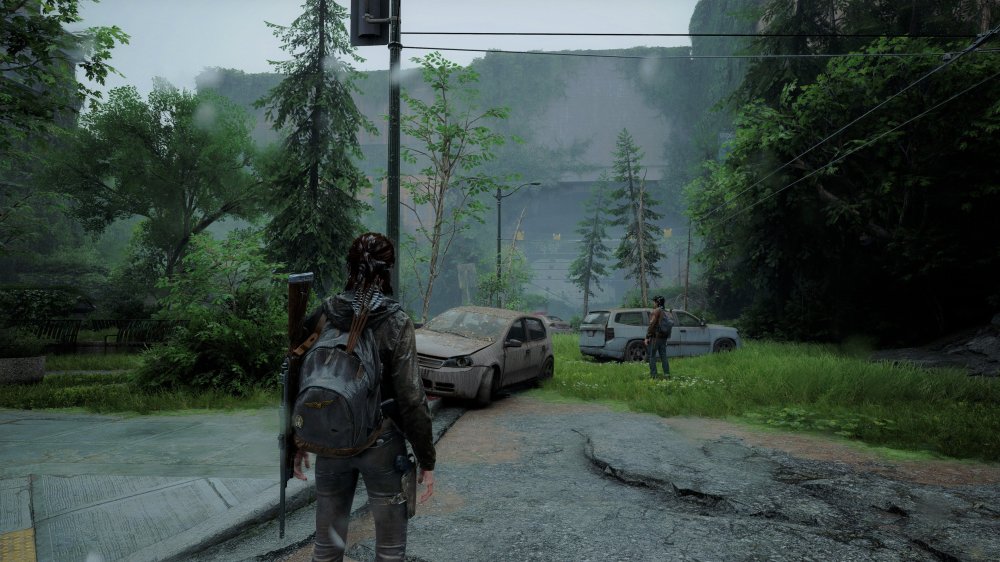
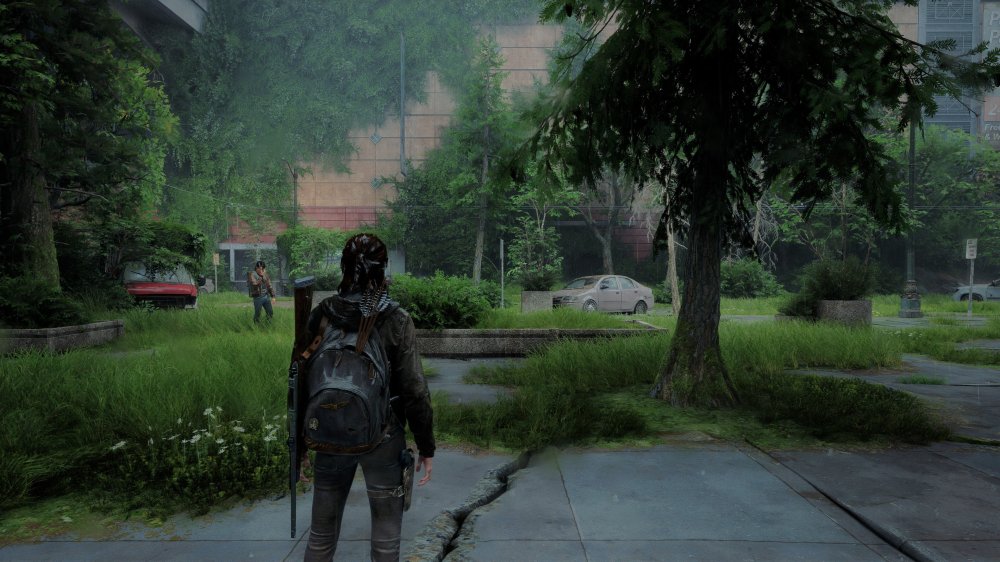
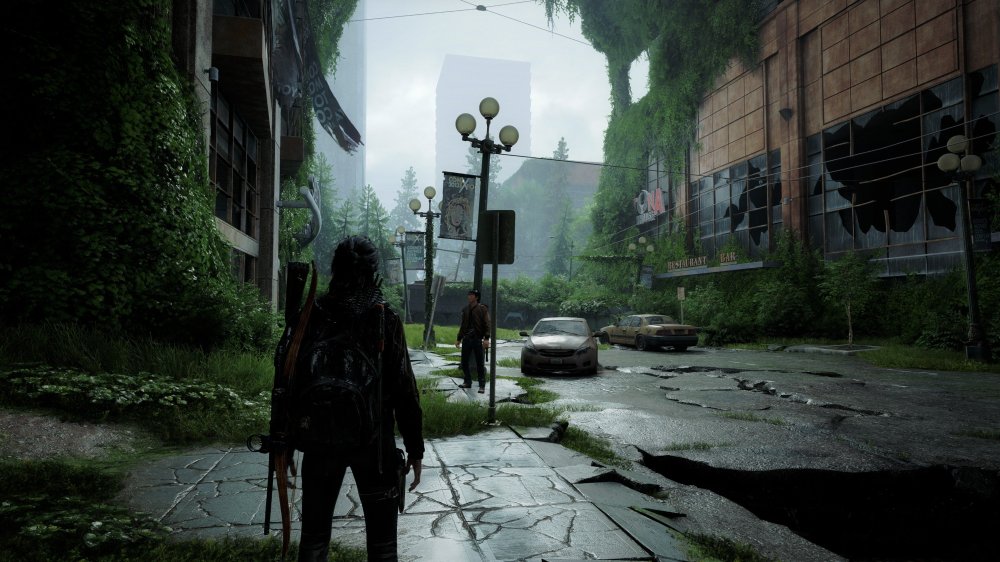
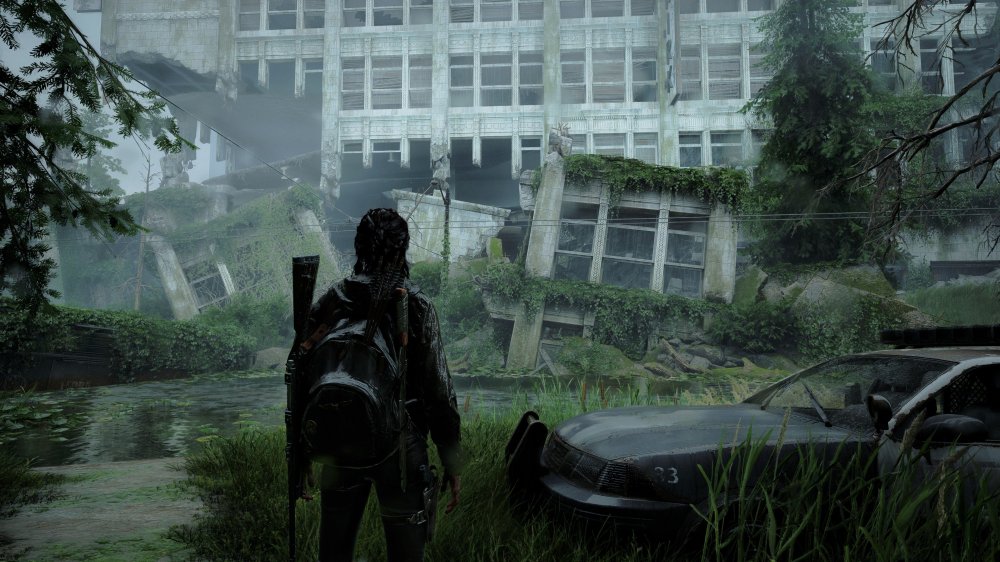
The last of us 2 - PC
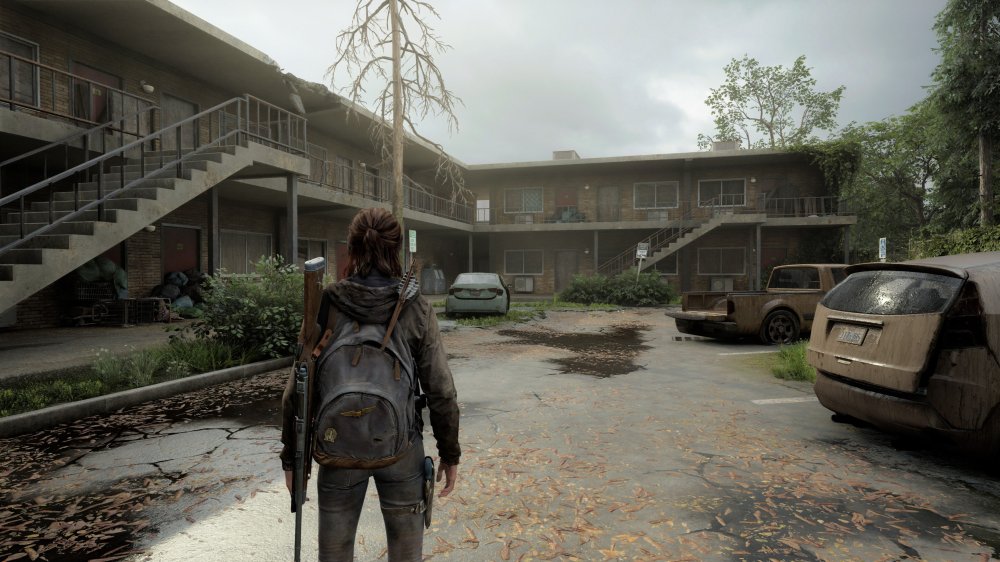
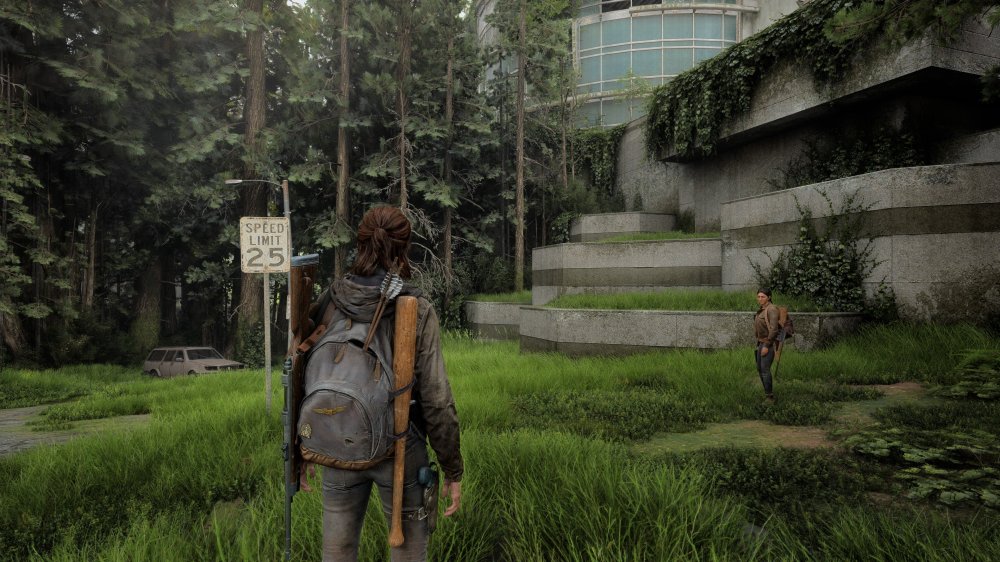
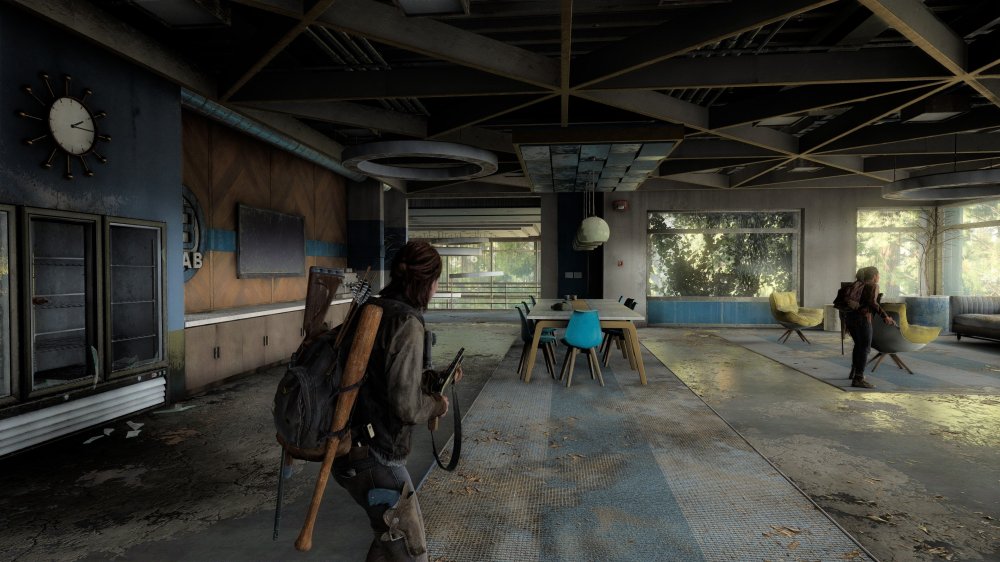
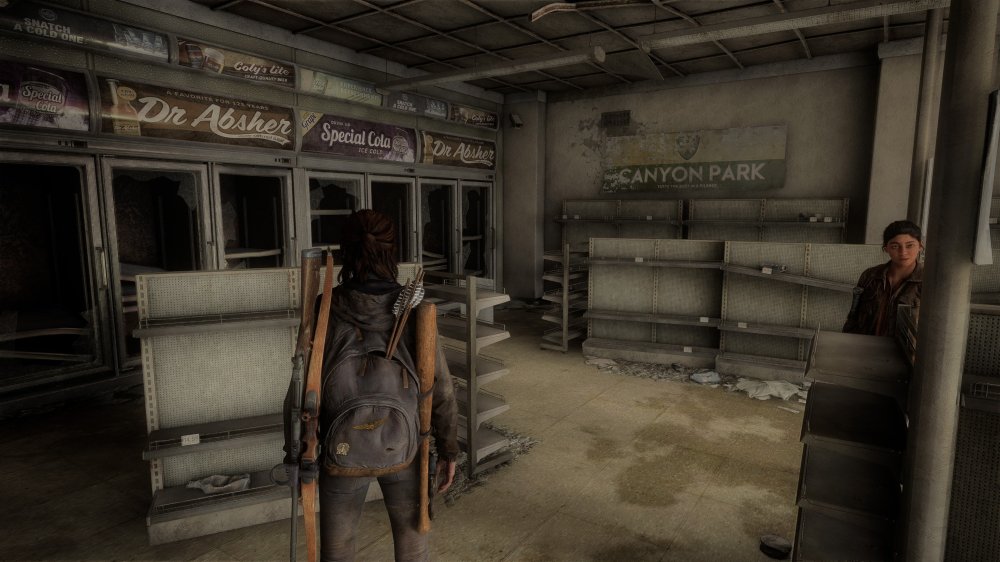
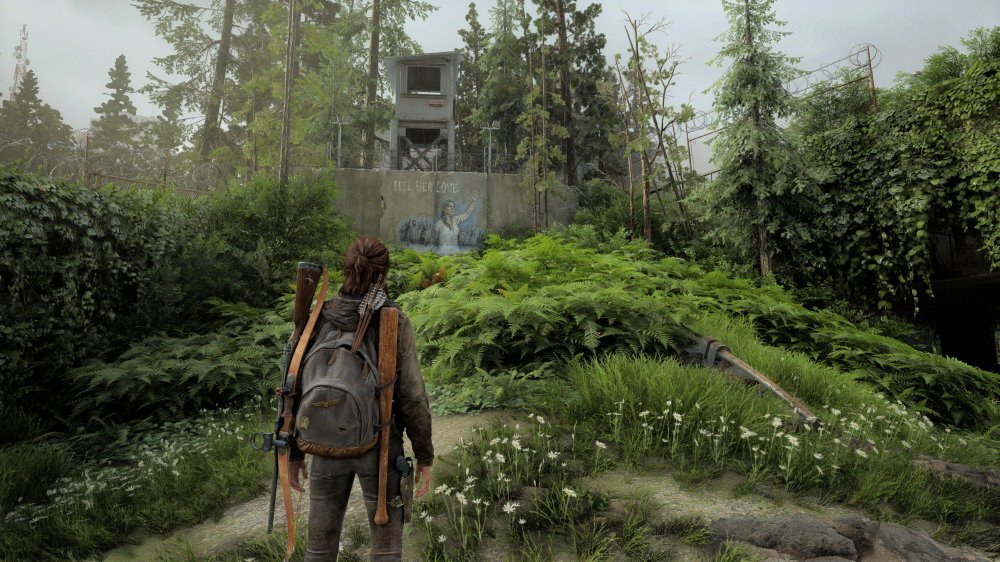
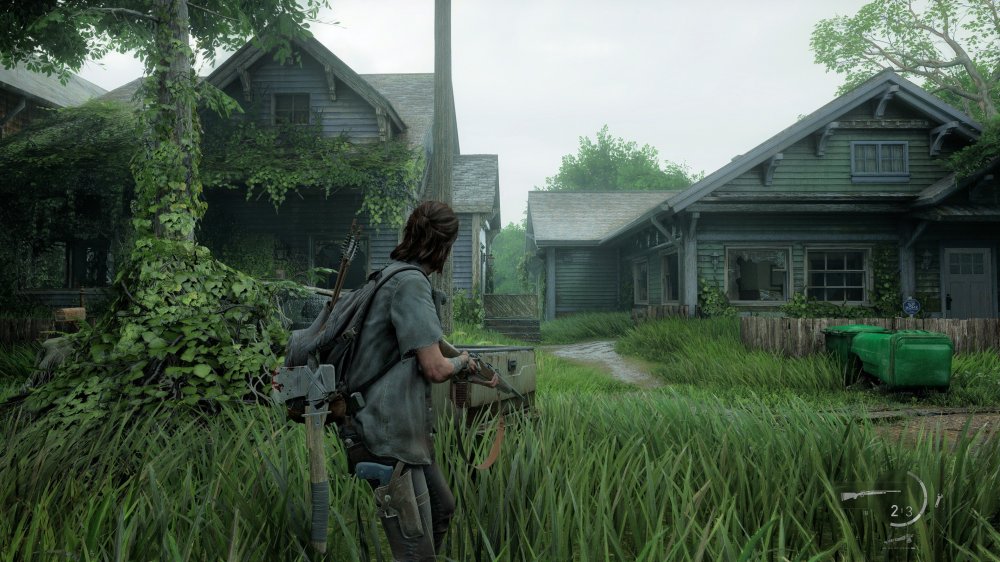
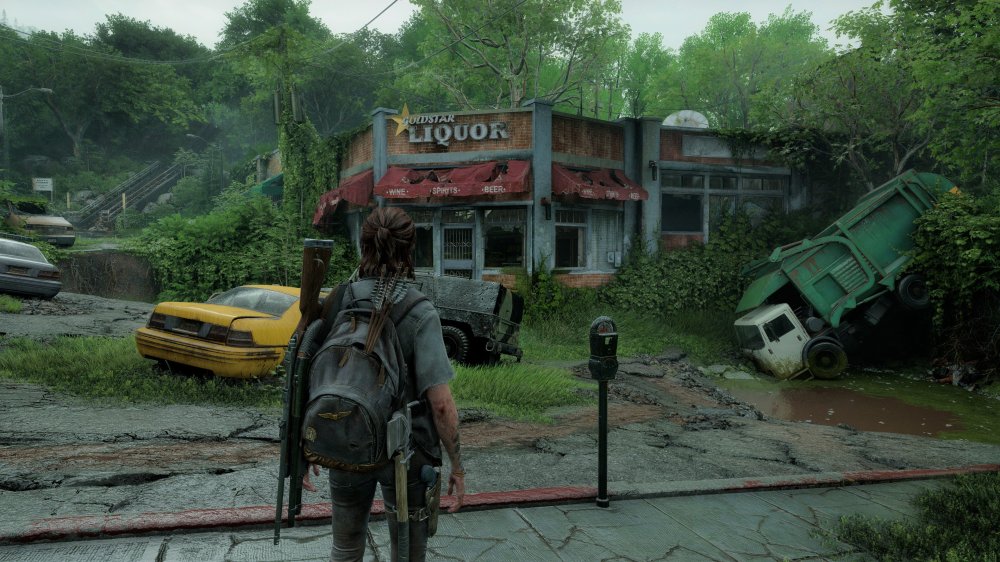
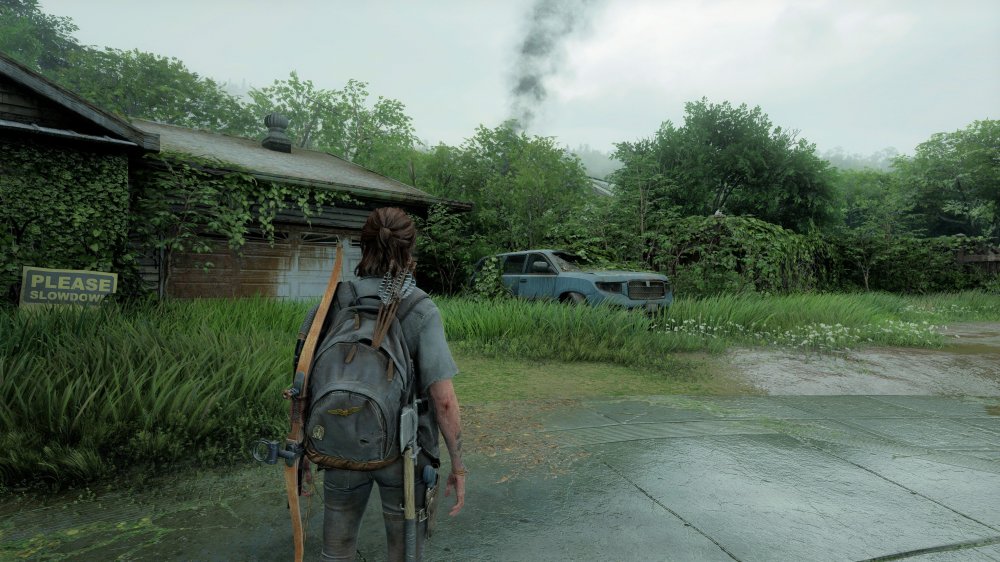
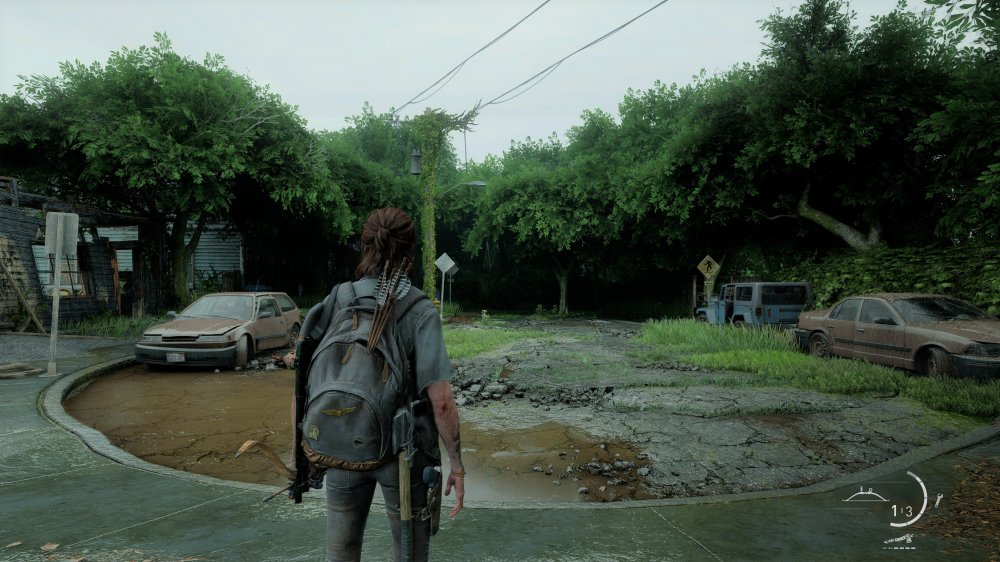
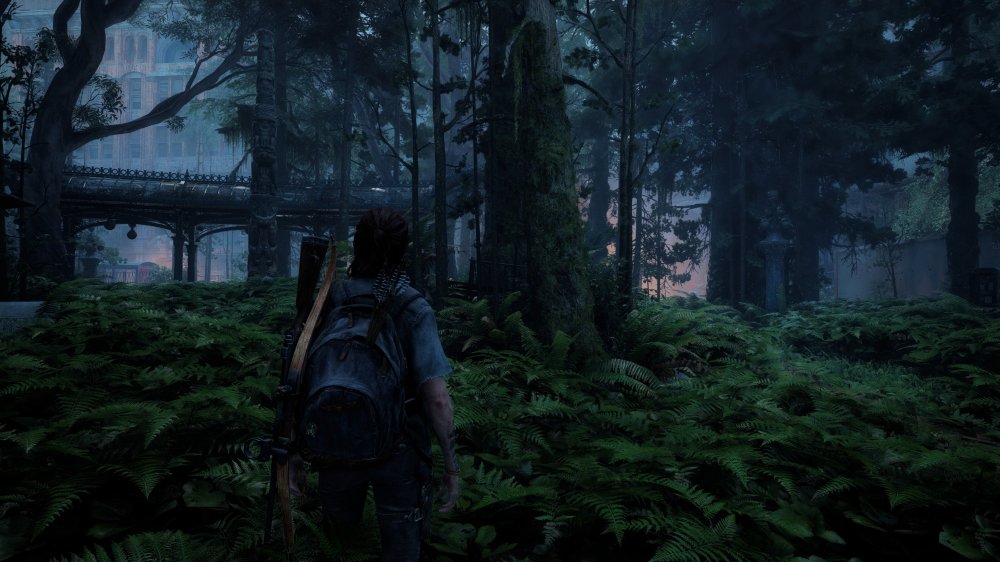
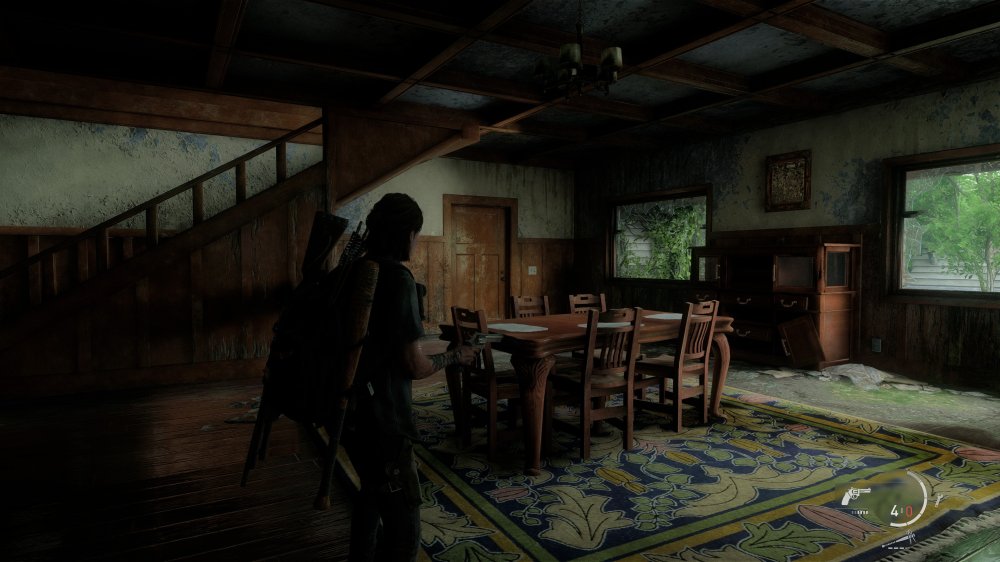
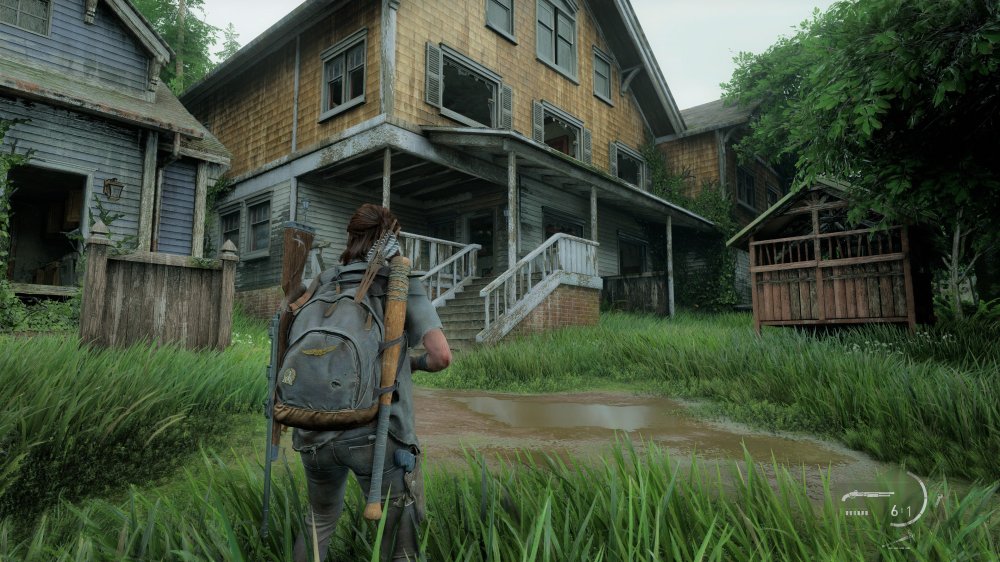
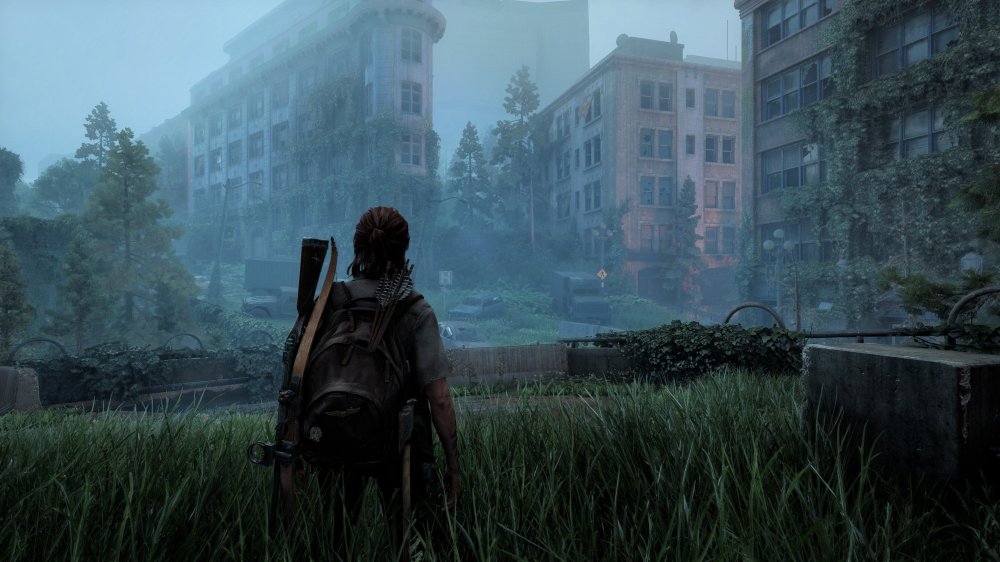
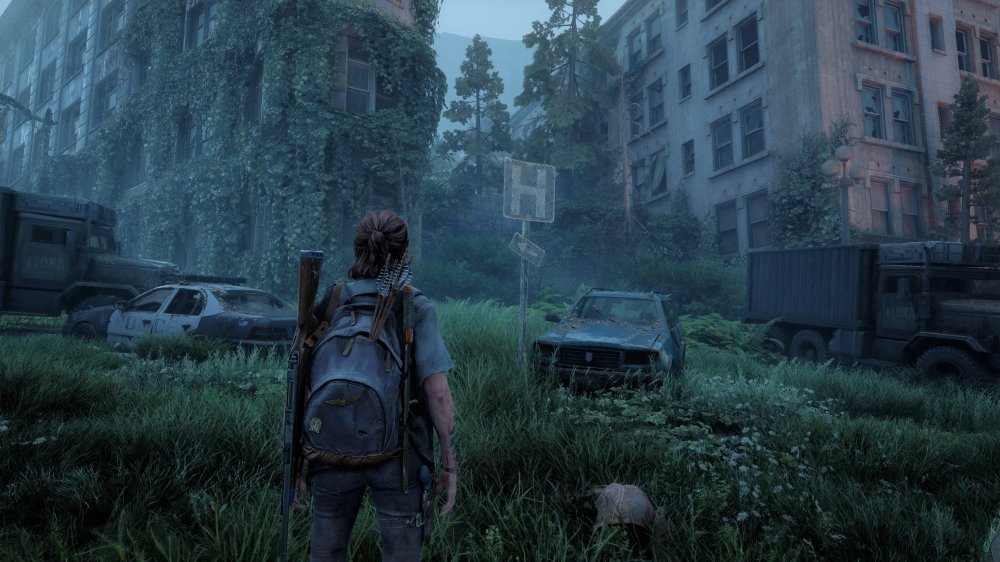
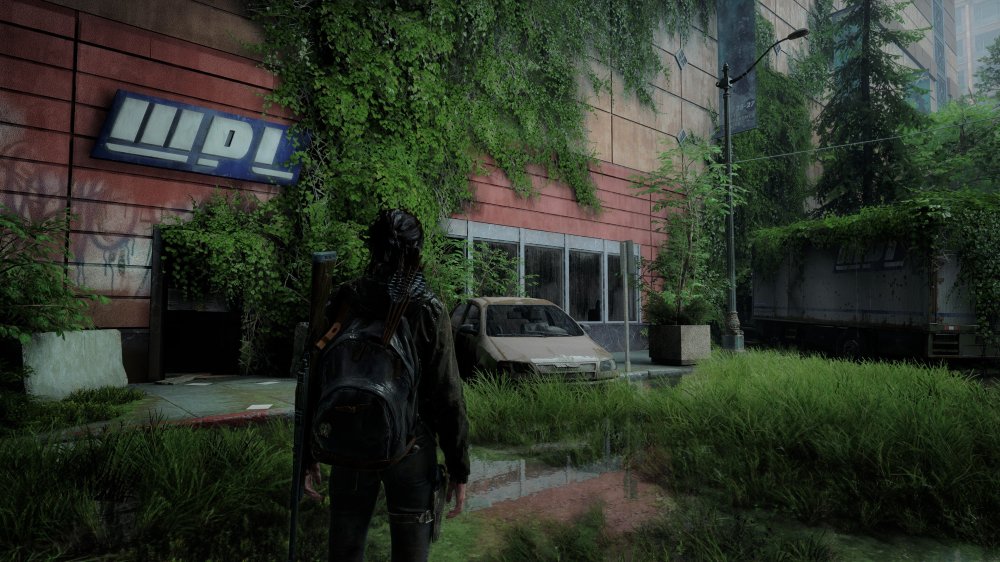
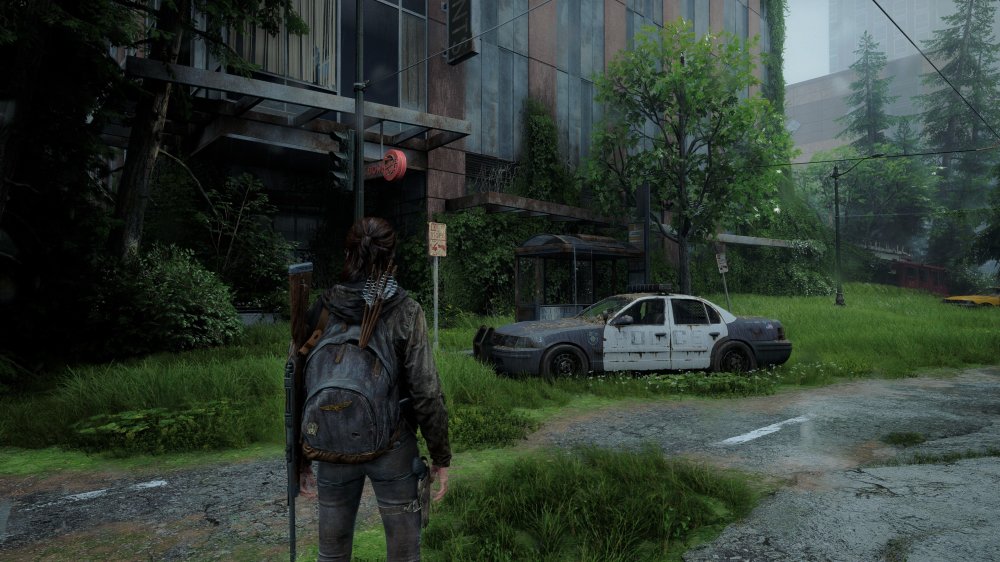
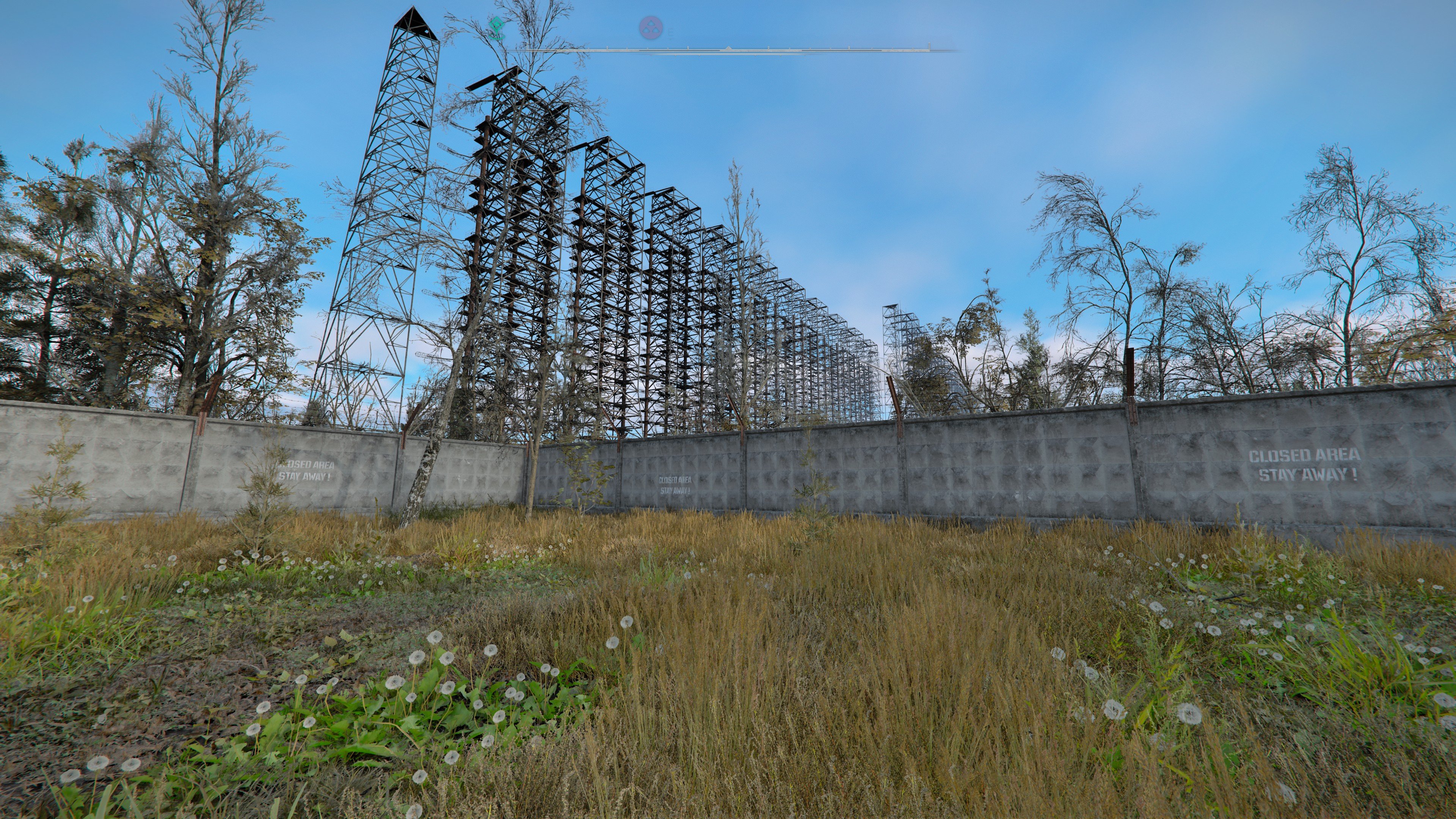
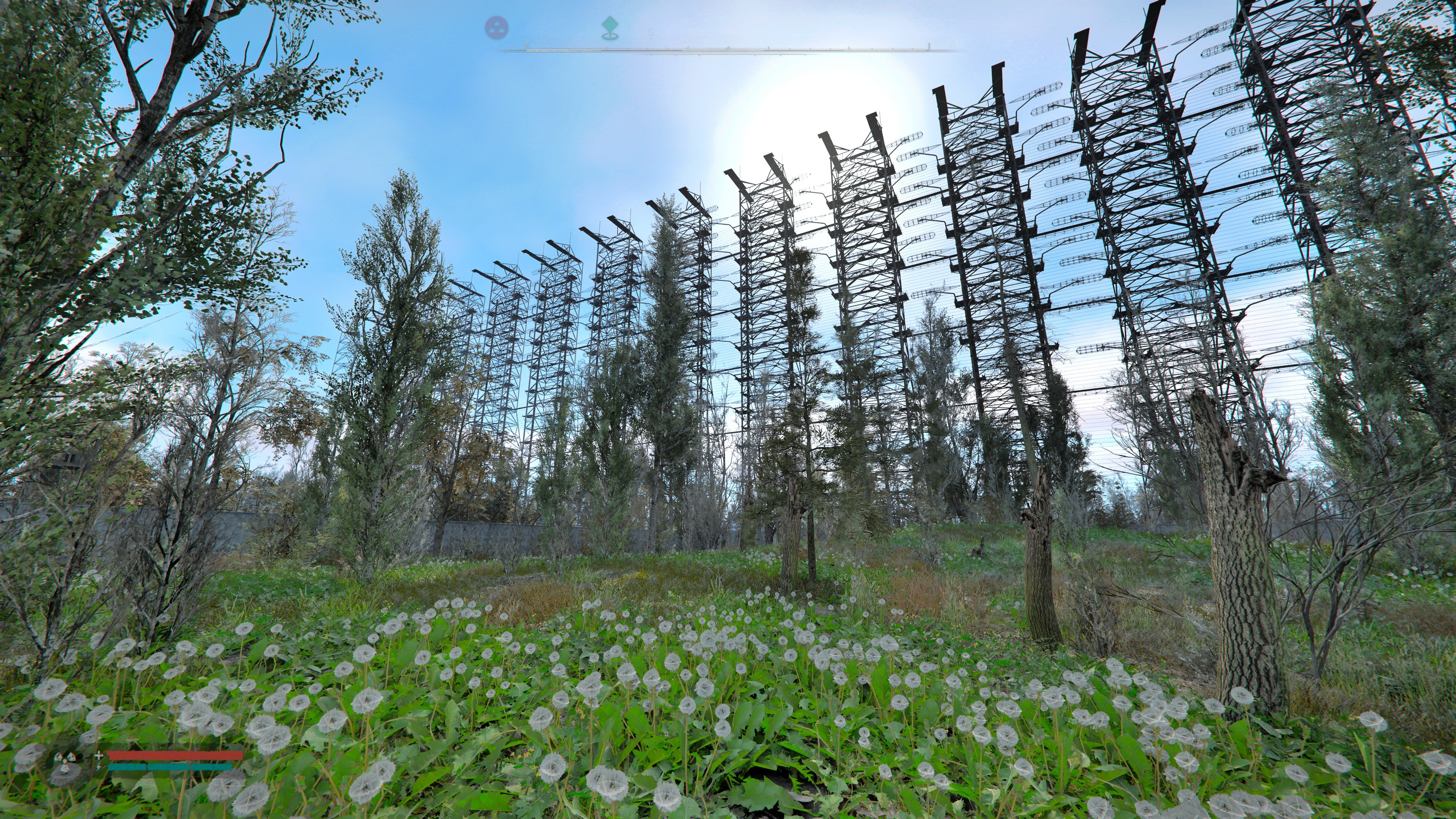
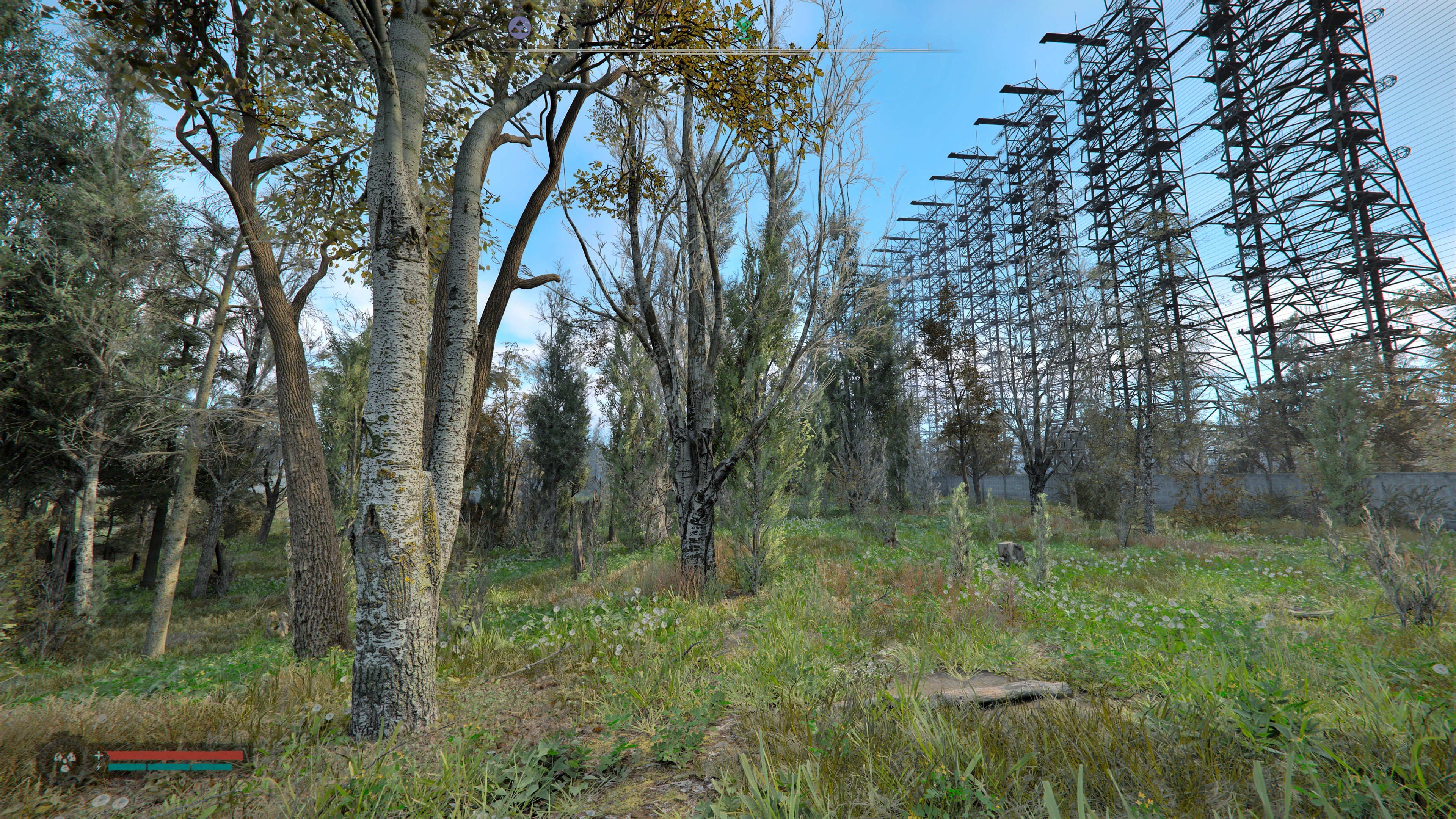
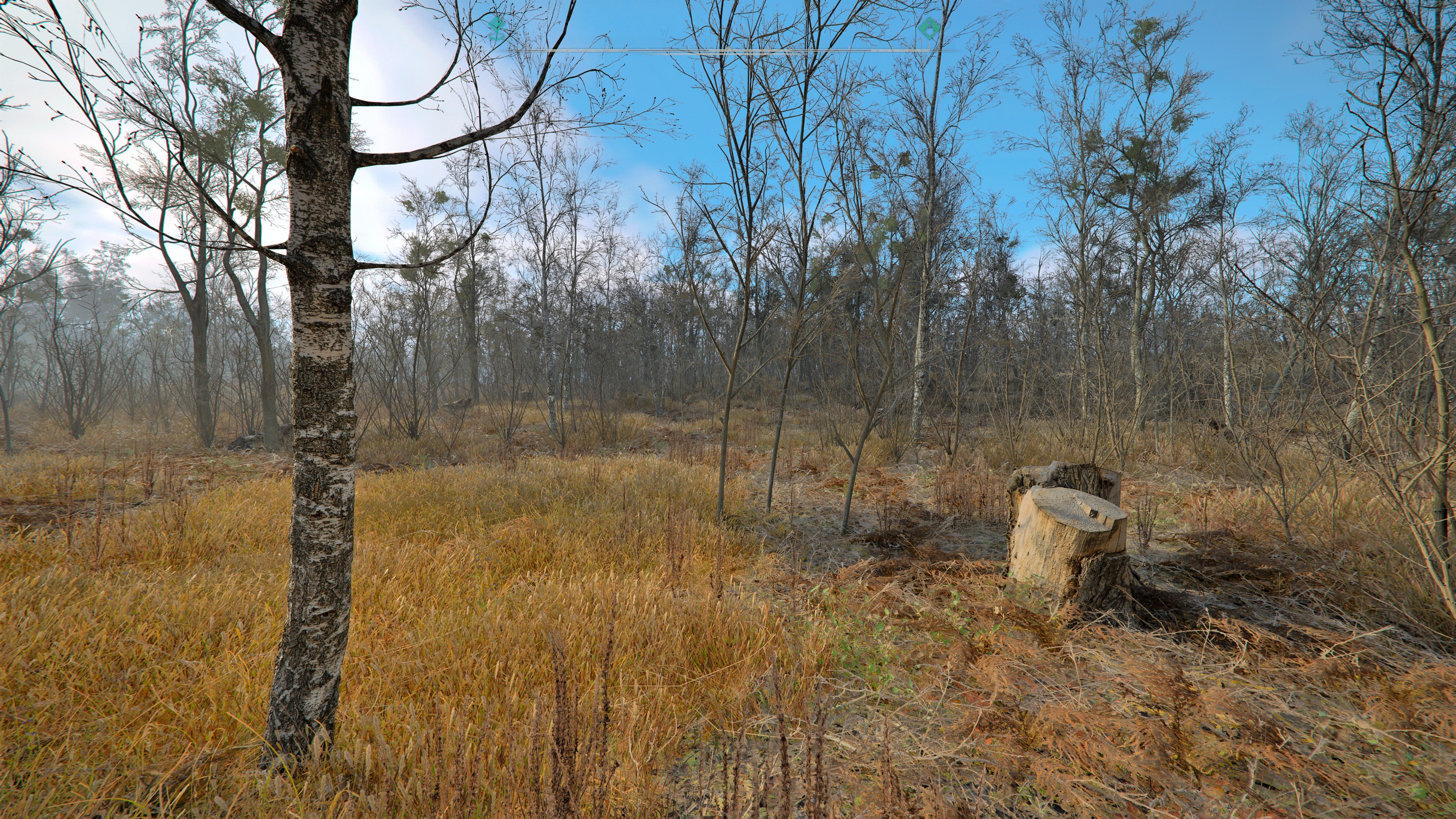
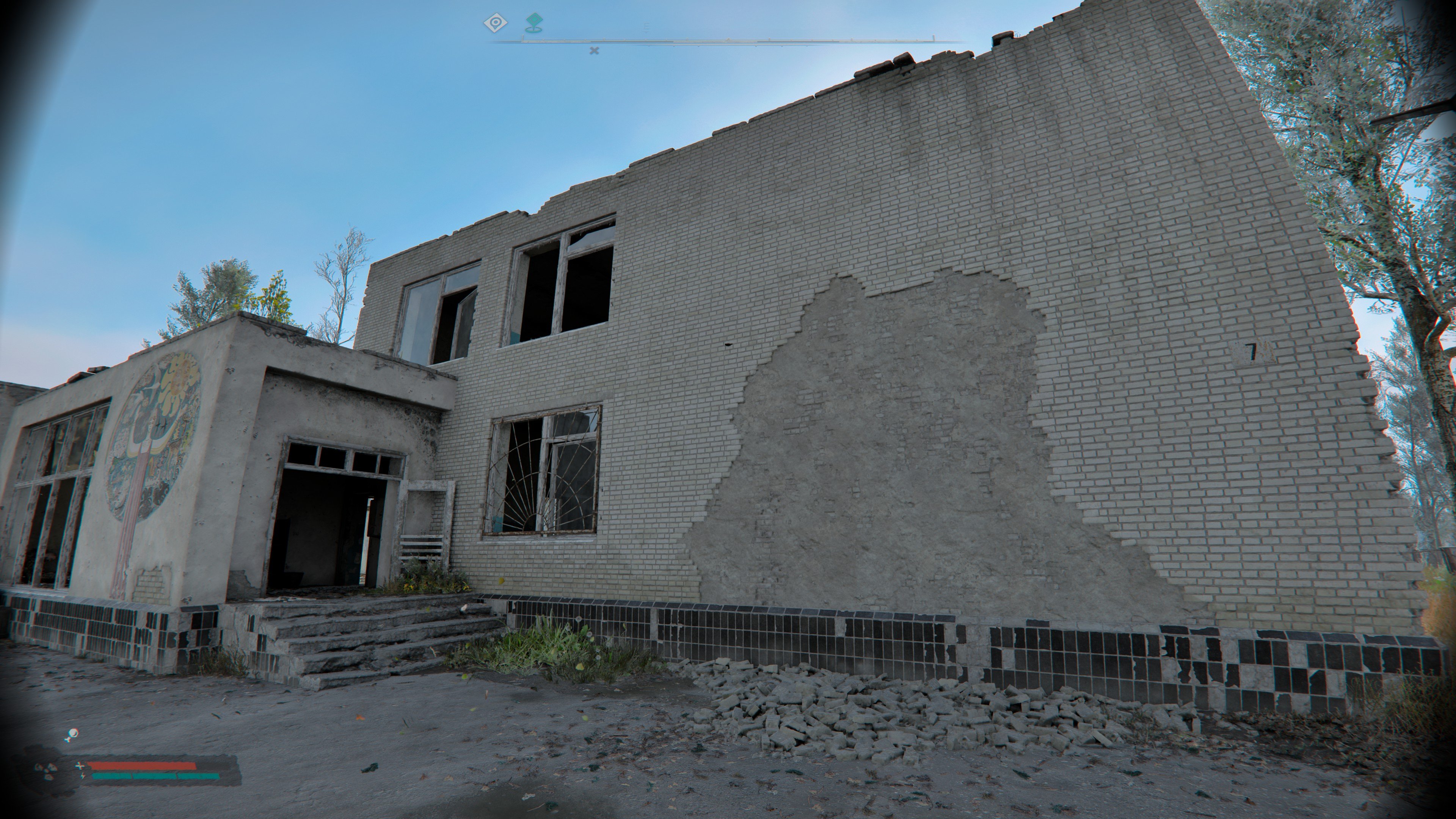
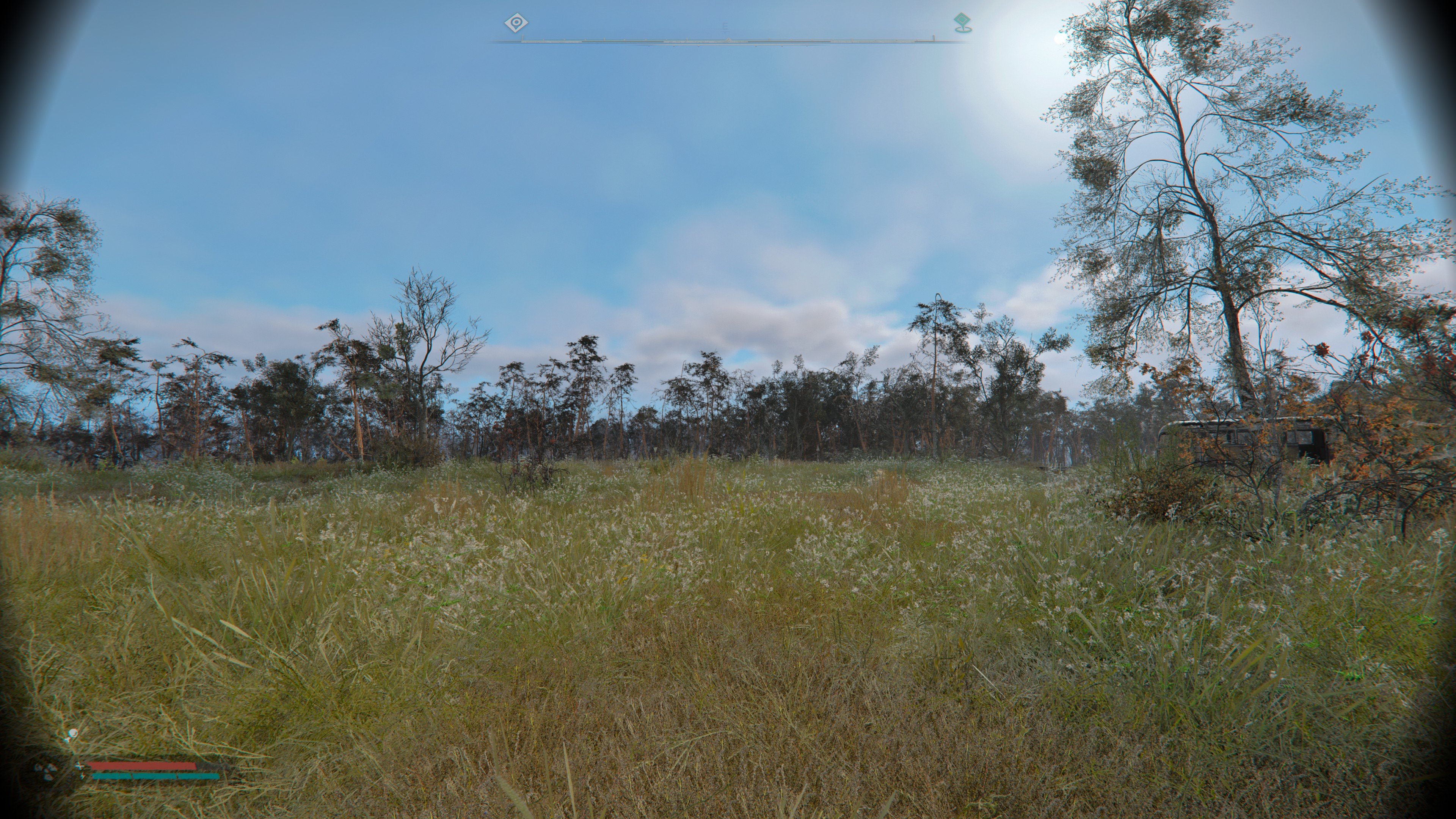
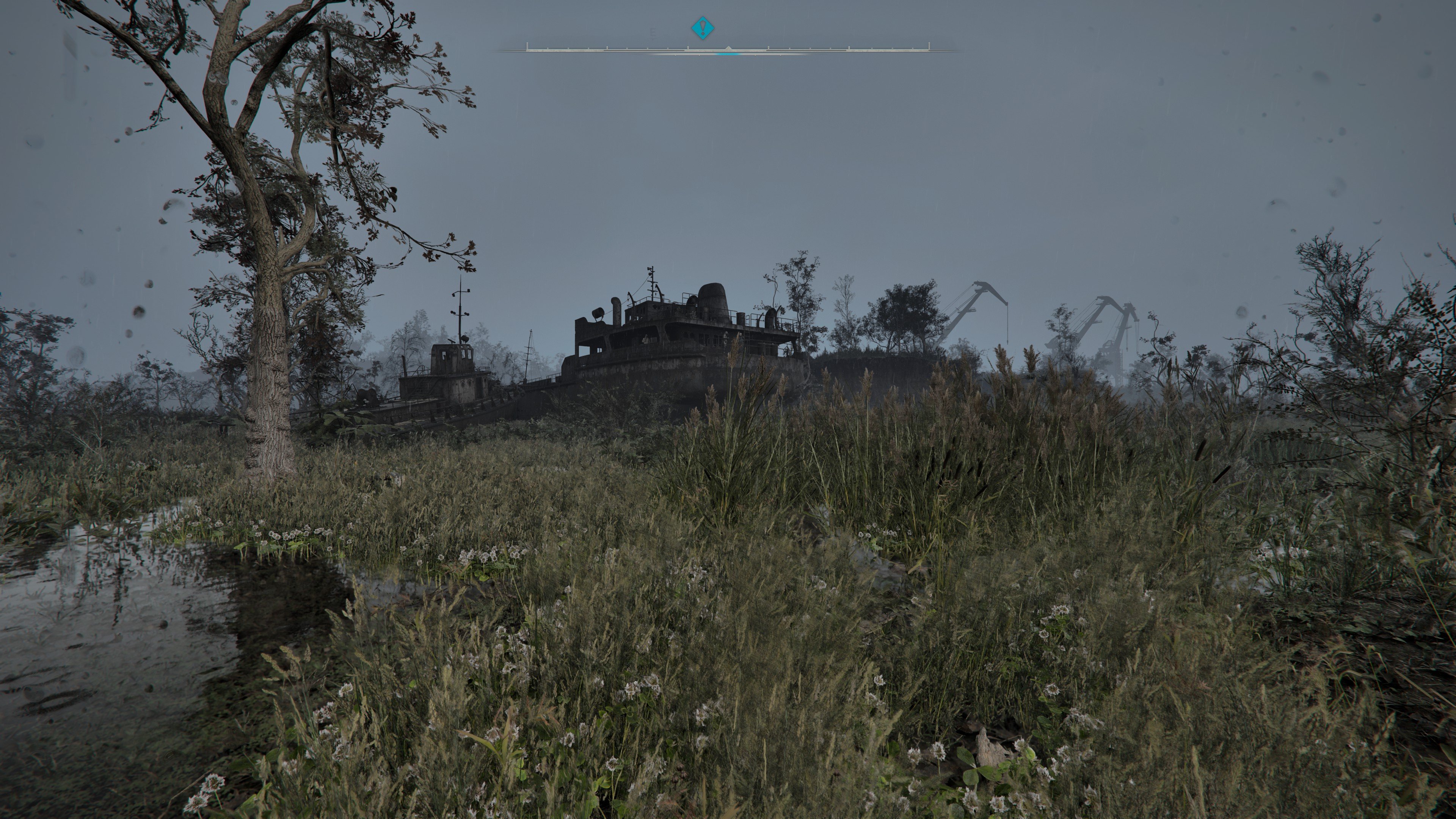
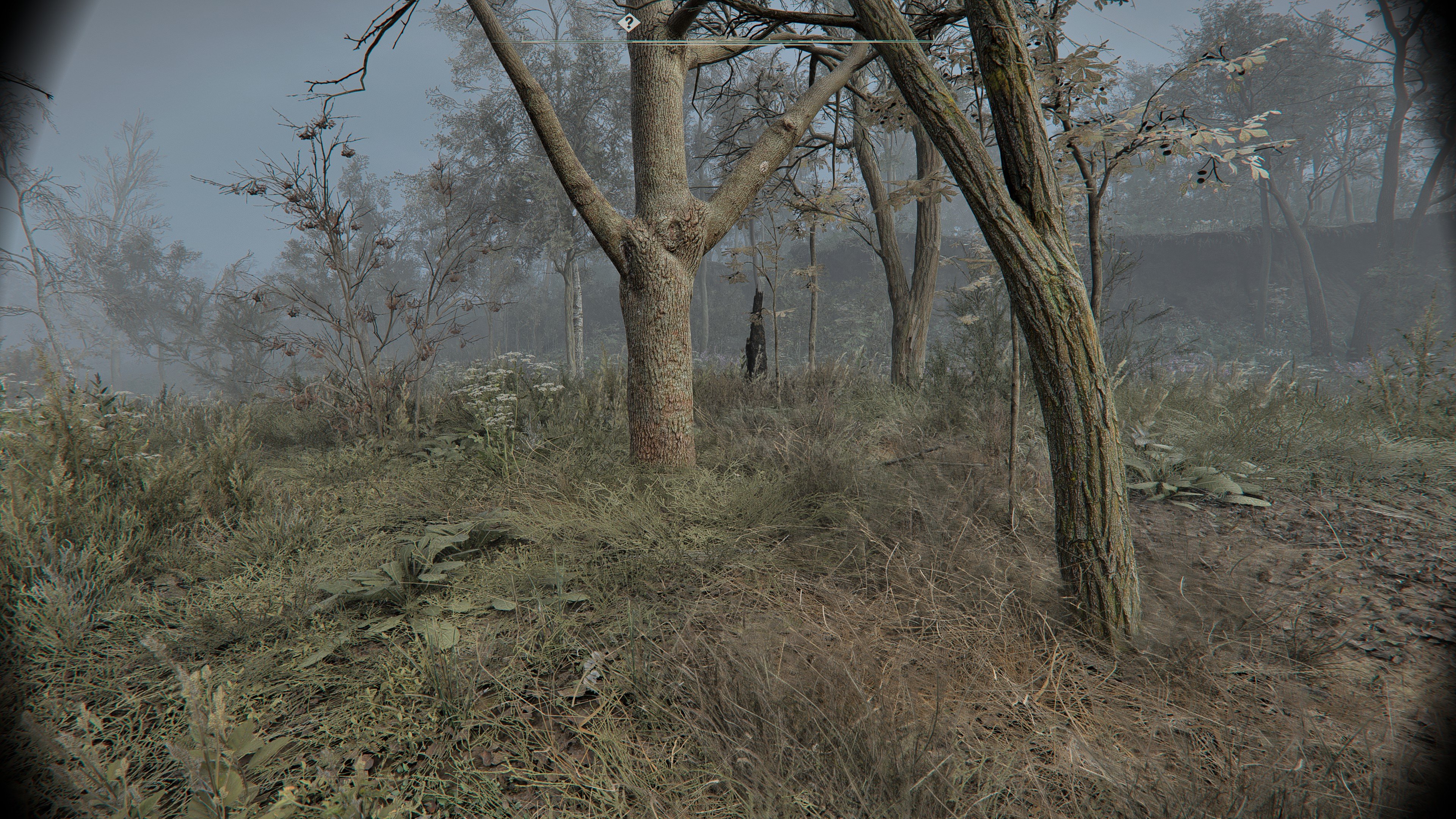
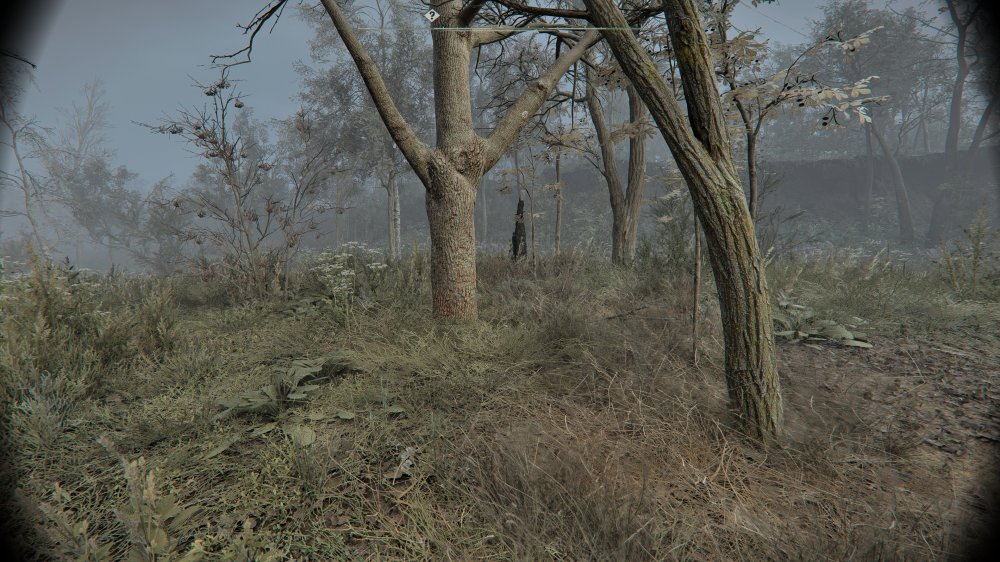
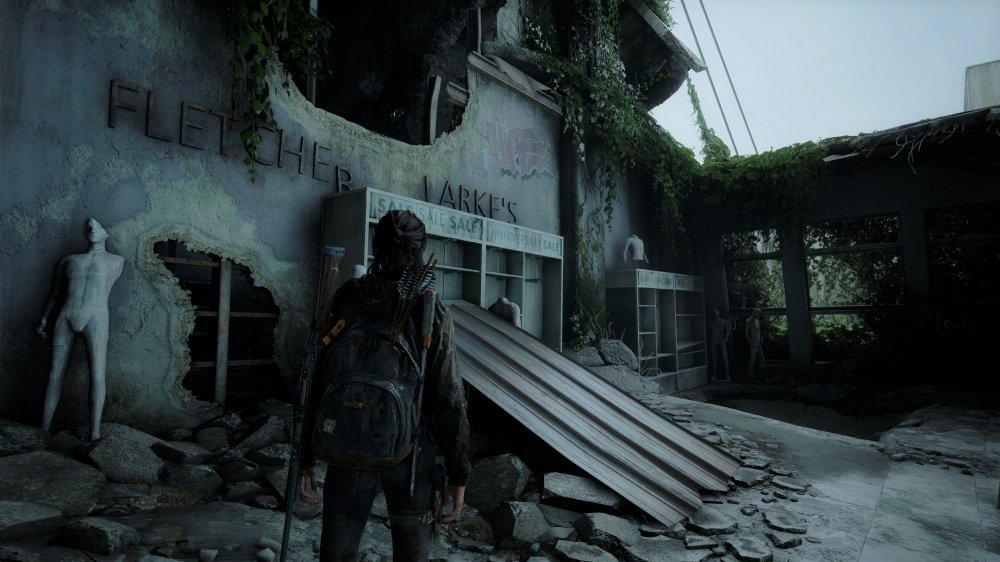 Sprawdziłem z ciekawości ile płaciłem za RAMy pod koniec 2023 i było to dokładnie 519 zł. Dzisiaj te same kosztują tyle... https://www.x-kom.pl/p/1340982-pamiec-ram-ddr5-lexar-32gb--2x16gb--6000-cl30-ares-rgb.htmlA takie bezprzewodowe elektryczne dmuchawy nadają się?STALKER 2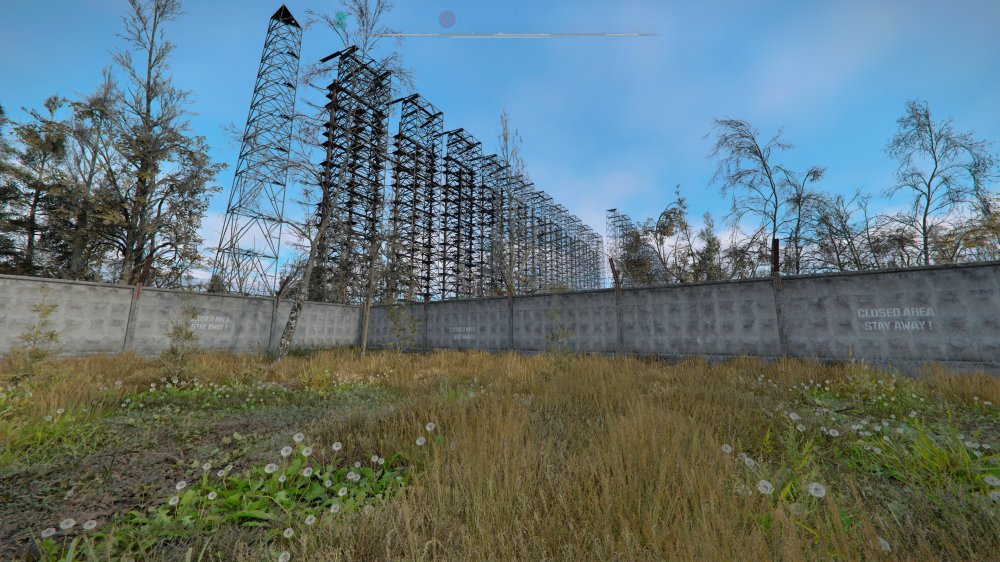
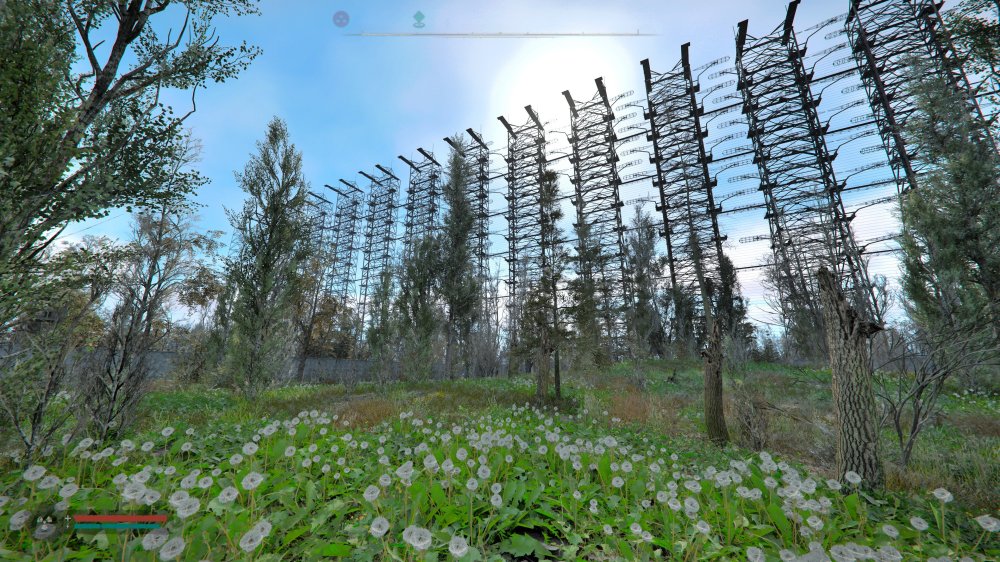
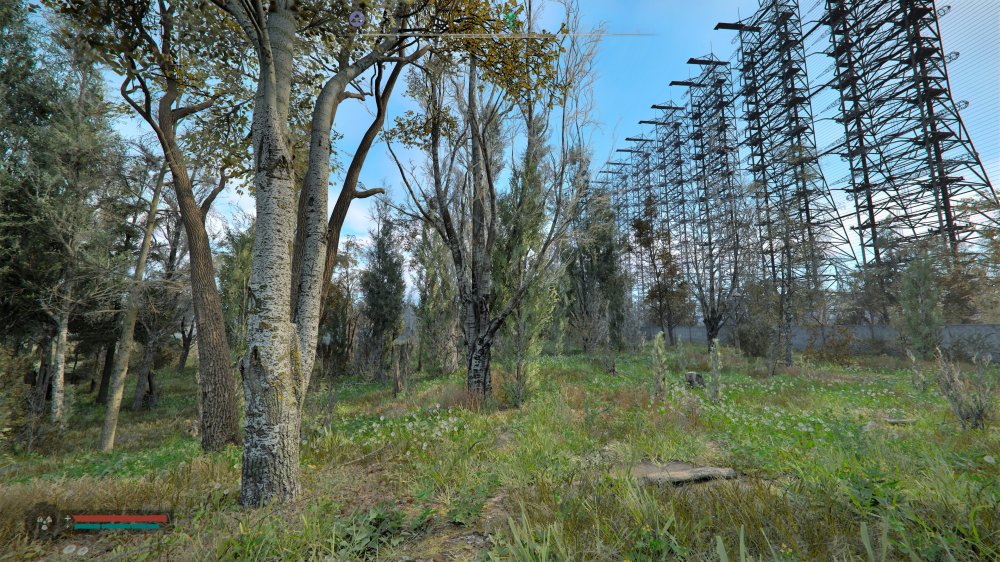
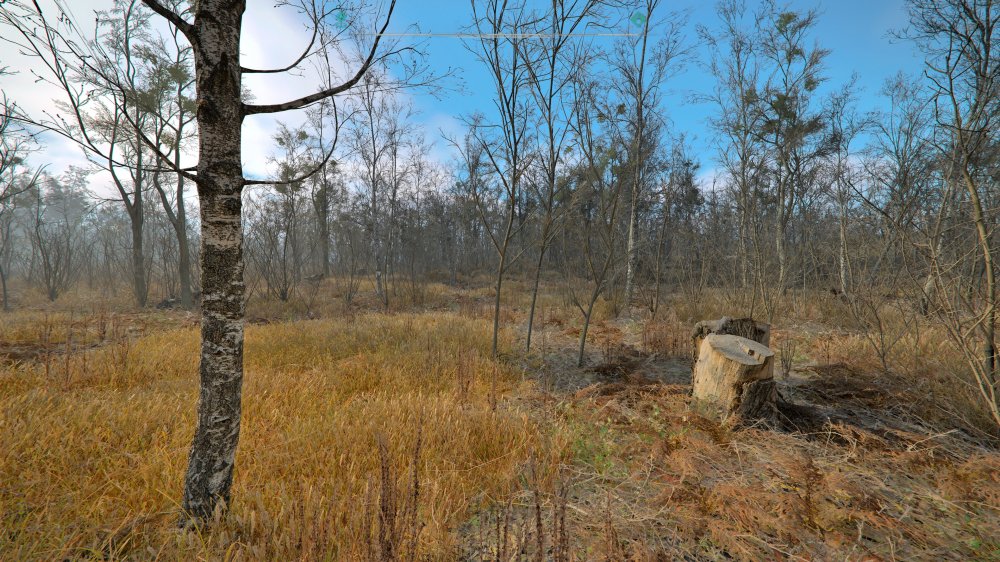
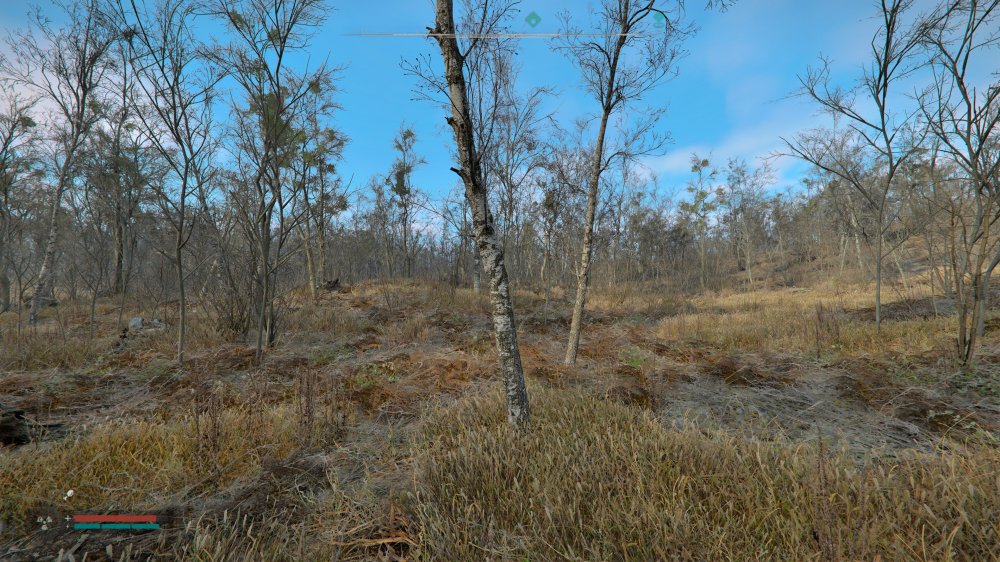
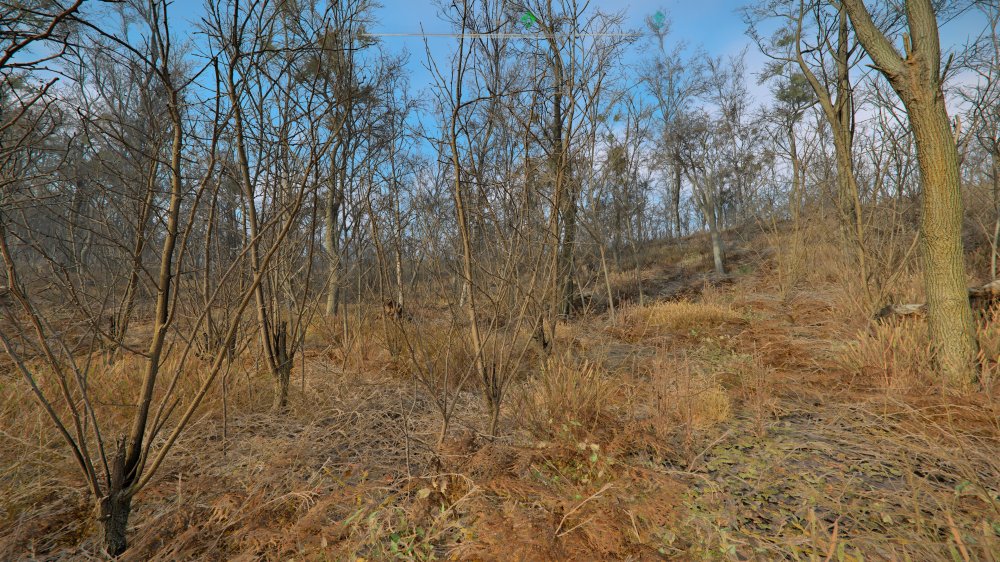
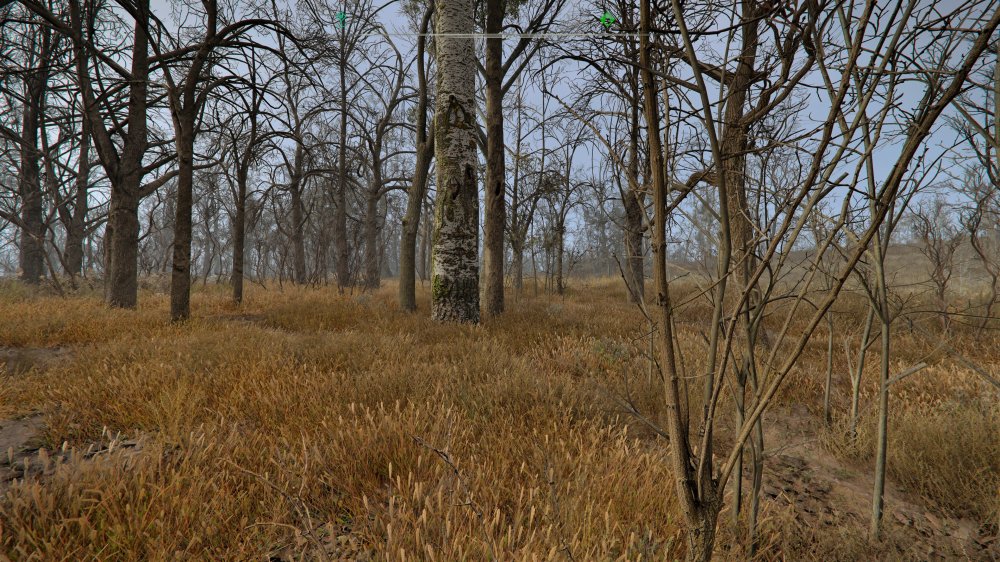
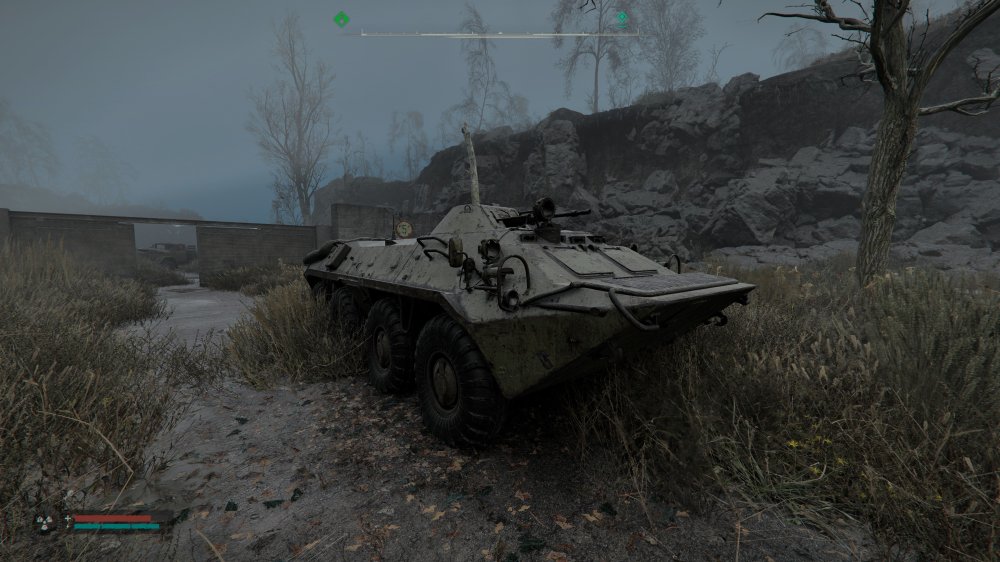
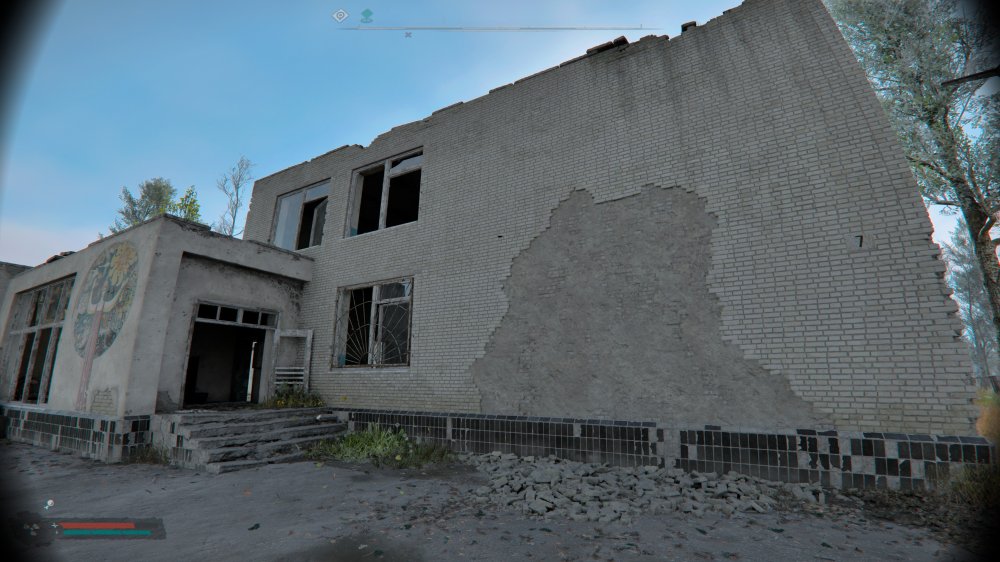
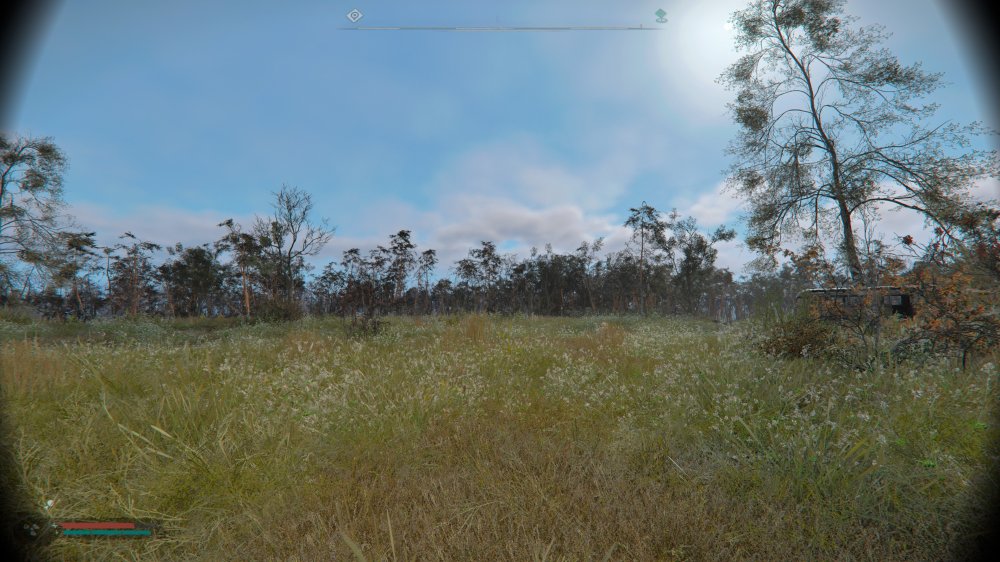
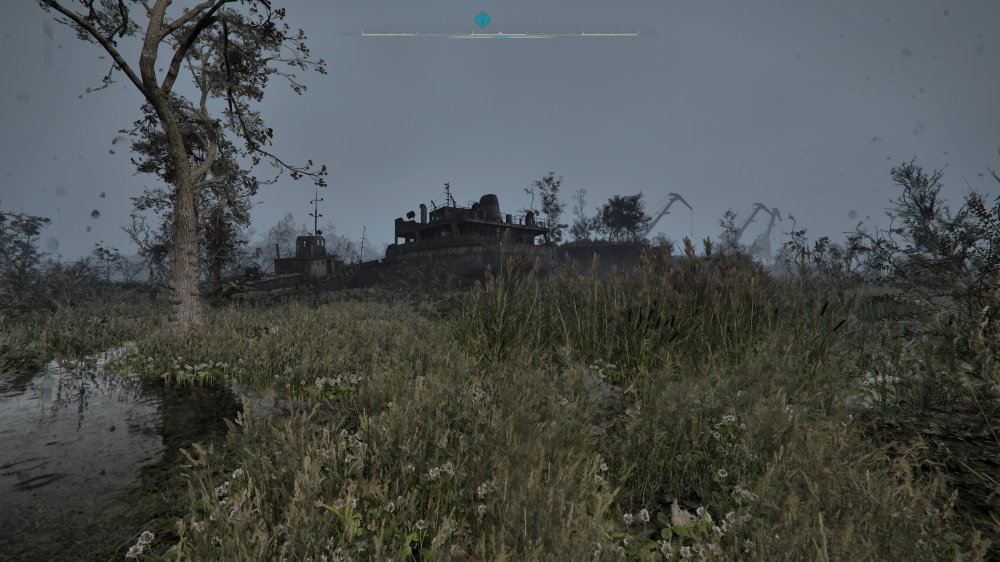
 Pro już chodzi po 4,5k, ciekawe od jakiej kwoty będzie startować PS6 bo nie zanosi się na szybką poprawę sytuacji...No ten portal jak zawsze w formie...Na PC polecam tego moda, bo HDR w vanilli jest nieco zepsuty, za dużo mleka w ciemnych obszarach. Można to w bardzo prosty sposób poprawić reshadem.ale ten mod jest po prostu dedykowany dla HDR-u. https://www.nexusmods.com/assassinscreedblackflagresynced/mods/42?tab=description